EasyManua.ls Logo

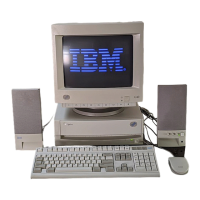
IBM Aptiva - User Manual

IBM Aptiva
2 pages
Print Icon
To Next Page IconTo Next Page
Loading...
The voltage selector switch should be preset for your area; however, contact your
local power company if you are uncertain of the voltage for your area.
• If the voltage supply range in your area is 100-127V, set the voltage selector switch
so you can see 115V or 115.
• If the voltage supply range in your area is 200-240V, set the voltage selector switch
so you can see 230V or 230.
Connect the power cords to the computer and monitor first, and then connect the
power cords to the electrical outlets. For clarity, only the power cords are shown in
this picture.
1. Unpack your Aptiva
®
PC
Power cord
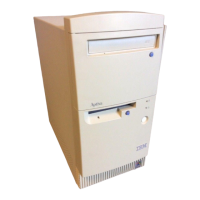
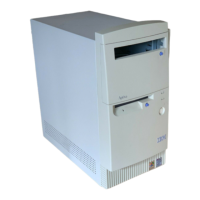
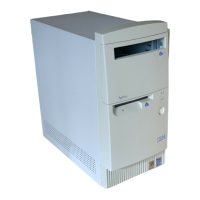
System unit
(minitower or microtower)
Keyboard Monitor with stand you attached
(may be sold separately)
Mouse Printer (sold separately)
Modem cord Publications and CD-ROMs
Locate the following items:
Attach components to the computer as shown.
If you need setup instructions for components that are not shown here, refer
to the back of this sheet or the instructions that came with the component.
Speakers
(powered or unpowered)
3. Connect Power cords
Note: Note:
Note: Note:
Note: Most cable connectors are color-coded to match the location
at the back of the system unit where you connect the cable.
Read “Safety information” in the
Aptiva Reference Guide
to learn
about connecting cables.
For machine type 2170, incorrectly installing speakers other than those
originally shipped with your Aptiva PC could cause permanent damage to
your speakers. Look in Aptiva Help for information about installing amplified
speakers.
or
(Continued on back)
Speaker power adapter
(provided with powered speakers only)
2. Connect the system components
Note: Note:
Note: Note:
Note: If your computer has a power switch on the back of the computer, press it in
the ON position (1=ON).
Speaker power adapter
(provided with powered
speakers only)
The back of your
speaker looks like
one of the two
speakers shown
in this picture.
Setup of a home
PNA network card
(available on
some models) is
shown on the
back of this sheet.
Power switch
Voltage selector switch

Other manuals for IBM Aptiva

Questions and Answers

  • M
    Marc BrownSep 13, 2025
    Why is application not active when I turn the IBM Desktop on to resume working?
    • R
      Rebecca GordonSep 13, 2025
      If an application is not active when you turn on your IBM Desktop to resume working, restart the application. Some applications will not operate correctly with Rapid Resume.
  • C
    curtis29Sep 12, 2025
    What to do if I pressed the on/off button on the IBM Desktop, but the computer has not turned off after 5 minutes?
    • B
      brooksjosephSep 12, 2025
      If you pressed the on/off button on the system unit of your IBM Desktop, but the computer has not turned off after 5 minutes, check your Services and Support Guide for information on obtaining service.
  • P
    Peter JacksonSep 12, 2025
    Why when I turn on the IBM Desktop, the desktop is not as I left it?
    • T
      Tyler RiveraSep 12, 2025
      If, when you turn on your IBM Desktop, the desktop is not as you left it: 1. Ensure no one else has used the computer and changed the desktop. 2. Check that Rapid Resume is enabled. 3. Choose Rapid Resume from the Configuration/Setup Utility main menu, and ensure the APM BIOS Mode option is set correctly for your operating system: * OS/2 Warp: “16” or “32 Bit Protected”. * Windows: “32 Bit Protected”. * OS/2 2.1: “16 Bit Protected”. 4. If you are working in Windows, check that “POWER.EXE” is in the CONFIG.SYS file (make sure “REM” does not appear in front of “POWER.EXE”).
  • A
    Amy MirandaSep 9, 2025
    Why do I hear 3 beeps when I turn the IBM Desktop computer off?
    • O
      Omar TateSep 9, 2025
      If you hear 3 beeps when you turn off your IBM Desktop computer: * If you installed new software and are working in OS/2 Warp: * Make sure the icon for the PS1PFIUS file is in the Startup folder. * Ensure the following line is in the PS1PFIUS.BAT file, without “REM” at the beginning: C:\PS1TOOLS\PS1PFIUS.EXE * If you are working in Windows, ensure the following line is still in the AUTOEXEC.BAT file, without “REM” at the beginning: C:\PS1TOOLS\PS1PFILE. Installing new software sometimes changes this file.
  • V
    Victoria BennettSep 7, 2025
    Why does my IBM Desktop show a picture indicating a diskette should be inserted into drive A?
    • C
      chasecharlesSep 8, 2025
      If the computer is turned on and a picture appears indicating a diskette should be inserted into drive A on your IBM Desktop: 1. Choose Start Options from the Configuration/Setup Utility main menu and ensure that Startup devices are set correctly. 2. Make sure the drive power and signal cables are securely attached to the back of the hard disk drive. 3. Insert the Recovery diskette into drive A and press F1. Follow the on-screen instructions to restore the operating system files to your computer’s hard disk. 4. If you cannot restore the operating system files or if you did not make a Recovery diskette, check your Services and Support Guide for information on obtaining service.
  • D
    Desiree McintoshAug 23, 2025
    What to do if IBM Aptiva Desktop screen is black with multiple beeps?
    • D
      daniel00Aug 23, 2025
      If you see a black screen and hear multiple beeps during the self-test of your IBM Desktop, ensure that any recently installed memory modules or adapter cards are correctly installed.
  • J
    Jermaine RaySep 5, 2025
    How to fix if I can’t send information (write) to diskette on IBM Desktop?
    • P
      padillazacharySep 6, 2025
      If you can’t send information (write) to a diskette using your IBM Desktop, try the following: 1. Ensure you are using the correct type of diskette and that it is formatted correctly. 2. Make sure the diskette is not write-protected. 3. Verify you are sending information to the correct drive. 4. Ensure there is enough space on the diskette. Try using a blank, formatted diskette. 5. Check that the drive power and signal cables are securely attached to the back of the drive.
  • J
    Jonathan RichardsonSep 4, 2025
    What to do if I can’t read information on diskette or CD on my IBM Desktop?
    • D
      danielkaneSep 5, 2025
      If you can’t read information on a diskette or CD with your IBM Desktop, try these steps: 1. Make sure you are using the correct type of diskette and that it is formatted correctly. 2. Ensure the diskette or CD is inserted correctly into the drive. 3. Check that the CD is clean and not scratched. 4. Try reading a known good diskette or CD. If it works, the first diskette or CD is damaged. If the good diskette or CD can’t be read, there may be a problem with your drive. 5. Make sure the drive power and signal cables are securely attached to the back of the drive.
  • D
    Dr. Clayton Jones IISep 4, 2025
    Why does my IBM Desktop computer automatically turns off instead of entering Standby?
    • C
      Courtney ScottSep 4, 2025
      If your IBM Desktop computer turns off automatically instead of entering Standby, make sure the Standby timer is set to a shorter duration than the Automatic Power Off timer.
  • D
    dominicturnerSep 3, 2025
    How to resolve modem/communications errors on IBM Desktop?
    • H
      Heather GarciaSep 3, 2025
      If you are experiencing modem or communications errors with your IBM Desktop, try the following: 1. Make sure the telephone cord is securely plugged into both the telephone outlet in the wall and the system unit. 2. Verify the telephone line is working by plugging a working telephone into the same outlet and making a call. 3. Ensure you are calling the correct number and using the correct communications settings. 4. Confirm that no one is using the telephone while you are communicating with another computer. 5. If some communications programs work while others do not, there might be a configuration problem. 6. Make sure your modem cord is connected to an analog telephone line. 7. Ensure the modem adapter card is installed correctly.

Summary

Unpack Aptiva PC Components

Locate Essential Items

Identifies essential computer components and peripherals to unpack from the system box.

Connect System Components

Attach Computer Components

Instructions for attaching computer components, noting color-coded connectors and safety advice.

Connect Power Cords and Voltage

Power Cord Connection and Voltage Selection

Guidance on connecting power cords to the computer and monitor, and setting the voltage selector switch.

Post-Setup Procedures

Turn On Computer and Monitor

Initial step to power on the computer and connected monitor for setup.

Complete Windows 98 Setup

Instructions for completing the Windows 98 operating system setup process.

Install Software Selections

Guide to installing additional programs from the Software Selections CD-ROM.

Connect Additional Components

Connect Peripherals and Options

Instructions for connecting optional components like microphones, modems, and network cards.

IBM Aptiva Specifications

General IconGeneral
CPUIntel Pentium
RAM8 MB to 64 MB
Operating SystemWindows 95
GraphicsS3, ATI
Optical DriveCD-ROM
PortsSerial, Parallel, PS/2
Expansion SlotsISA, PCI

Related product manuals