EasyManua.ls Logo

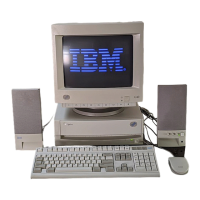
IBM Aptiva - User Manual

IBM Aptiva
2 pages
Print Icon
To Next Page IconTo Next Page
Loading...
The voltage selector switch should be preset for your area; however, contact your
local power company if you are uncertain of the voltage for your area.
• If the voltage supply range in your area is 100-127V, set the voltage selector switch
so you can see 115V or 115.
• If the voltage supply range in your area is 200-240V, set the voltage selector switch
so you can see 230V or 230.
Connect the power cords to the computer and monitor first, and then connect the
power cords to the electrical outlets. For clarity, only the power cords are shown in
this picture.
1. Unpack your Aptiva
®
PC
Power cord
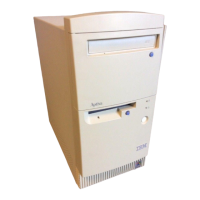
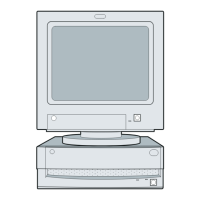
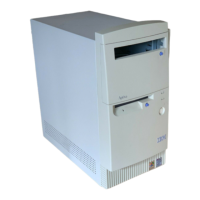
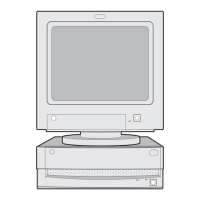
System unit
(minitower or microtower)
Keyboard Monitor with stand you attached
(may be sold separately)
Mouse Printer (sold separately)
Modem cord Publications and CD-ROMs
Locate the following items:
Attach components to the computer as shown.
If you need setup instructions for components that are not shown here, refer
to the back of this sheet or the instructions that came with the component.
Speakers
(powered or unpowered)
3. Connect Power cords
Note: Note:
Note: Note:
Note: Most cable connectors are color-coded to match the location
at the back of the system unit where you connect the cable.
Read “Safety information” in the
Aptiva Reference Guide
to learn
about connecting cables.
For machine type 2170, incorrectly installing speakers other than those
originally shipped with your Aptiva PC could cause permanent damage to
your speakers. Look in Aptiva Help for information about installing amplified
speakers.
or
(Continued on back)
Speaker power adapter
(provided with powered speakers only)
2. Connect the system components
Note: Note:
Note: Note:
Note: If your computer has a power switch on the back of the computer, press it in
the ON position (1=ON).
Speaker power adapter
(provided with powered
speakers only)
The back of your
speaker looks like
one of the two
speakers shown
in this picture.
Setup of a home
PNA network card
(available on
some models) is
shown on the
back of this sheet.
Power switch
Voltage selector switch

Other manuals for IBM Aptiva

Questions and Answers

  • B
    Brian HernandezSep 2, 2025
    What to do if I can’t enter password on my IBM Desktop?
    • L
      Lindsey BakerSep 2, 2025
      If you can’t enter your password on your IBM Desktop, follow these steps: 1. Double-check that you are typing the correct password. 2. Ensure the keyboard cable is correctly and securely connected to the keyboard port (not the mouse port) on the back of the system unit. The keyboard port has a symbol next to it. 3. If you have forgotten your password, check your Services and Support Guide for information on obtaining service.
  • W
    William KleinSep 1, 2025
    How to fix IBM Desktop mouse that does not move the cursor?
    • J
      Jennifer Valenzuela PhDSep 1, 2025
      If the mouse does not move the cursor on your IBM Desktop, here’s what you can do: 1. Try using the mouse on a mouse pad. 2. Ensure that the screen you're using supports mouse functionality. 3. Verify that the mouse cable is securely connected to the mouse port (not the keyboard port) on the back of the system unit; the mouse port has a symbol next to it. 4. Clean the mouse. 5. Turn the system unit off, wait 10 seconds, and then turn it on again.
  • L
    Linda ScottAug 31, 2025
    Why doesn’t my IBM Desktop go into Standby or automatically power off when the set time has elapsed?
    • S
      Sarah MillerAug 31, 2025
      If your IBM Desktop computer doesn’t go into Standby or automatically power off when the set time has elapsed: 1. Avoid touching the mouse or keyboard and starting applications that use the hard disk (like File Manager or a Windows screen saver). These actions reset the timer. 2. If the computer doesn't automatically turn off, ensure the Automatic Power Off option is enabled in Rapid Resume or on the Rapid Resume menu of the Configuration/Setup Utility.
  • R
    Rachel HancockAug 30, 2025
    Why does my IBM Desktop keyboard doesn’t work or only some keys work?
    • B
      bfrankAug 30, 2025
      If your IBM Desktop keyboard isn’t working or only some keys work, try the following: 1. Make sure the keyboard cable is correctly and securely connected to the keyboard port (not the mouse port) on the back of the system unit. The keyboard port has a symbol next to it to help you. 2. Move your fingers across the keys to ensure none are stuck. 3. Make sure you are using a screen that allows typing, as some screens do not. 4. Turn the system unit off, wait 10 seconds, and then turn it on again.
  • O
    orobinsonAug 28, 2025
    How to fix IBM Aptiva Desktop when there is no beep during POST?
    • K
      Kelly WatersAug 28, 2025
      Make sure that the system unit of your IBM Desktop is turned on.
  • E
    Elijah KleinAug 27, 2025
    Why does my IBM Aptiva Desktop turn off without warning?
    • O
      obonillaAug 27, 2025
      If your IBM Desktop turns off unexpectedly, ensure the system unit and monitor power cords are securely plugged into electrical outlets. Also, check for blown fuses, tripped circuit breakers, or a power failure. Verify that all cables are correctly and securely connected to the system unit. If you've enabled the Standby feature, move the mouse to exit Standby. If you're using Rapid Resume with the Automatic Power Off option or the Scheduler feature, simply turn the system unit back on.
  • C
    Christian CarterAug 26, 2025
    What to do if IBM Desktop has error code, more than one beep, or continuous beep?
    • N
      Nicholas HarperAug 27, 2025
      If your IBM Desktop displays an error code, consult “Error codes, descriptions, and corrective actions” on page 52 and follow the listed action. If no error code is displayed, refer to your Services and Support Guide for service information.
  • M
    Matthew StantonAug 25, 2025
    Why can't I enter password on my IBM Desktop?
    • C
      Connor StevensAug 26, 2025
      If you are unable to enter your password on your IBM Desktop, ensure you are typing the correct password. Also, verify that the keyboard cable is securely connected to the correct keyboard port (not the mouse port) on the back of the system unit.
  • B
    bstricklandAug 25, 2025
    What to do if my IBM Aptiva Desktop turns off without warning?
    • D
      Diane EvansAug 25, 2025
      If your IBM Desktop turns off unexpectedly, here's what to do: 1. If Standby is enabled, move the mouse. 2. If Rapid Resume and Automatic Power Off are enabled, or the Scheduler feature is set to turn off the system, turn the system back on. 3. Ensure both the system unit and monitor power cords are securely plugged into electrical outlets. 4. Verify all cables are correctly and securely connected to the system unit. 5. Check for blown fuses, tripped circuit breakers, or power failures. 6. Unplug the system unit power cord, wait 10 seconds, and plug it back in. If it doesn't start, press the on/off button.

Summary

Unpack Aptiva PC Components

Locate Essential Items

Identifies essential computer components and peripherals to unpack from the system box.

Connect System Components

Attach Computer Components

Instructions for attaching computer components, noting color-coded connectors and safety advice.

Connect Power Cords and Voltage

Power Cord Connection and Voltage Selection

Guidance on connecting power cords to the computer and monitor, and setting the voltage selector switch.

Post-Setup Procedures

Turn On Computer and Monitor

Initial step to power on the computer and connected monitor for setup.

Complete Windows 98 Setup

Instructions for completing the Windows 98 operating system setup process.

Install Software Selections

Guide to installing additional programs from the Software Selections CD-ROM.

Connect Additional Components

Connect Peripherals and Options

Instructions for connecting optional components like microphones, modems, and network cards.

IBM Aptiva Specifications

General IconGeneral
CPUIntel Pentium
RAM8 MB to 64 MB
Operating SystemWindows 95
GraphicsS3, ATI
Optical DriveCD-ROM
PortsSerial, Parallel, PS/2
Expansion SlotsISA, PCI

Related product manuals