CR IMMO User Manual
31
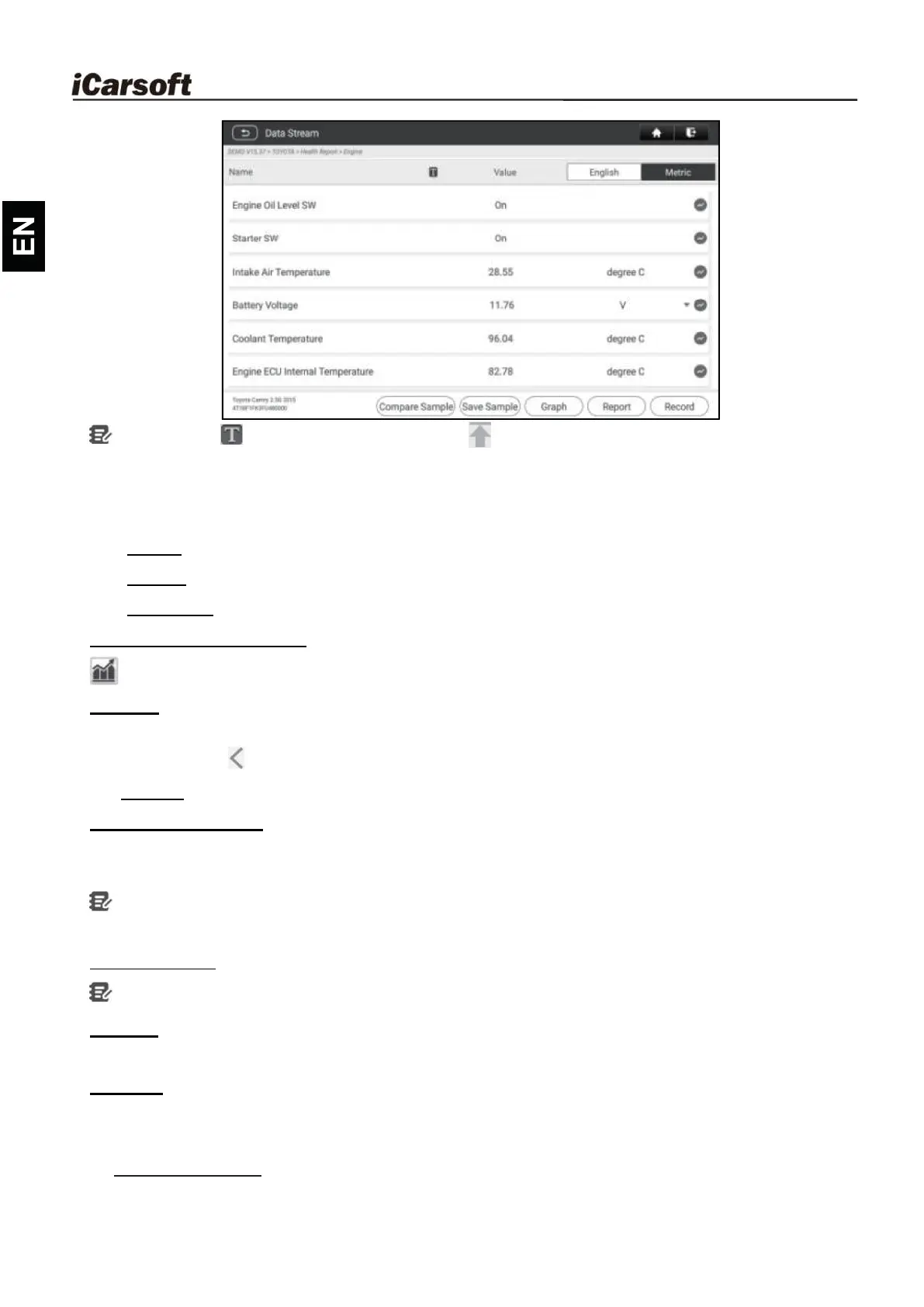
Notes: Tap to set the display style. indicates sticky top. B indicates this
item will be displayed in Bold. A indicates this item will be displayed in Red.
There are 3 types of display modes available for data viewing, allowing you to view
various types of parameters in the most suitable way.
ü
Value – Display the parameters in texts and shows in list format.
ü
Graph – Display the parameters in waveform graphs.
ü
Combine – Display the parameters in merged graph mode for data comparison.
Explanation of terms:
: View the parameter in waveform graph of the current data stream item.
Graph: View the parameters in waveform graphs of all data stream items. When in
graph mode, the following operations are supported:
Combine / : Combine different data stream items for data comparison.
Value: View the parameters in text format.
Compare Sample: Select the sampled data stream file. All the values you
customized and saved in process of data sampling will be imported into the
Standard Range column for your comparison.
Note: Before executing this function, you have to sample the values of data stream items
and save it as a sample Data Stream file.
Save Sample: Save the running parameters as a data stream sample file.
Note: Only data stream items with measurement units will be recorded.
Report: Tap to save the current data in text format. All reports are saved in
Reports -> Diagnostic.
Record: Tap to start recording diagnostic data. Recorded live data can serve as
valuable information to help you in troubleshooting of vehicle problems. All
diagnostic records can be replayed from Reports -> Datastream.
E. Actuation Test
This option is used to access vehicle-specific subsystem and component tests.



 To Next Page