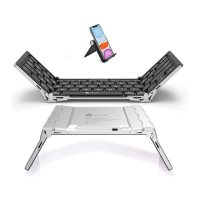
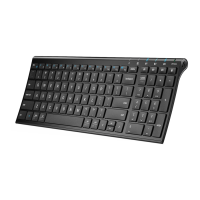
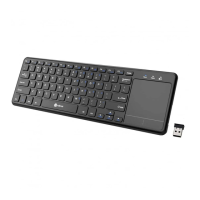
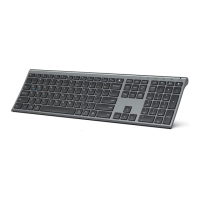
The output does not match the key symbols
For Windows/iOS/Mac OS users
Please ensure your input method corresponds to the keyboard layout. For example, if you are
using a English(US) keyboard, please choose the English(US) input method. If you have it this way
but the problem still persists, please
keep us updated.
For Android users
Please ensure your input method corresponds to the keyboard layout by setting the Virtual
Keyboard and the Physical Keyboard on your device.
1. Virtual Keyboard:
Step 1: Find the language-switching button which is usually represented by a globe icon on the
virtual keyboard.
Step 2: Choose your language from the virtual keyboard. This will change the virtual keyboard
layout to match your language.
2. Physical Keyboard:
Step 1: Go to the Settings menu on your device.
Step 2: Find and choose "Language and Input" on your android device. You may need to follow a
slightly different path depending on the brand of your device.
Step 3: Find the option related to the physical keyboard settings and choose your language layout
for your physical keyboard.
Touchpad issues
Touchpad not working
Possible solution for not-working touchpad:
1. Press “Fn+right Alt” to activate the touchpad.
2. If it doesn’t make a difference, please reset the keyboard by pressing "fn+left
shift+backspace" for 5 seconds.
3. Remove the Bluetooth record of the keyboard from your device's Bluetooth list. Turn off


 To Next Page