12
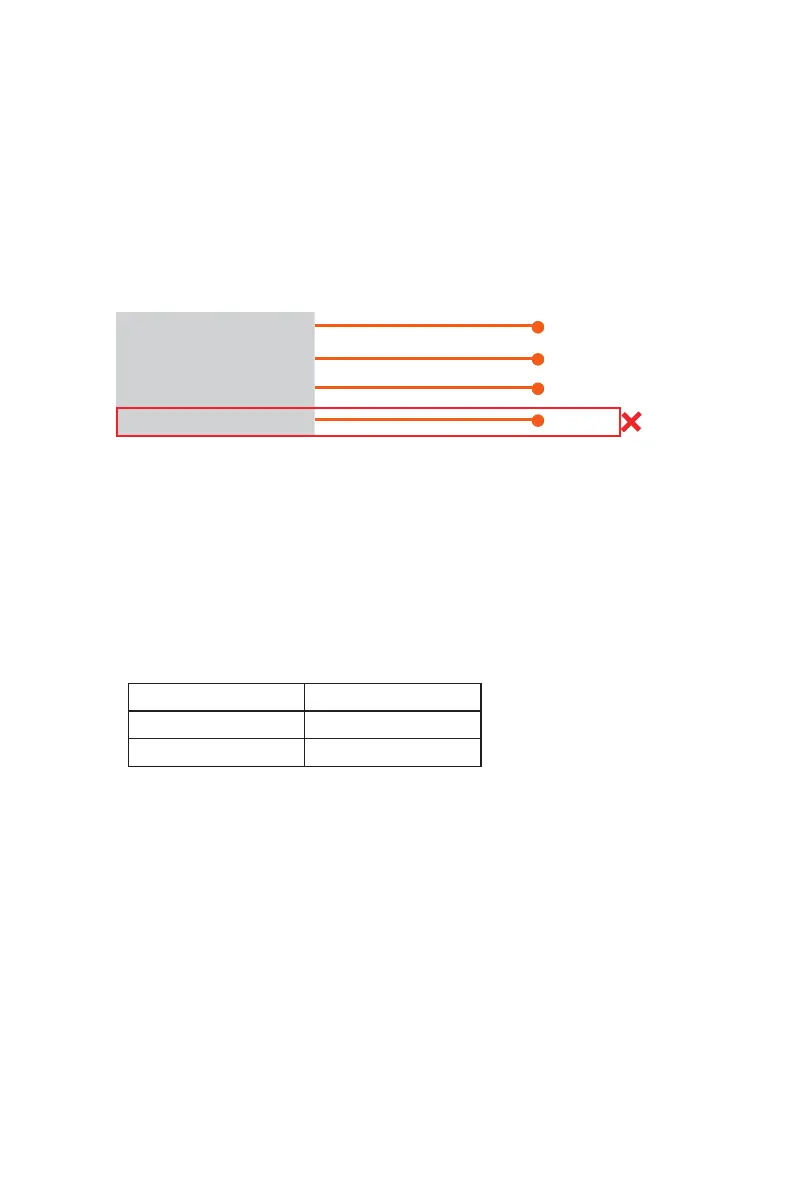
Note: MIDI port 4 is used by the iCON Pro Audio software, iMAP
(TM)
, to change the
three DAWs you use, to update rmware and to program the 16 panel touchscreen
with the functions of your choice.
These four options will appear as a menu from which you can select your chosen
DAW.
So, remembering our examples of;
DAW #1 Bitwig
DAW #2 Cubase
DAW #3 Logic
We know that we need to select 'P1-X V1.01' (or whichever rmware version it is*),
in Bitwig because that is the DAW we have chosen to be DAW #1 on the P1-M.
When you press DAW #1 on the P1-M unit, the P1-M
and
P1-X will automatically go
into Bitwig mode.
In our example, Cubase is our second DAW, so when we are conguring our DAW
to work with the P1-X, we will need to select 'MIDIIN2 (P1-X V1.01)' or whichever
rmware version it is*) in the menu. When the P1-X is set up as a Mackie control
device in Cubase, whenever we press '2' in the DAW Controller selection section on
the P1-M, the P1-M and P1-X will automatically select Cubase.
The same applies for Logic, although this time we are going to select 'MIDIIN3 (P1-X
V1.01)' (or whichever rmware version it is*) to automatically select this DAW.
Since you will have allocated 3 DAWs within the P1-M iMAP, you will need to
congure those DAWs so that the P1-X recognizes them and the DAW/s recognize
the P1-X, along with the P1-M. This is done is the same way as the P1-M. In some
DAW's you might add the P1-X as another instance of 'Mackie Control', in others
you may need to add the P1-X as a 'Mackie extender'. Please refer to your DAW
manufacturer's manual if in doubt.
This is the basic principle of how to add the P1-X extender;
Setting up the P1-X in the DAWs
iCON P1-X V1.01 DAW #1
MIDIIN2(P1-X V1.01) DAW #1
MIDIIN3(P1-X V1.01) DAW #1
MIDIIN4(P1-X V1.01) iMAP


 To Next Page