49
Click the "Upgrade" button to upgrade the rmware, and wait until its
completion.
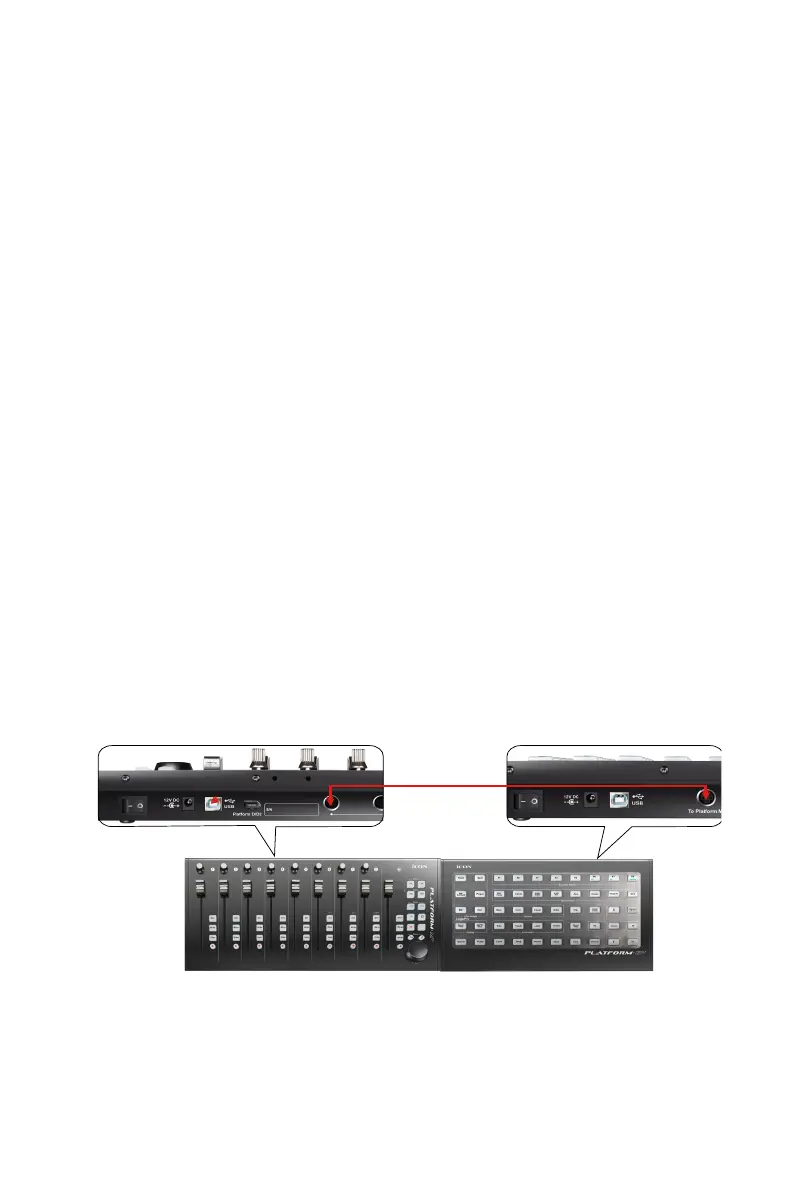
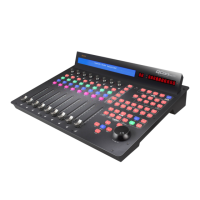
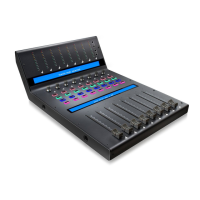
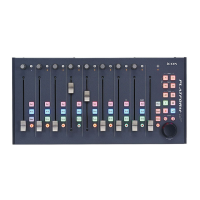
You to connect up to three dedicated platform serise control modules such as
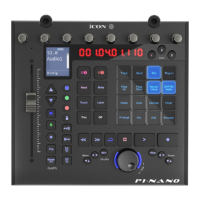
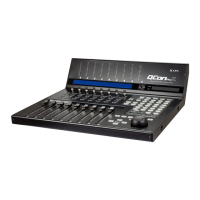
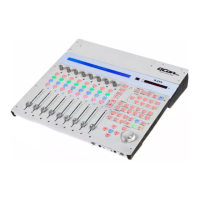
Platform B+ to the these extension ports. These modules will be recognized as
Platform M+ in your DAW setting as Platform M+.
Note:
Connecting expansion modules
Platform M+ & Platform B+
Platform X+ has equipped its own USB connection for connecting to
the PC/Mac directly.
Restore the factory default settings
To restore your Platform M+ settings to factory default, simply launch iMap and
import the original setting (i. e. without making any changes) to the device by the
following steps.
1. Connect Platform M+ with the provided USB cable and launch iMap software.
2. Click the “Connect” button and select “Platform M+” as the MIDI input and
output device.
Note: If Platform M+ does not appear on the pull down menu, select USB
audio as the MIDI I/O device.
3. Click “Send Data” to upload the setting to your Platform M+.
4. Close iMap, and then turn the Platform M+ power of off & on again.


 To Next Page