EasyManua.ls Logo

ICON PRO-FORM SPORT CX - User Manual

ICON PRO-FORM SPORT CX
28 pages
Print Icon
To Next Page IconTo Next Page
Loading...
Model No. PFEX33921.0
Serial No.
Write the serial number in the space
above for reference.
CAUTION
Read all precautions and
instructions in this manual before
using this equipment. Keep this
manual for future reference.
Serial
Number
Decal
USER’S MANUAL
proform.com
To register your product and
activate your warranty today,
go to my.proform.com.
For service at any time, go to
support.proform.com.
Or call 1-833-680-IFIT
(1-833-680-4348)
Mon.–Fri. 6 a.m.–6 p.m. MT
Sat. 8 a.m.–12 p.m. MT
Please do not contact the store.
ACTIVATE YOUR
WARRANTY
MEMBER CARE

Questions and Answers

Summary

Warning Decal Location and Replacement

Important Safety Precautions

Assembly Guide

Using the Exercise Bike

Adjusting Saddle Post Height

Procedure for setting the correct saddle height for effective exercise.

Adjusting the Handlebar

Steps to adjust the handlebar height and horizontal position for user comfort.

Brake Knob Operation

How to change resistance and stop the flywheel using the brake knob.

Console Operation

Console Manual Mode

Guide to operating the console in manual mode, changing resistance, and viewing workout data.

Tablet Connectivity

Steps to connect a tablet via Bluetooth for iFIT app integration and workout tracking.

FCC Compliance Information

Maintenance and Troubleshooting

Console Troubleshooting

Steps to address console display issues, battery replacement, and recalibration.

Exercise Guidelines

Ordering Replacement Parts

Limited Warranty

Summary

Warning Decal Location and Replacement

Important Safety Precautions

Assembly Guide

Using the Exercise Bike

Adjusting Saddle Post Height

Procedure for setting the correct saddle height for effective exercise.

Adjusting the Handlebar

Steps to adjust the handlebar height and horizontal position for user comfort.

Brake Knob Operation

How to change resistance and stop the flywheel using the brake knob.

Console Operation

Console Manual Mode

Guide to operating the console in manual mode, changing resistance, and viewing workout data.

Tablet Connectivity

Steps to connect a tablet via Bluetooth for iFIT app integration and workout tracking.

FCC Compliance Information

Maintenance and Troubleshooting

Console Troubleshooting

Steps to address console display issues, battery replacement, and recalibration.

Exercise Guidelines

Ordering Replacement Parts

Limited Warranty

Overview

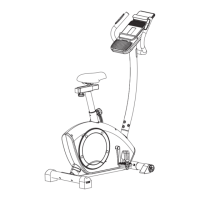
The PRO-FORM® SPORT CX is an exercise bike designed for home use, offering an effective way to increase cardiovascular fitness, build endurance, and tone the body. It features a selection of functions to make workouts more effective and enjoyable.

Function Description:

The SPORT CX exercise bike provides a stationary cycling experience with adjustable resistance levels. It features a console that displays workout information such as speed, pulse, calories burned, resistance level, RPM, time, and distance. The console also supports Bluetooth connectivity, allowing users to connect a tablet to the iFIT® app for recording and tracking workout information, and to compatible Bluetooth Smart heart rate monitors for continuous heart rate monitoring. The bike does not have a freewheel, meaning the pedals will continue to move until the flywheel stops, requiring controlled reduction of pedaling speed. A brake knob is included to quickly stop the flywheel.

Usage Features:

  • Mounting and Dismounting: Users should be careful when mounting and dismounting the exercise bike.
  • Posture: Always keep your back straight while using the exercise bike; avoid arching your back.
  • Pedal Usage: To use the pedals, insert shoes into the toe cages and pull the ends of the toe straps. The toe straps can be adjusted by pressing and holding the tabs on the buckles, adjusting the straps to the desired position, and then releasing the tabs. Users can also attach their own pedals if desired.
  • Resistance Adjustment: The resistance of the pedals can be changed by pressing the increase and decrease buttons on the console. It takes a moment for the pedals to reach the selected resistance level after a button is pressed. To stop the flywheel quickly, the brake knob should be pushed downward.
  • Console Operation (Manual Mode):
    • Turning On: Begin pedaling or press any button on the console to turn it on. The display will activate, and the console will be ready for use.
    • Workout Information Display: The console can display various workout modes:
      • Scan Mode: Automatically selected when the console turns on, this mode cycles through speed, pulse, calories, resistance, RPM, time, and distance for a few seconds each. The scan arrow icon (A) indicates this mode.
      • Continuous Display Modes: Users can press the Display button repeatedly to select and continuously display specific modes like Speed, Pulse, Calories, Resistance, RPM, Time, or Distance. The corresponding mode icons will appear, and the scan arrow icon will not be shown.
    • Pausing/Ending Workouts: To pause, simply stop pedaling; the console will pause for a few minutes. To continue, resume pedaling. To end a workout and reset the display, stop pedaling and wait a few minutes for the console to reset.
    • Auto-Off Feature: The console has an auto-off feature. If the pedals are not moved and no console buttons are pressed for a few minutes, the console will turn off automatically.
  • Tablet Connectivity (iFIT App):
    • Download and Install: Download and install the free iFIT app on an iOS® or Android™ tablet from the App Store™ or Google Play™ store. Ensure Bluetooth is enabled on the tablet.
    • Account Setup: Open the iFIT app and follow instructions to set up an iFIT account and customize settings.
    • Connecting to Console: Press the iFIT button on the console; a pairing number will appear. Follow in-app instructions to connect the tablet. A Bluetooth icon will appear on the display when connected.
    • Workout Tracking: Follow in-app instructions to record and track workout information.
    • Disconnecting: To disconnect, first select the disconnect option in the iFIT app, then press and hold the iFIT button on the console. This will disconnect all Bluetooth connections.
  • Heart Rate Monitor Connectivity:
    • Compatibility: The console is compatible with all Bluetooth Smart heart rate monitors.
    • Connecting: Press the iFIT button on the console; a pairing number will appear. A Bluetooth icon will appear when the monitor is connected. If multiple compatible monitors are nearby, the console connects to the strongest signal.
    • Order of Connection: If connecting both a heart rate monitor and a tablet, the heart rate monitor must be connected first.
    • Disconnecting: To disconnect, press and hold the iFIT button on the console. This will disconnect all Bluetooth connections.
  • Adjustments:
    • Leveling: If the bike rocks, turn one or both leveling feet beneath the rear stabilizer until the rocking motion is eliminated.
    • Saddle Post Height: Loosen the adjustment handle four turns and pull it outward. Move the saddle post to the desired height (slight bend in knees when pedals are lowest), release the handle into an adjustment hole, and tighten it four turns. Ensure the handle is firmly engaged. Then, pull the handle outward, turn it downward, and release.
    • Saddle Angle/Position: Loosen the nuts on the saddle clamp a few turns. Tilt the saddle or slide it forward/backward to the desired position, then retighten the nuts.
    • Saddle Horizontal Position: Loosen the carriage handle a few turns. Move the saddle forward/backward, then firmly tighten the carriage handle. The carriage handle functions as a ratchet.
    • Handlebar Height: Loosen the adjustment handle four turns and pull it outward. Move the handlebar to the desired height, release the handle into an adjustment hole, and firmly tighten it four turns. Ensure the handle is firmly engaged. Then, pull the handle outward, turn it downward, and release.
    • Handlebar Horizontal Position: Refer to assembly step 10 on page 12 for instructions.

Maintenance Features:

  • Regular Inspection: Inspect and properly tighten all parts each time the exercise bike is used. Replace any worn parts immediately using only manufacturer-supplied parts.
  • Cleaning: Use a damp cloth and a small amount of mild detergent to clean the exercise bike. Avoid liquids near the console and keep the console out of direct sunlight to prevent damage.
  • Pedal Tightening: Tighten the pedals weekly. The right pedal should be tightened clockwise, and the left pedal counterclockwise.
  • Console Battery Replacement: If the console display becomes dim, replace the three AA batteries (alkaline recommended). Do not mix old and new batteries or different types. If the console has been exposed to cold temperatures, allow it to warm to room temperature before inserting batteries.
  • Console Recalibration: If "CH0" or "CH1" appears when adjusting resistance, recalibrate the resistance system. Remove batteries, press and hold any button for 20 seconds, release, and reinsert batteries. The bike will adjust to the lowest resistance level.
  • Battery Removal for Storage: If the exercise bike will not be used for an extended period, remove the batteries from the console.
  • Reed Switch Adjustment: If the console does not display correct feedback, the reed switch may need adjustment. Locate the Reed Switch (57) on the left side of the bike. Slightly loosen the two M4 x 20mm Screws (87). Turn the Left Crank Arm (19) until a Magnet (62) aligns with the Reed Switch. Slide the Reed Switch slightly toward or away from the Magnet, then retighten the screws. Turn the crank arm again and repeat if necessary until correct feedback is displayed.
  • Drive Belt Adjustment: If pedals slip even at maximum resistance, the drive belt may need adjustment. Locate the Idler Cover (36), remove the M4 x 12mm Blunt Screw (80) and the cover. Tighten the M10 x 60mm Screw (65) until the Drive Belt is tight. Reattach the Idler Cover (36).
  • Tablet Holder Adjustment: If the tablet holder does not stay in place, rotate it backward and tighten the locknut (A) inside the bracket mount until it stays in the desired position.

ICON PRO-FORM SPORT CX Specifications

General IconGeneral
iFit CompatibilityYes
Resistance TypeMagnetic
Display TypeLCD
Programs20
Resistance Levels16
Display5-inch High Contrast Display
Flywheel Weight12 kg
Weight Capacity300 lbs
Max User Weight300 lbs
Heart Rate MonitoringEKG Grip Pulse

Related product manuals