NaviTEK NT 151844 Iss 4
User Guide Page 10
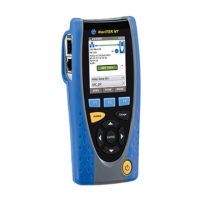
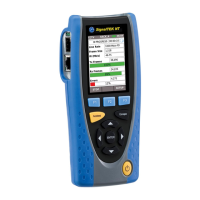
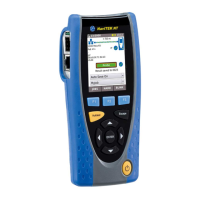
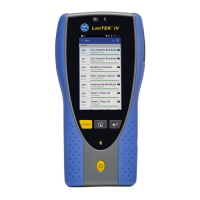
HOME Screen (with live copper network connected) and TESTS screen
When the tester is connected to a live copper-based network, Autotest detects the partner
Ethernet device at the far end of the cable and automatically tests the network connection
and displays information about it.
Select then press ENTER to
display the Statistics, VLAN
and Port screens
Power over Ethernet status
Select then press ENTER to
display the PoE test screen
MAC and ID of switch port and
port VLAN setting
Select then press ENTER to
display details of the nearest
switch, reported by CDP, LLDP
or EDP (if supported by the
switch)
Indicates progress and final test result
(Green = PASS, Red = FAIL)
Select then press ENTER to display the
NET TEST screen in detail
Ready to test
Test in progress
Test Passed
Test Failed
IP address assignment in progress
Dynamic (DHCP) IP address
assigned
Static IP address assigned
IP address assignment failed
Select then press ENTER to display the
IP screen
Copper network connection
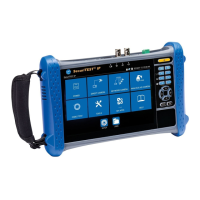
Press F3 (MORE) then F2 (TESTS) to display the
TESTS menu to allow individual tests to be
selected and run independently of the NET TEST
Select to access the screen to
run and view Ping4 test results
Select to access the screen to
run and view Ping6 test results
Select to access the screen
to set up and apply various
types of Ethernet loop
Select to flash the switch LED to
assist in port identification
Press F1 (RESET) to reset
the test results
Press F2(SAVE) to save the test results



 To Next Page
 Loading...