Stowaway Ultra-Slim Owner’s Manual – BlackBerry
®
OS
Page 4
Alternately, if your device has internet access you may browse to:
www.thinkoutside.com and the website will automatically detect the
correct driver for your device and offer it for download.
3. Follow the on-screen instructions to complete the installation.
NOTE: The driver must be installed in Main Memory on your device to
run properly. Please do not install the driver to a storage card.
Configuring the Keyboard to your Device
Setting Application Permissions
NOTE: Handhelds connected to a BlackBerry Enterprise Server must contact their BES Administrator
to configure the BlackBerry Application Control to Allow the keyboard driver to use the Event Injector
API. (See the related instructions that are in the keyboard download archive).
After the initial installation of the driver, navigate to the keyboard driver
application; from the main BlackBerry screen, select the Stowaway
application with a Trackball or Scroll Wheel click.
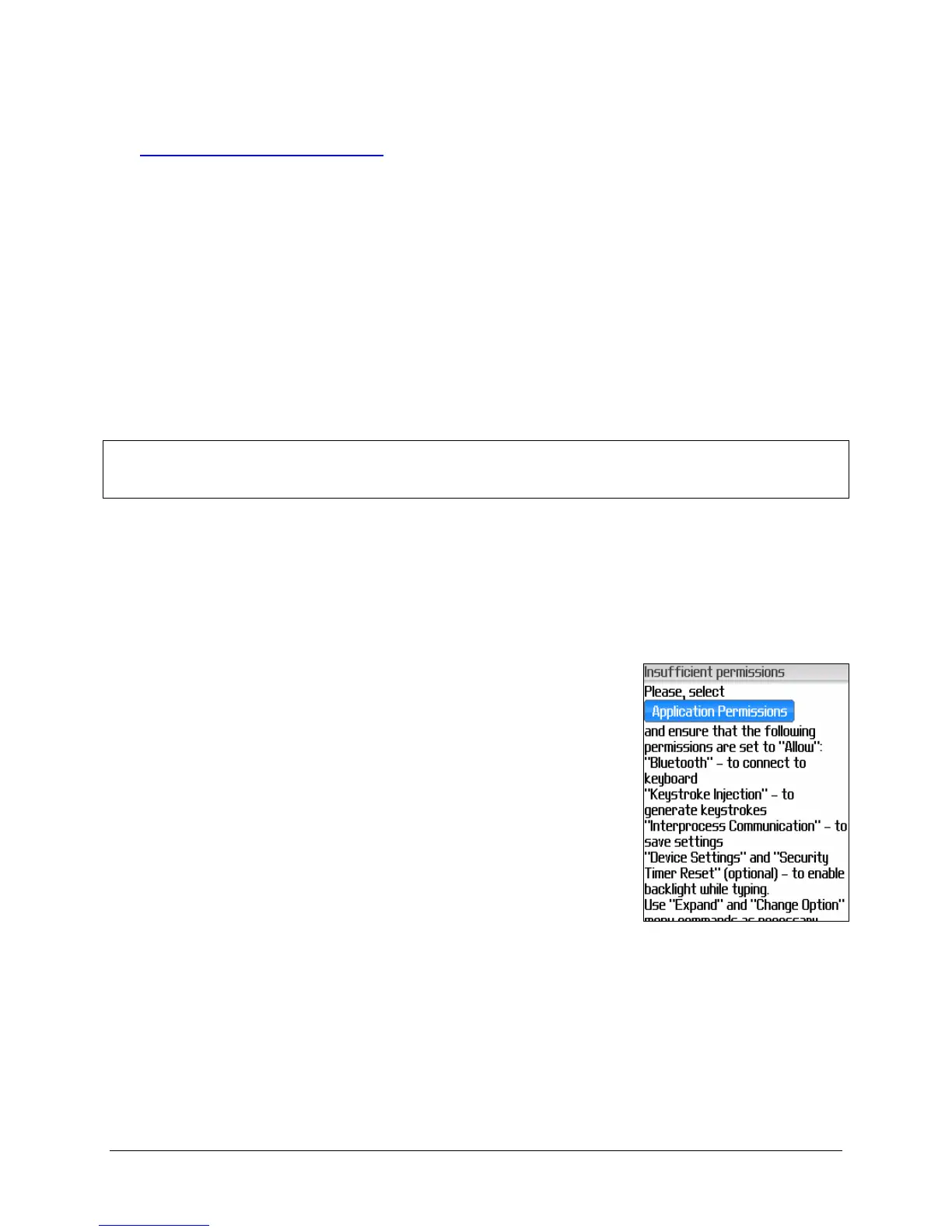
1. If you have made no changes to the BlackBerry’s
default security permissions via the
OptionsSecurity OptionsApplication
Permissions screen, you will receive an
Insufficient Permissions status screen when
you launch the Stowaway application. Five
specific permissions are required to be set to
Allow in order for the keyboard application to run
properly. These are: Bluetooth, Keystroke
Injection, Interprocess Communication,
Device Settings, and Security Timer Reset.
Click on the Application Permissions button to
proceed to the permissions screen. The five
required permissions will have already been set for you.


 To Next Page