- 12 -
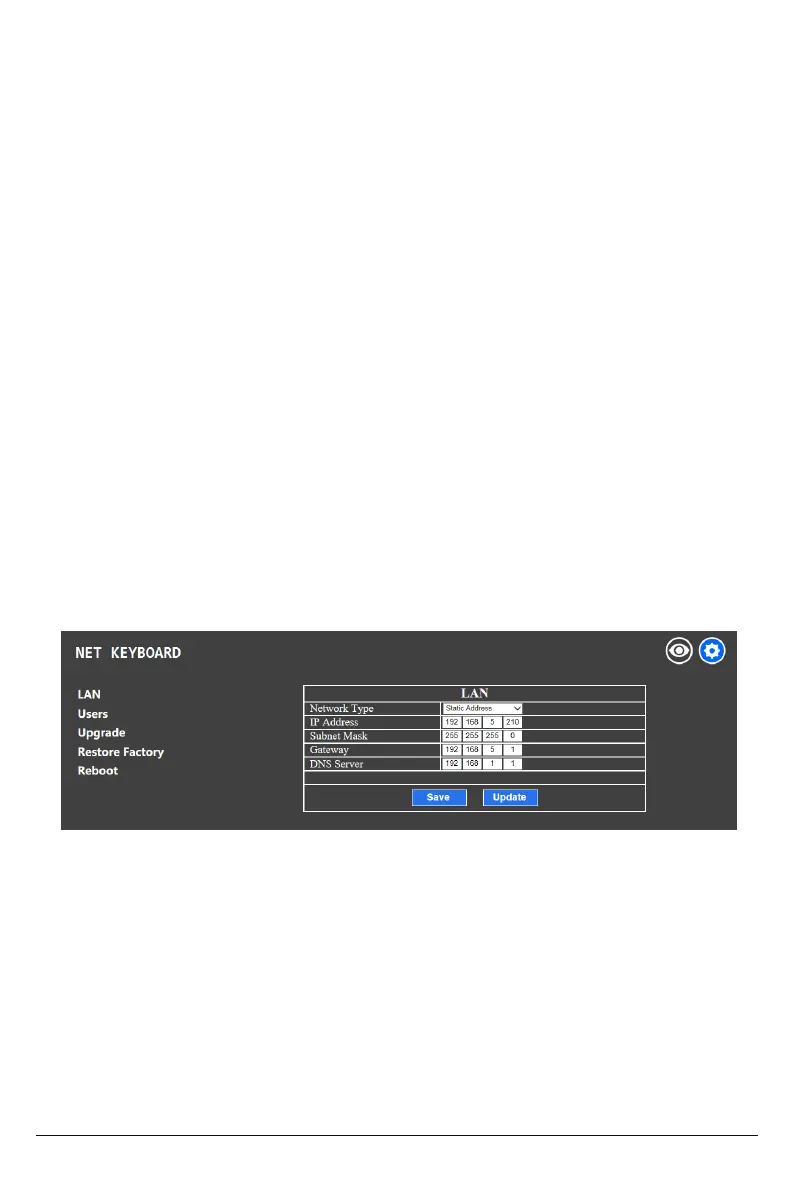
To modify the device IP access way and port parameters in LAN Settings, refer to image below:
Click save to confirm.
Dynamic address (default access way): the Controller will automatically acquire IP address from
the router.
Static address: Change the network to static address when necessary; simply input the network
segment information to modify.
5.2 LAN Settings
4. The home page consists of three segments: Search Device List (green); Added Device List
(blue) or Manually Add (yellow); Device Details (orange).
5. Click the “Search” button to find ONVIF devices in the LAN. Devices will be displayed in the
green frame automatically.
6. Select the device in the “Search Device List”, and click “Add” to complete. Press “Ctrl” for
multiple selections.
7. Select the device in the “Added Device List”, and click “Delete” to complete. Press “Ctrl” for
multiple selections.
8. After successfully adding a device, click the IP address in the “Added Device List” to edit the
account and port information of the device.
9. After addition, deletion, and modification, click the “Save” button to confirm.
Note: A ny modification to the configuration on home page needs to be saved by clicking the
“Save” button; otherwise any modifications are invalid.


 To Next Page