24
Locking the video inputs
4
1
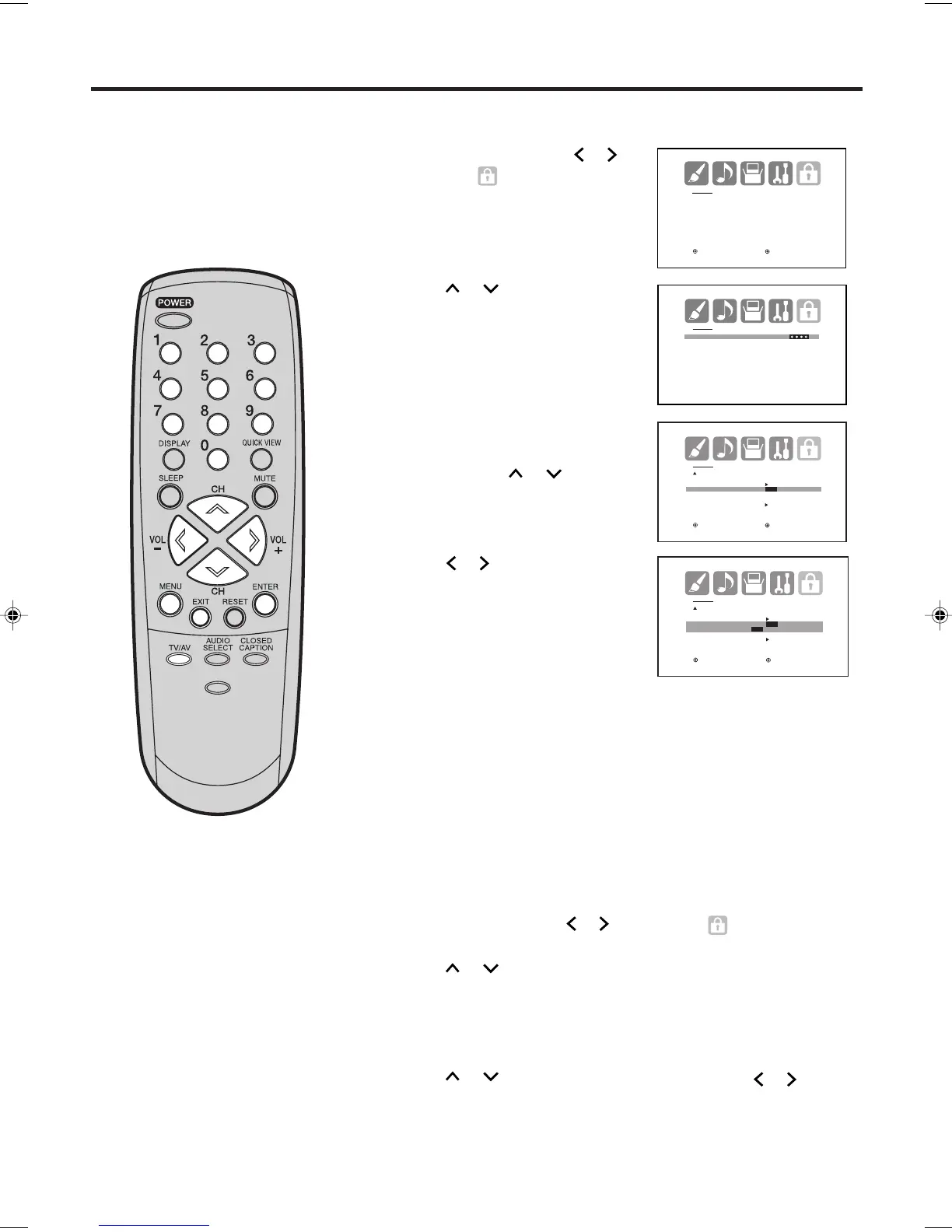
Press
or
to display the
password entering mode.
Press MENU, then press
or to
display the (LOCKS) menu.
3 Use the number buttons (0-9) to
enter your password, then press
ENTER. The LOCKS menu
appears. Press
or
to
highlight VIDEO LOCK.
2
With the VIDEO LOCK feature,
you can lock out the input
sources (VIDEO1, VIDEO2,
COMPONENT) and channels 3
and 4. You will not be able to
select the input sources with the
TV/AV button or Channel buttons
unless you clear the setting.
Press
or to select:
• OFF: Unlocks all video input
sources.
• VIDEO: Locks VIDEO1, VIDEO2,
COMPONENT.
• VIDEO +: Locks VIDEO1,
VIDEO2, COMPONENT, channel
3 and channel 4. This option
Press EXIT to return to normal viewing.
5
To unlock the video inputs
1
Press
or
to display the password entering mode.
Press MENU, then press
or to display the (LOCKS) menu.
2
Use the number buttons (0-9) to enter your password,
then press ENTER. The LOCKS menu appears.
3
Press
or
to highlight VIDEO LOCK and press or to
highlight OFF.
4
Press EXIT to return to normal viewing.
5
To set up the video lock
NOTE:
After programming VIDEO LOCK,
change the channel or press the
TV/AV Button before turning off
the television. Failure to do so will
cancel the programming for video
inputs locked using this
procedure.
PICTURE
SIZE
-/
LOCKS
PASSWORD
[0-9] : SELECT ENTER : SET
EXIT : END
LOCKS
V-CHIP SET
LOCK
FRONT PANEL LOCK
NEW PASSWORD
:SELECT :ADJUST
LOCKS
LOCK
CH LOCK
VIDEO LOCK OFF
FRONT PANEL LOCK OFF
NEW PASSWORD
:SELECT :ADJUST
LOCKS
LOCK
CH LOCK
VIDEO LOCK OFF
OFF/VIDEO/VIDEO+
FRONT PANEL LOCK OFF
NEW PASSWORD
:SELECT :ADJUST
should be used if you use the antenna terminal to play a video
tape.
J3W40621B_En_P18-24 15/02/2006, 10:45 AM24


 To Next Page