7
ACCESSING DATA
ON THE DEVICE
After you personalize a device, only registered users can authenticate to it. Authentication involves logging
into the device using a password.
After you successfully log in, you can save files to, a
nd open files from, your private partition. It is
recommended that you log out of your device if you must leave it connected while you are away from your
computer. Otherwise, another user could access your private partition while you are absent. You can also
disconnect the device completely to bring the data with you.
This chapter provides information about the following topics:
• Logging into and out of the device
• Saving and opening files
• Disconnecting the device
LOGGING INTO AND OUT OF THE DEVICE
To log into the device
1. Fr
om the notification area, at the far right of the taskbar, right-click the Defender icon and click Login.
2. If y
ou are using a computer running Mac OS X, open a file manager and click the application drive for the
device. Double-click the ACCESS Standard application and on the main page of ACCESS Standard, under
Manage Device, click Login.
3. F
ollow the prompts in the authentication wizard until the device successfully authenticates you.
To lo g o ut of the device
1. Fr
om the notification area, at the far right of the taskbar, right-click the Defender icon and click Logout.
2. If y
ou are using a computer running Mac OS X, open a file manager and click the application drive for the
device. Double-click the ACCESS Standard application and on the main page of ACCESS Standard, under
Manage Device, click Logout.
Tip: Y
ou can also log out of your device by right-clicking the Defender icon, and then clicking Eject Device.
SAVING AND OPENING FILES
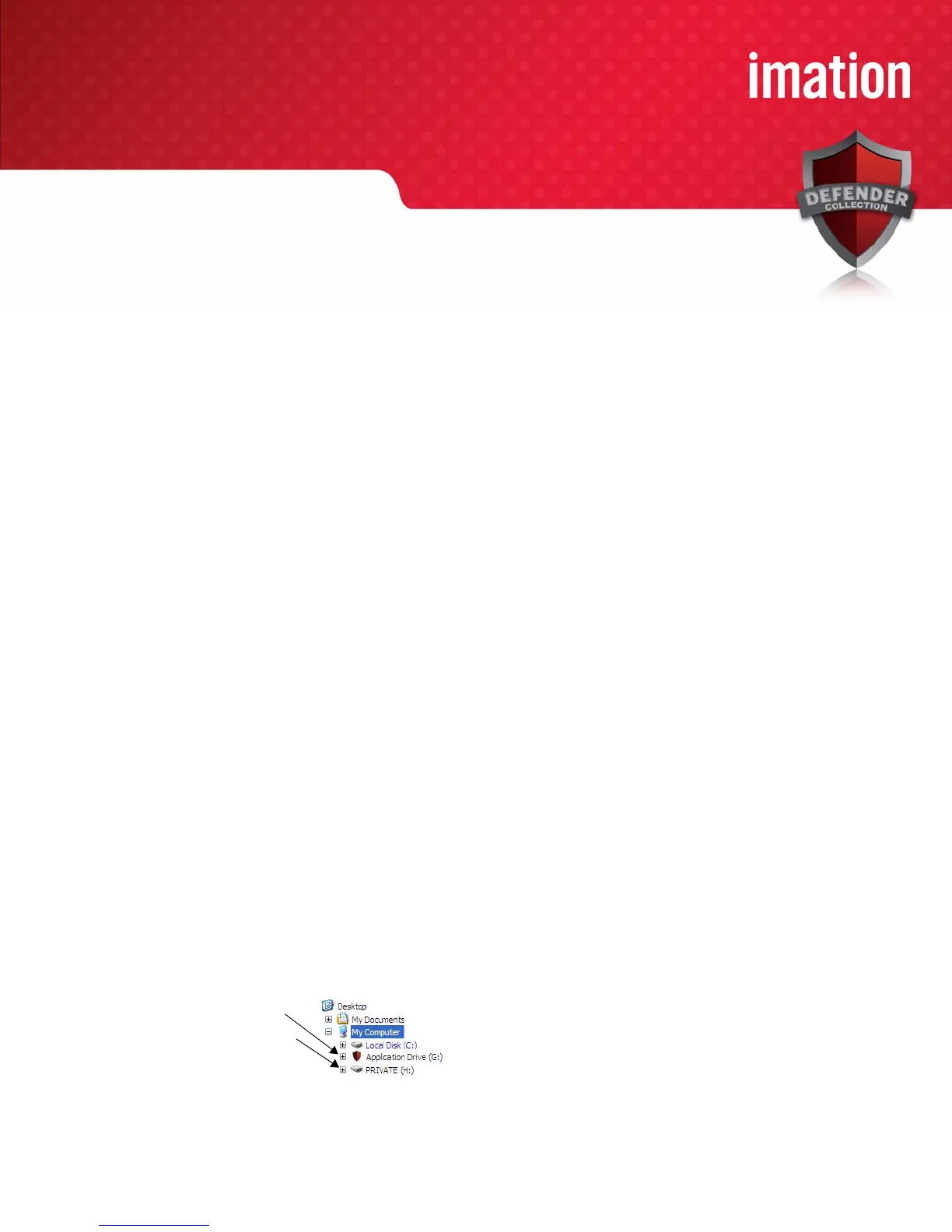
When you plug in your device both the application drive and the private partition display in a file manager,
such as Windows
®
Explorer, with an associated drive letter for each partition.
Private
partition
Application
drive


 To Next Page