8
ACCESSING DATA
ON THE DEVICE
cont.
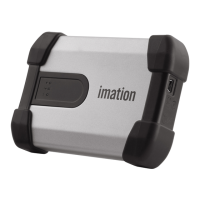
Once you log into the device, you can open files on your private partition using the appropriate program or a
file manager. When you save data to your private partition, the device encrypts the data using hardware-based
AES 256-bit encryption. Data is automatically decrypted when you open the file.
Note: You cannot save data to the application partition.
DISCONNECTING THE DEVICE
To disconnect the device
• Fr
om the notification area at the far right of the taskbar, right-click the Defender icon and click Eject
Device.
Tip: Y
ou can also disconnect the device by clicking the Safely Remove Hardware icon in the notification area
at the far right of the taskbar. Click the message “Safely remove USB Mass Storage Device - Drive (F:); where F
is the letter of the drive in the file manager that is associated with the device. Disconnect the device when the
following message displays, “The USB Mass Storage Device can now be safely removed from the system”.
Note: If y
ou are using a computer running Mac OS X, drag the device drive on the desktop to the Trash.
Release the mouse button when you see the Eject prompt.
Caution: Di
sconnecting the device either accidentally or on purpose, without properly ejecting it, could
corrupt the data on the device.


 To Next Page