9
TROUBLESHOOTING
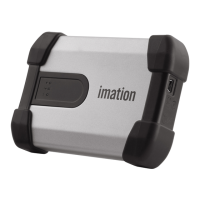
If you experience difficulty using Defender™ H100 after following the instructions in this User Guide, read the
following troubleshooting information.
• Check to make sure the USB cable is plugged in properly and t
hat the cable provides sufficient USB
power to the device. For information about how to properly plug in the device to ensure adequate
power, see “Plugging in the device” on page 4.
• Check the light emitting diode (LED) status of Defender H100 to assess the power output to the
devic
e and the state of the device.
• Check the Frequently Asked Questions section at Imation.
com/support.
Ta b l e 1: LE
D status for devices
LED status Description
Statu
s of authentication and data transfer
Solid green Open—if no authentication mechanisms are set, any user can use
the de
vice.
User has logged into the device—if user
s exist, it indicates that
the device has authenticated a user.
Flashing red The device is either powering up or is to
tally blocked. When
totally blocked, no authentication methods are available to allow
a user to log into the device; this indicates that the device needs
to be recycled.
Solid red The device is locked.
Blue LED Indicates a data transfer activity for all devices.
Flashing red and
blue
Indicates that a fatal internal error has occurred.
Status of power to device
Solid yellow Sufficient power from the host computer is available and the
de
vic
e is operating normally.
Flashing yellow
(sl
ow)
Insufficient power to operate the device. Attach both USB
connectors to the host computer. If both connectors are already
plugged in, and the LED continues to flash, the host computer
does not meet the USB power requirements.


 To Next Page