1. Powering on/o
Press and hold the “ ” button for 3 seconds to power on the
product: when the blue indicator light flashes slowly for 4 seconds
and becomes solide, the robot vacuum has entered standby mode.
When the robot vacuum is still, press and hold the “ ” button
for 3 seconds to power it off. The indicator light will turn off.
The robot vacuum will enter sleep mode when it is not used for 20
minutes. Short press any button to wake the robot vacuum up from
the sleep mode.
Note: The robot vacuum cannot be powered on and will not enter
sleep mode while it is being charged.
9 10
2. Cleaning
While the robot vacuum is powered on, short press the “ ”button
and the robot vacuum will say “Start cleaning”. While the robot
vacuum is cleaning, short press the “ ” button and the robot
vacuum will stop cleaning.
Note: The robot vacuum will not start cleaning when the battery level
is too low.
3. Automatic/manual recharge
After completing a cleaning operation, the robot vacuum will
say “Cleaning completed. Returning to recharge.” The robot
vacuum will automatically return to the stand to recharge.
When the battery is running low, the robot vacuum will
automatically return to the stand to recharge.
4. Refilling the water tank or adding mop cloth
while cleaning
Short press the “ ” button to stop the robot vacuum. Remove
the mop module. Add water or mop cloth. Re-insert the mop
module and short press the button again to continue cleaning.
5. Network connection and firmware update
Scan the QR code on the robot vacuum to download the app.
Open the app and follow the on-screen instructions to connect
to a Wi-Fi network. Refer to the quick guide for more information.
Use the app to check for the latest firmware and update it. While
updating the firmware, ensure that the robot vacuum is being
charged and has at least 50% of battery left. Follow the
on-screen instructions in the app for firmware update. After
downloading the app, open it and follow the on-screen
instructions to connect to a Wi-Fi network. After the robot
vacuum is connected to a network, you can use the app to
control the robot vacuum remotely or schedule a cleaning.
6. Fault status
In case of a fault during operation, the robot vacuum will read
an error message and its indicator light will flash quickly in red.
Refer to the “Troubleshooting” for the problem solving approach.
After encountering a fault, the robot vacuum will enter sleep
mode when it is not operated for 10 minutes.
Using the robot vacuum
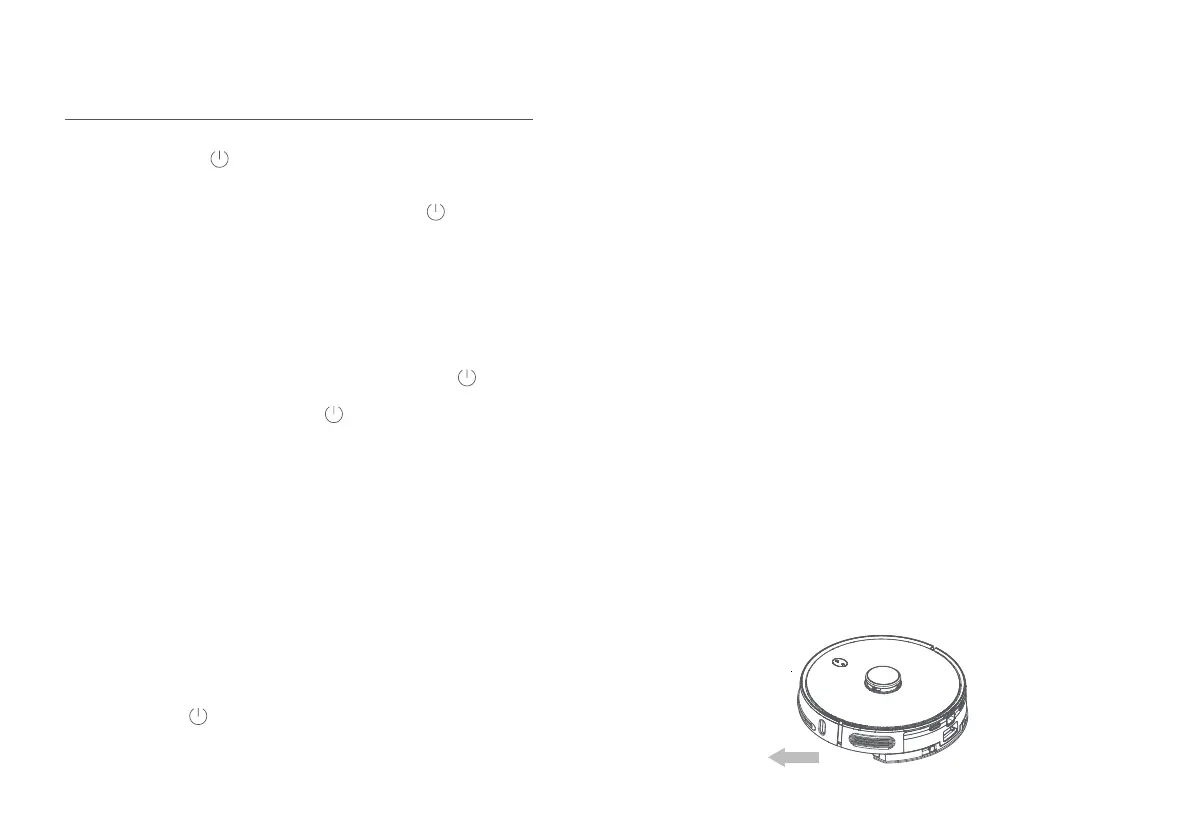
1. Please the robot vacuum on a level indoor surface. Remove
the safety strips on both sides of the front bumper.
Operation
Remove



 To Next Page