24
Driver Program Installation (For Mac OS)
Setting
■
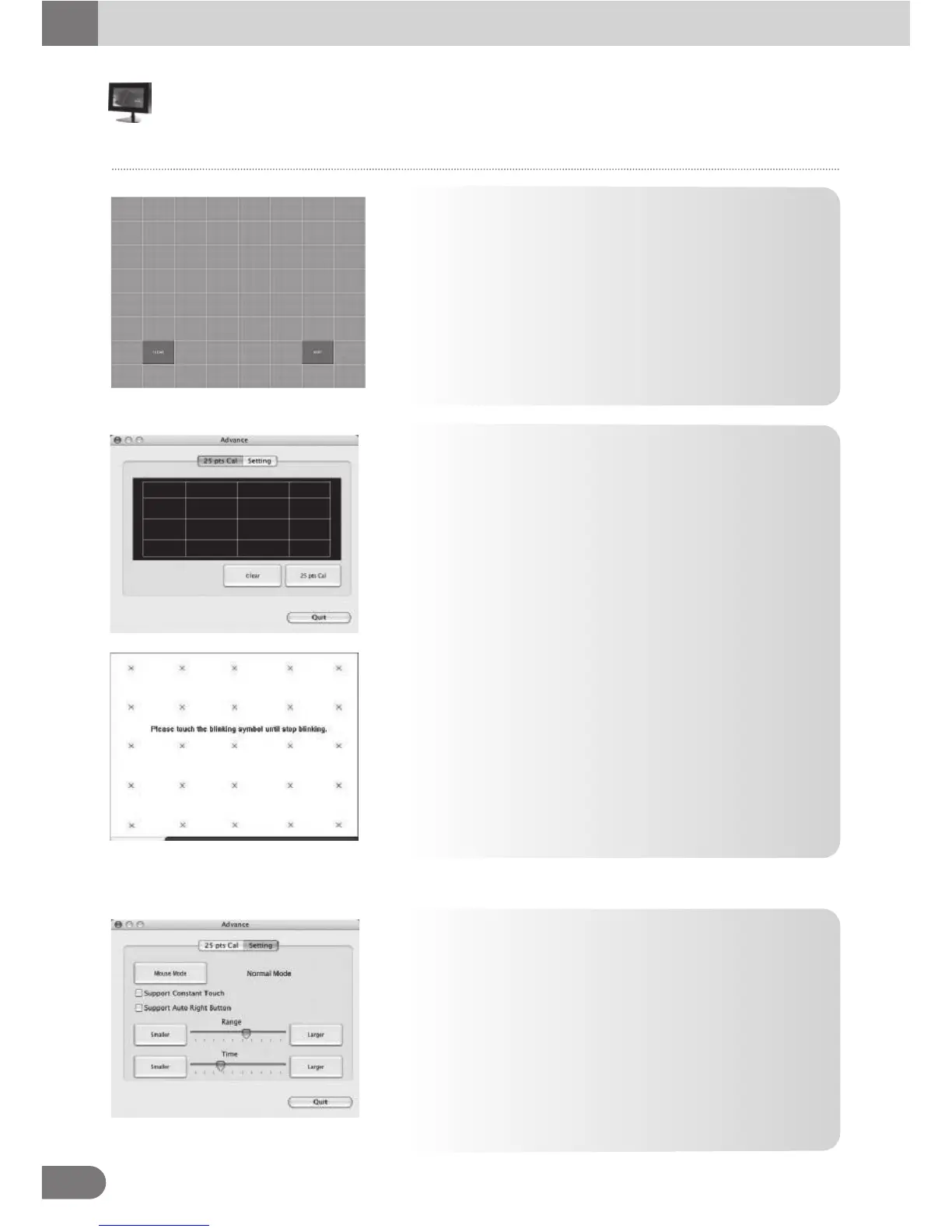
Draw Test
● Test the drawing position related to the display screen on
panel.
Click on the [Draw Test] button. There will be a squared
blue display showing.
● Try to write or draw on it to verify the touch position.
● Press [CLEAR] for cleaning touch screen, and press [QUIT]
to exit Draw Test.
Advanced
● Advanced property page contains two pages of 25 Pts Cal
and Setting.
● Press [Clear] to clear the previous calibration records.
Press [Yes] to clear previous records. The record will become
default record.
Mouse mode:
There are three kinds of mouse mode users could choose,
Normal Mode
It provides all the mouse functions, including the dragging
function.
Click on Touch
Click action is executed as soon as users touch the panel.
Click on Release
Click action will not be executed until finger leaves the panel.
● Then, press [25 pts Cal] to execute 25 points calibration.
Correct 25 point locations on screen with the panel.
●Touch the blinking symbol on panel until beep or stop blinking.
After the calibration, the new record will overwrite the old one.
Configuration Touchside Utility



 To Next Page