26
Using Touch USB sub monitors
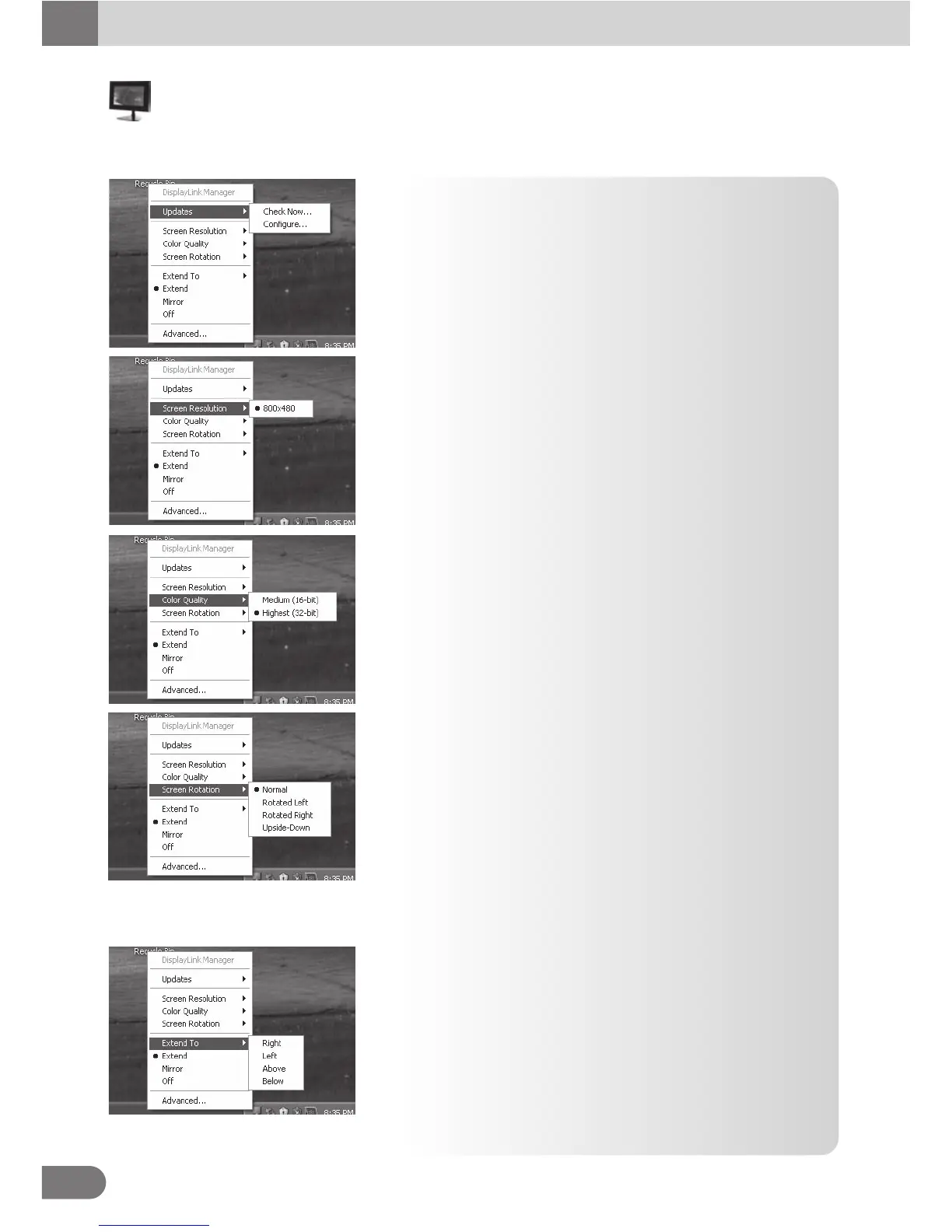
Click [AT-7] icon to view the menu screen .
■
Refresh menu
View the driver’s refreshed information or perform environment
settings.
[Check] : Check the driver’s refreshed information.
[Environment setting] : Perform driver’s environment setting.
■
Screen rotation menu
It is used when the device is being rotated.
[Normal] : It is a setting used for normal use of the device.
[Rotate to the left]: It is a setting used when the device is
rotated 90° to the left. The screen on the
device will rotate 90° to the right.
[Rotate to the right]: It is a setting used when the device is
rotated 90° to the right. The screen on
the device will rotate 90° to the left.
[Rotate to the left]: It is a setting used when the device is
rotated 180° to the left.
■
Color quality menu
May be set based on user resolutions
When they are set as very high (32 bits), it displays a better
screen but the PC speed may be compromised.
[Medium (16 bit)] : Approximately 65,000 colors are being
depicted.
[Very high(32 bit)] : Approximately 4,294,000,000 colors are
being depicted.
■
Screen resolution menu
Screen resolution is set as 800x480.
Higher resolutions will result in clear and detailed screen.
This product is set in 800x480 settings.
■
Expansion direction menu
Send the screen sent out to the USB monitor in different directions.
[Right] : Drag the screen to the right of the device and from
the PC.
[Left] : Drag the screen to the left of the device and from the PC.
[Upward] : Drag the screen upward to the device and from
the PC.
[Downward] : Drag the screen downward to the device and
from the PC.



 To Next Page