27
AT-7 User Guide
Using Touch USB sub-monitors
■
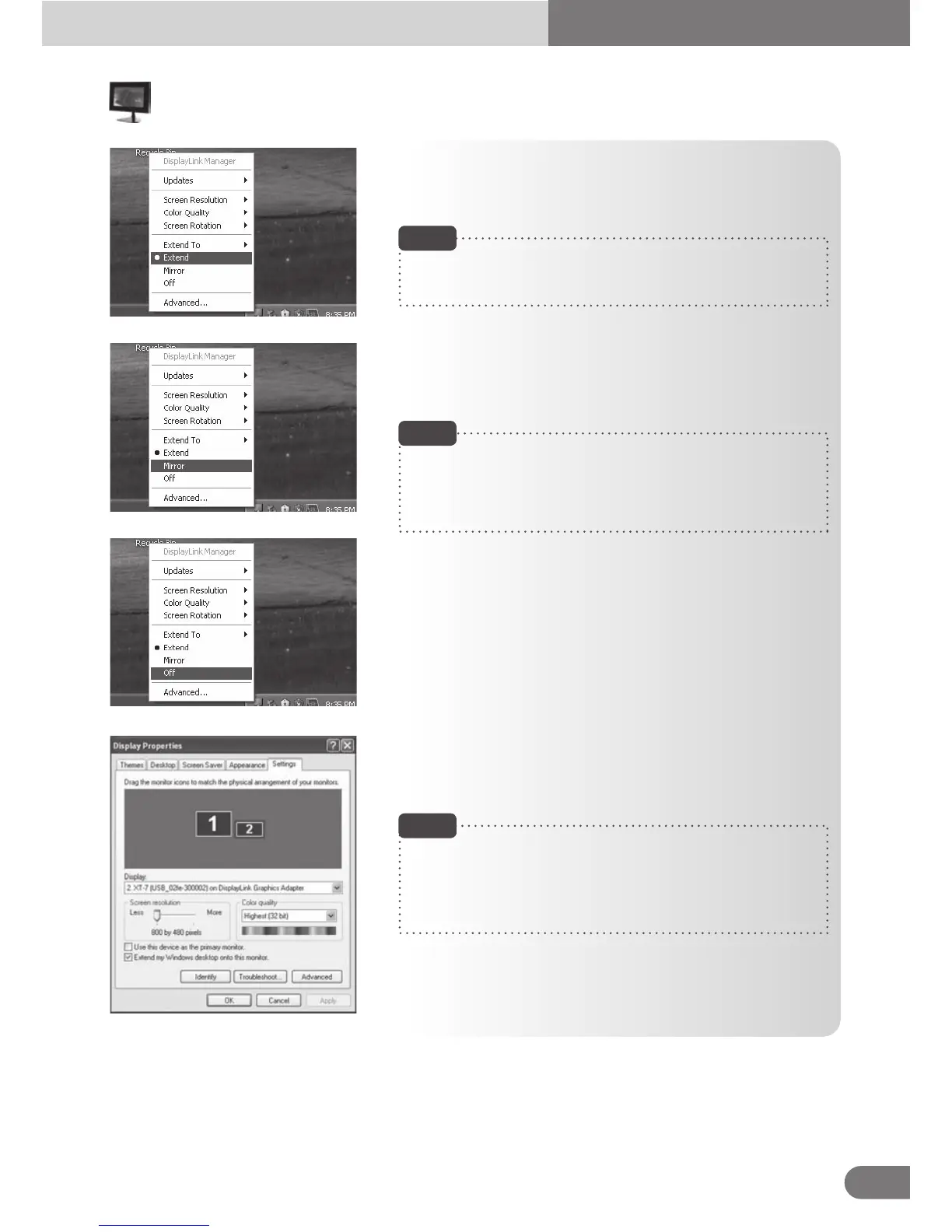
Turn off menu
Turn off the USB monitor function.
When the USB monitor is turned off, [Expansion Direction],
[Expansion], [Mirror] and [Advanced] functions are the only
functions that are activated. [Screen resolution], [Color quality]
and [Rotation] functions are deactivated.
In order to release the monitor from [Off] status, select
[Expansion Direction], [Expansion] or [Mirror] functions.
Mirror function will allow the user to view the same screen as
the PC screen.
■
Expansion menu
PC screen may be dragged into the device’s screen.
Simply drag the desired screen into the device’s monitor.
Note
■
Mirror menu
Mirror function will allow the user to view the same screen
as the PC screen.
When mirror menu is selected, PC’s screen will be set as the same
setting as the USB sub monitor screen. Therefore, when the PC’s
screen is larger than 800x480 resolutions, it will be automatically
reduced to match the USB monitor setting and display the same screen.
Note
■
Advanced menu
Select the setting from the USB sub monitor’s display
environment settings.
Detailed USB monitor settings are possible in the display setting
window. Even though it may differ from different PCs, user PC
monitor is set as number 1 monitor and USB monitor (XT-7)
is set as either number 2 or 3 monitor in normal uses.
Note



 To Next Page