Operation Manual
E
76
System
• Reset All: Clears all channel/preset list and settings
and restart DABMAN 2.
• Information: Displays model no, serial number and
firmware version number
• Firmware Update: Update rmware of DABMAN 2.
Update firmware
Download new firmware file of DABMAN 2 to a computer
from web site
Press to open menu and select “System”→ “Firmware
Update”
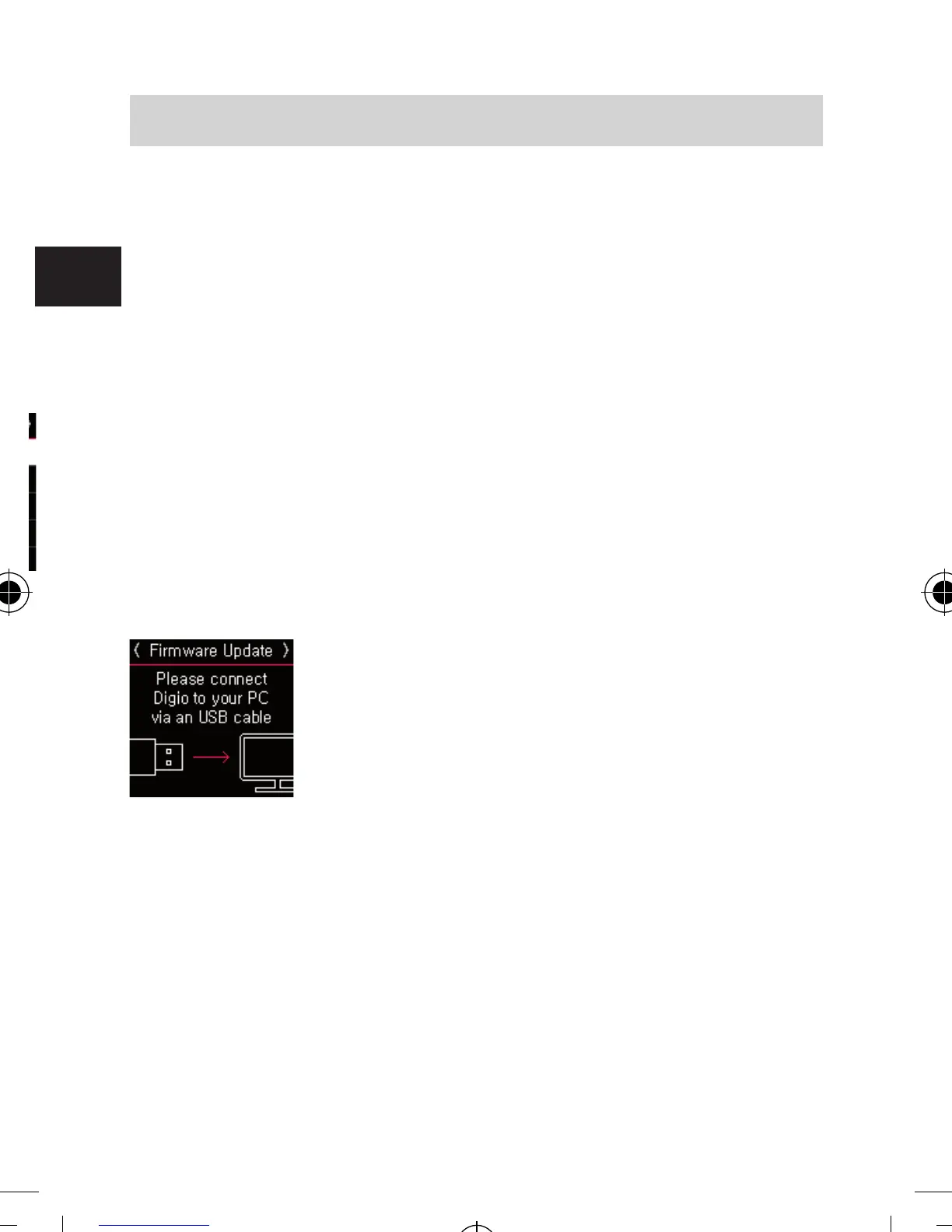
As described below image, connect DABMAN 2 to USB port
of the computer.
DABMAN 2 will be seen as a external storage in the
computer (like a USB memory stick)
Copy the firmware image file to DABMAN 2.
Remove DABMAN 2 safely from the computer.
• In Windows, right-click the drive name of DABMAN 2
and select “Eject”.
• In Mac OS X or Linux, click eject icon on the drive icon.
DABMAN 2 will automatically update itself and restart
system.
7. SETTINGS
bda_Dabman 2_DIN A 7_D_E_F_10_17.indd 76 15.01.18 08:47



 To Next Page