54 QUICK START GUIDE INCOTEX 500F
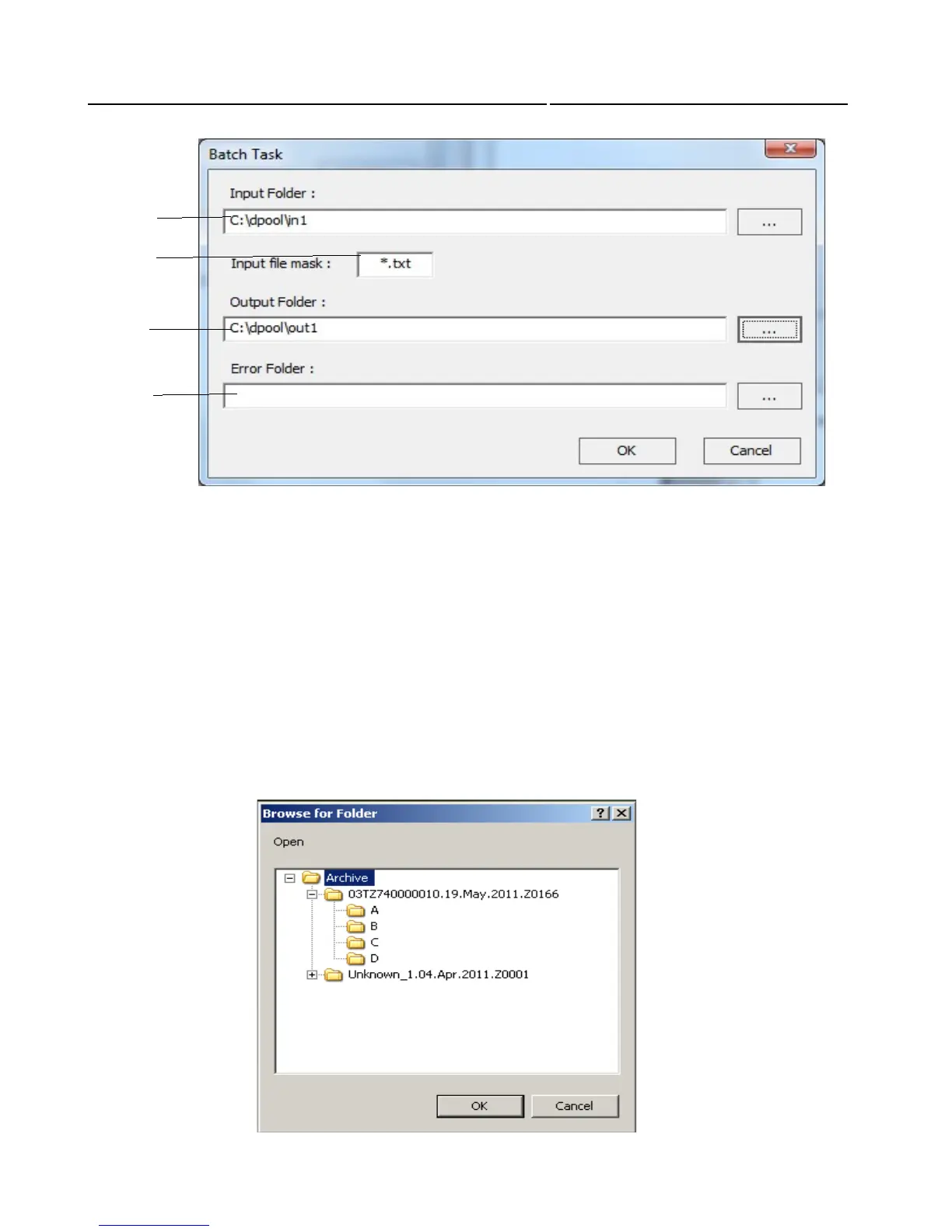
1. Batch input location
2. Input mask (filter)
3. Batch output location
4. Errors location (optional)
6.4. Verification button
The official way to verify a signed invoice is using a verification dialogue, which is the “Verification”
button in the start menu. The verification works as follows:
For each signed invoice four files are created and saved in the Archive folder, situated in
C:\Incotex\ESIx86-Client. This Archive folder contains four more folders each of them containing
different information.
1
2
3
4



 To Next Page