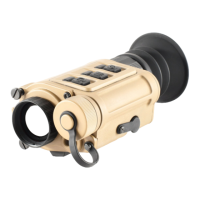
6 7
6. DESCRIPTION OF CONTROL
BUTTONS AND SHORTCUTS
Power Button
Current Screen / Menu
or Device Status
Short Press Long Press
Device o —— Power on the device
Home screen
(in standalone or
handheld mode)
Adjust digital zoom Turn o the device
Any menu or full-screen
interface
Toggle through
menu options
——
Full-screen interfaces
(defective pixel, reticle
zeroing, and screen
position in helmet and
clip-on mode)
Move cursor 1 pixel
in the negative
direction
Move cursor
10pixels in the
negative direction
Menu Button
Current Screen / Menu Short Press Long Press
Home screen Enter menu
Switch working
mode
Main menu Select
Save and return to
previous
Power + Menu Button +
Current Screen / Menu Short Press Long Press
Home screen
Enter / exit standby
mode
——
Home screen (in helmet
or clip-on mode)
——
Adjust X/Y position
of screen
Photo Button
Current Screen / Menu Short Press Long Press
Home screen Take photo Record video on / o
Any menu or full-screen
interface
Toggle through
menu options
——
Full-screen interfaces
(defective pixel, reticle
zeroing, and screen
position in helmet and
clip-on mode)
Move cursor 1 pixel
in the positive
direction
Move cursor
10pixels in the
positive direction
Photo + Menu Button +
Current Screen / Menu Short Press Long Press
Home screen
Perform manual
non-uniformity
correction (NUC)
Perform background
non-uniformity
correction (NUC)
1
Power + Menu + Photo Button + +
Current Screen / Menu Short Press Long Press
Main menu
(in standalone or
handheld mode)
——
Enable/disable
the reticle
2
(switch between
handheld and
standalone modes)
1. Close the lens cover (6) before performing a background NUC.
2. See Selecting a Working Mode on page16.


 To Next Page
 Loading...