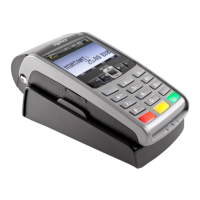
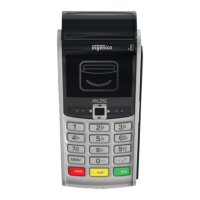
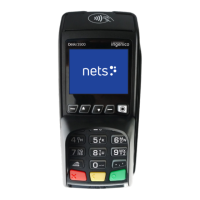
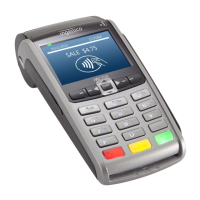
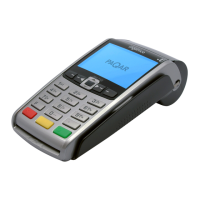
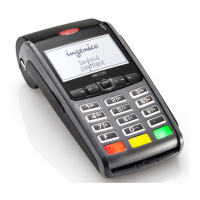
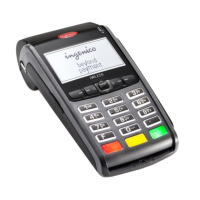
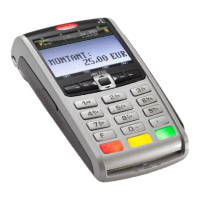
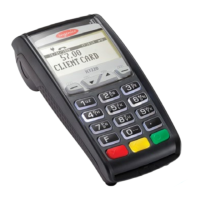
Hold the POS device in your one hand. Use two ngers from your other hand to lift
the printer cover release (as shown above)
Unstick the end of the new roll. Carefully place the paper roll into the printer
compartment
Holding the free end of the paper and your POS device, close the printer cover
carefully and push it down rmly until it locks
While your POS device is displaying the idle screen, press and hold the yellow
button to make sure the paper feeds correctly. You can only use paper rolls that
are 57mm wide and 40mm in diameter in your POS device; if you try to t bigger or
smaller rolls into your POS device, you may damage it
Type of paper: Thermal paper
Size: 57 x 40cm
Keep the number of transactions in a batch as low as possible; this will also improve
the performance of the POS device.
Check the number of transaction by following the below prompts:
‘F’ key
SBSA
Reports
Parameters
Terminal set-up
Press the green key for the POS device to print the POS device set-up. Next
to transaction threshold is a number from 50 to 150 transactions
This value annotates the number of transactions allowed before banking.
The POS device can also prompt ‘Transaction le almost full’ or ‘Transaction
le full’; do a batch upload immediately
10. HOW MANY TRANSACTIONS CAN I DO BEFORE I NEED TO
BATCH THE TRANSACTIONS?
1.
2.
3.
4.



 To Next Page
 Loading...