1. Powering your terminal
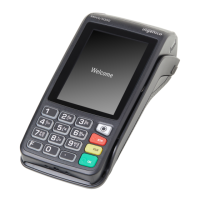
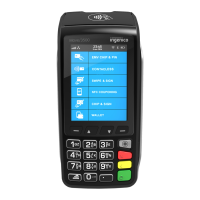
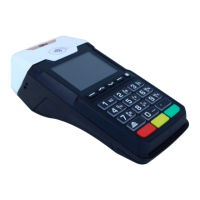
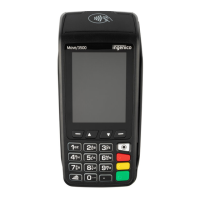
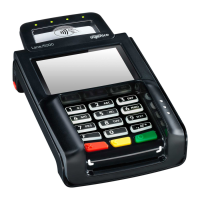
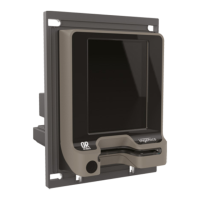
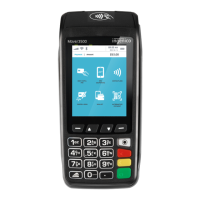
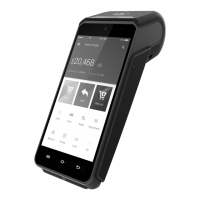
Your Ingenico Move series EFTPOS terminal
requires a power connection in order to charge the
battery. This is connected to the charging cradle.
Plug the power connection into the round port on
the charging cradle, you will need to unclip the
cover for access. The power adapter then connects
to your wall outlet. Your terminal will charge while
placed on the cradle. We recommend fully
charging your terminal overnight, this way you can be sure to have a full
charge when you need to transact.
2. Connecting your terminal to the Internet
Your terminal supports multiple connection types. Depending on your terminal
model and desired connection type, a cable may be required. If your terminal
is connected with a SIM (3G/4G) or via Wi-Fi a cable will not be required. If
you are unsure please consult Eftco technical support.
For a cabled Internet connection start by
connecting your Ethernet (network) cable to the
port on the rear of the charging cradle. The other
end of the Ethernet cable should be connected to
your network. Depending on your network setup
this could be connected directly to your
modem/router, or a network wall port.
For a Wi-Fi connection, you will need to connect the terminal to your network.
• Press “Func.” from the home screen, input “72” followed by enter
• When prompted for “Wi-Fi Config” press the enter key
• Select your Wi-Fi network from the list using the number keys
• When prompted for “Wi-Fi Cypher” press the enter key
• Input your password. Press the number key, followed by “Func.” to
toggle between all options on that key. Eg: “b” = 2 > Func. > Func.
• Press the enter key when the password has been entered completely.



 To Next Page
 Loading...