English
10
Common Symptoms
Possible Solutions
Troubleshooting
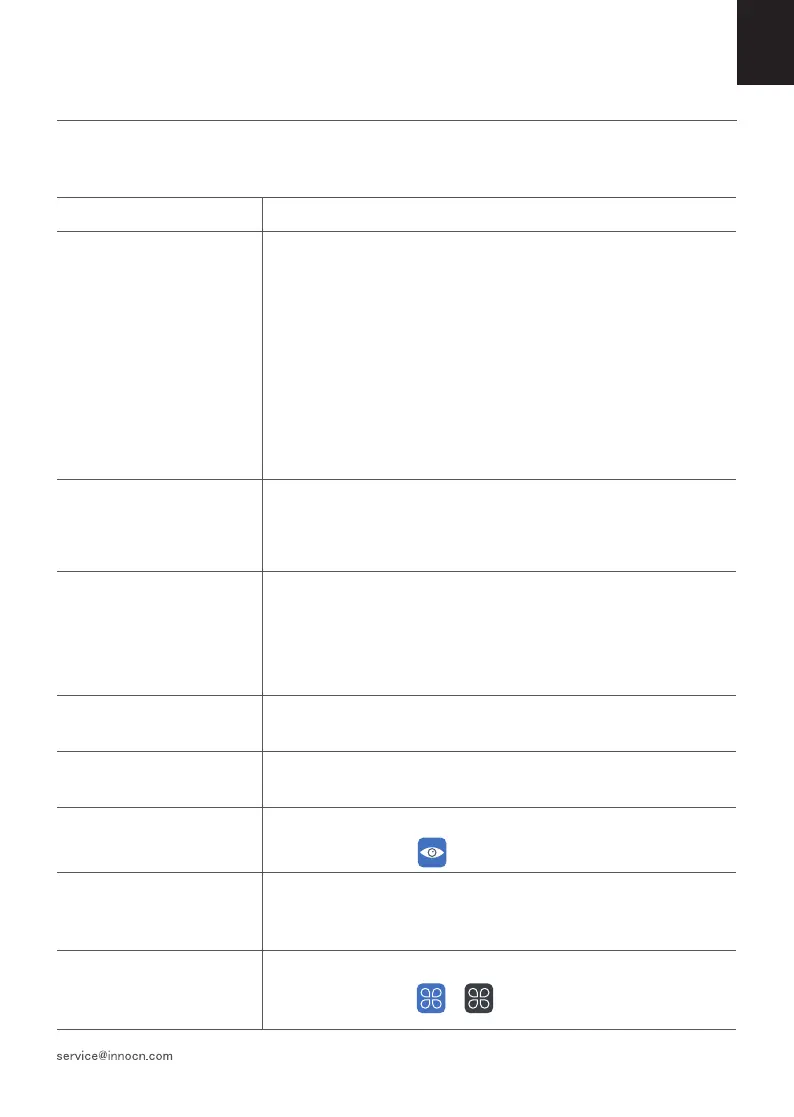
The following table contains general information about common monitor problems you might encounter and
the possible solutions.
• Ensure that the video cable connecting the monitor and the computer is
properly connected and secure.
• Make sure if the operating system had entered hibernation, sleep or
power-save mode. Press any key (Enter key / Power key) or move the
mouse to wake it up.
• Check for bent or broken pins in the video cable connector.
• Ensure that the correct input source is selected in the Input Source menu.
• Replace other identical signal cable (HDMI / Type-C) to take cross-test.
Attention: Not every computer/phone ‘s USB Type-C port will support
video out signals. Please check your cable and your computer/phone to
make sure those will support a video signal.
No display after turning
monitor ON (screen is black
but power supply lights is ON)
• Verify that the power outlet is functioning properly using any other
electrical equipment. If your device has battery, make sure it’s not out of
battery.
• Make sure the power button is pressed fully and hold for 5s.
No display after turning monitor
ON (not boot, black screen &
no power lights)
• Cycle power On-Off.
• Pixel that is permanently Off is a natural defect that can occur in LCD
technology.
• For more information on Innocn Monitor Quality and Pixel Policy, see
Innocn warranty information at: http://www.innocn.com.
Missing Pixels. LCD screen
has spots
• Do not perform any troubleshooting steps.
• Contact Innocn immediately.
Safety Related Issues (Visible
signs of smoke or sparks)
• Check the resolution setting in your PC.Image does not fill entire
viewing area.
• Press only one key at a time.
• Make sure to have a valid video signal going through the monitor before
you can turn on the OSD.
Control panel keys do not work
• Make sure the device was not set to “Eyes Care mode”
• Check here: OSD→
The screen appears yellow
• Make sure the device was set to “custom mode”
• Check here: OSD→ →
I cannot adjust the brightness/
contrast ratio/ color saturation
through OSD


 To Next Page