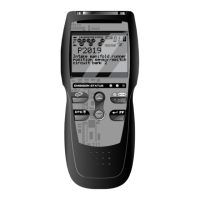
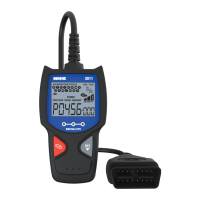
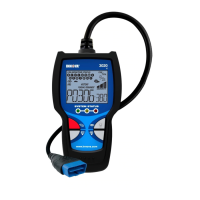
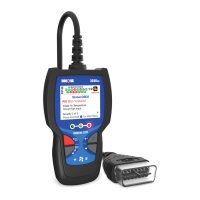
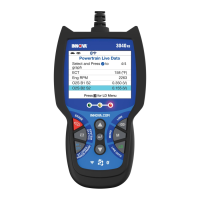
About the CanOBD2&1 Scan Tool
ADJUSTMENTS/SETTINGS AND DTC LIBRARY
CanOBD2&1 7
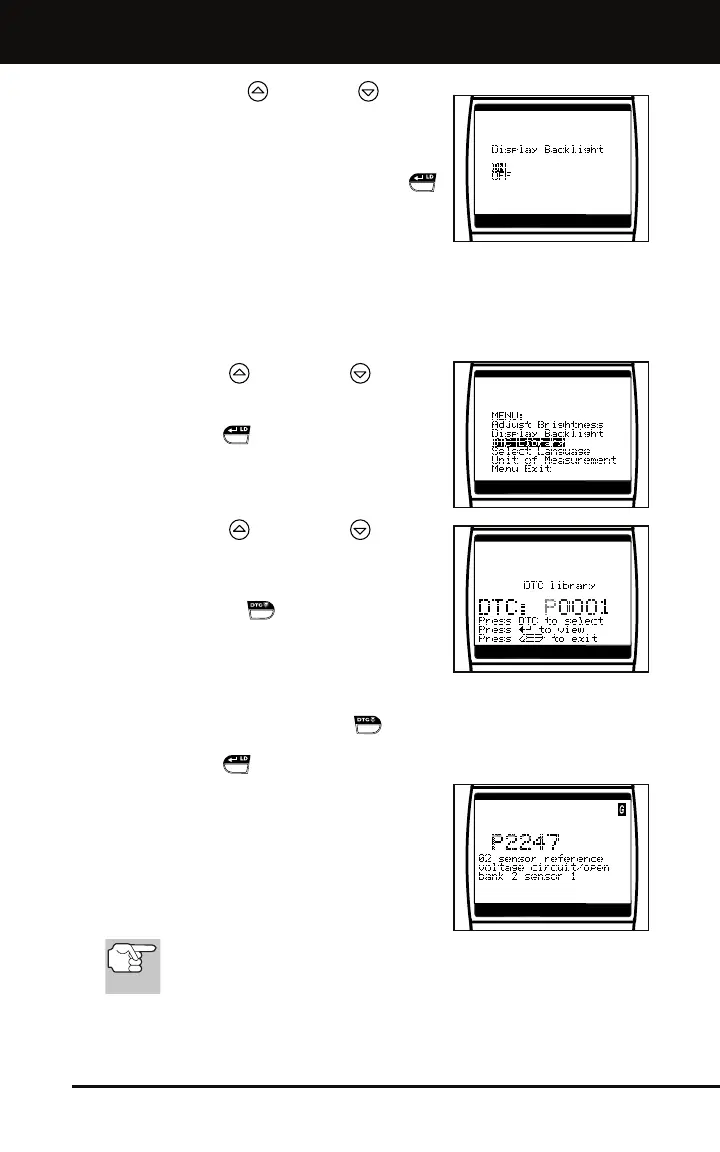
2. Press the UP or DOWN button,
as necessary, to select the desired
backlight mode, either ON or OFF.
3. When the desired backlight mode is
selected, press the ENTER/LD
button to save your changes.
The display returns to the MENU,
and the backlight turns “on” or “off”
as selected.
Searching for a DTC Definition Using the DTC Library (applicable
to OBD2 systems only)
1. Use the UP
and DOWN buttons,
as necessary, to highlight DTC Library
in the Setup Menu, then press the
ENTER/LD
button.
The Enter DTC screen displays. The
screen shows the code “P0001”,
with the “P” flashing.
2. Use the UP
and DOWN buttons,
as necessary, to scroll to the desired
DTC type (P=Powertrain, U=Network,
B=Body, C=Chassis), then press the
DTC SCROLL
button.
The selected character displays
“solid”, and the next character
begins flashing.
3. Select the remaining characters in the DTC in the same way,
pressing the DTC SCROLL
button to confirm each character.
When you have selected all the DTC characters, press the
ENTER/LD
button to view the DTC definition.
If you entered a “Generic” DTC
(DTCs that start with “P0”, “P2” and
some “P3”):
- The selected DTC and DTC
definition (if available), show on
the CanOBD2&1 Scan Tool’s
display.
If a definition for the DTC you entered is not available, an
advisory message shows on the CanOBD2&1 Scan Tool’s
display.
If you entered a “Manufacturer-Specific” DTC (DTCs that start
with “P1” and some “P3”):



 To Next Page