48
NS-19E310A13 Insignia 19" LED TV
www.insigniaproducts.com
5 Press S or T to highlight On (your TV’s remote
control controls the connected audio receiver’s
volume) or Off (your TV’s remote control does
not control the connected audio receiver’s
volume), then press ENTER.
6 Press MENU to return to the previous menu, or
press EXIT to close the menu.
Displaying a list of INlink-compatible
(HDMI CEC) devices
You can display a list of HDMI CEC devices that are
connected to your TV.
To display a list of INlink-compatible (HDMI CEC)
devices:
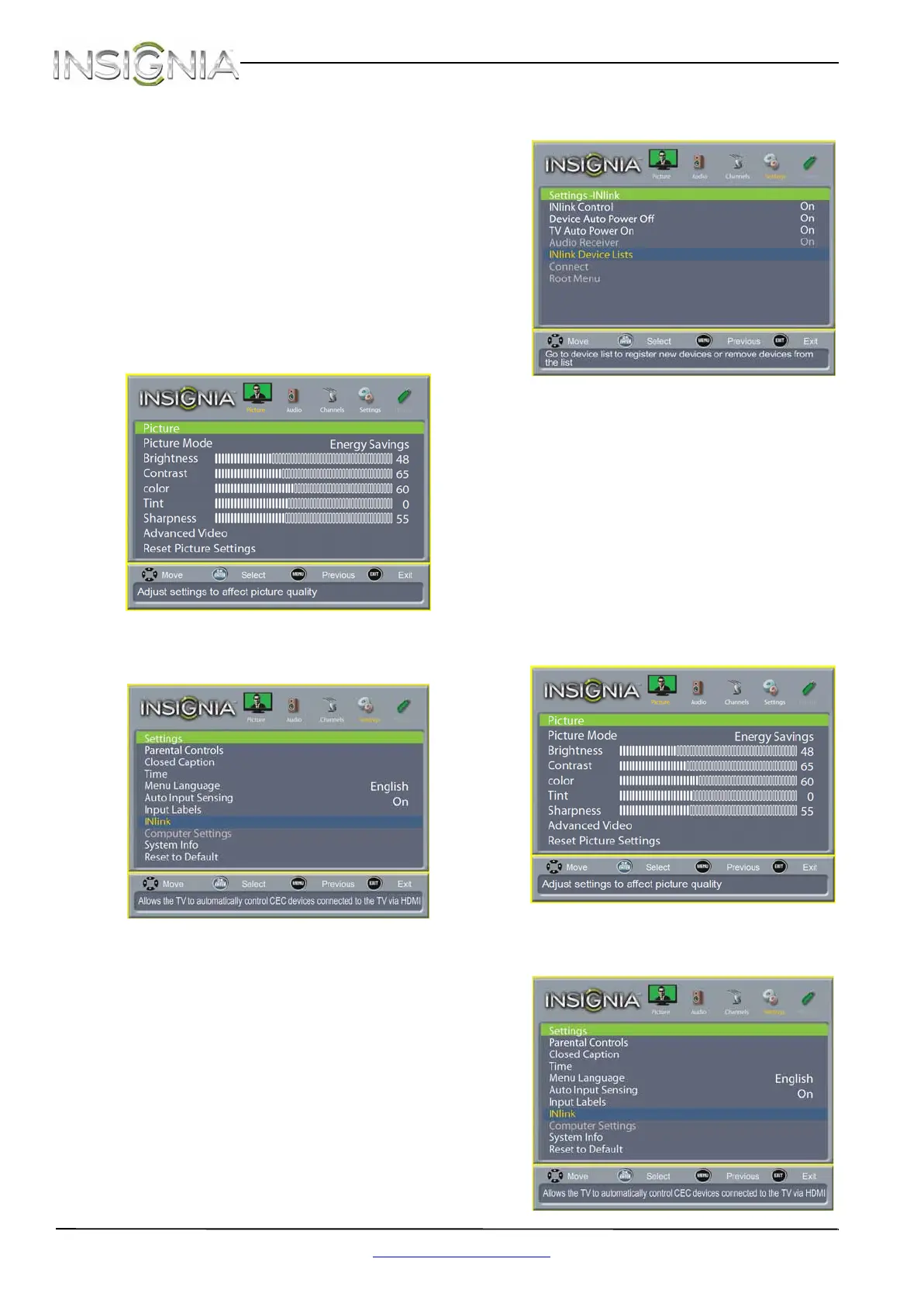
1 Press MENU. The on-screen menu opens.
2 Press
W or X to highlight SETTINGS, then press
T or ENTER. The Settings menu opens.
3 Press
S or T to highlight INlink, then press
ENTER. The Settings - INlink menu opens.
4 Press
S or T to highlight INlink Device Lists,
then press ENTER. A list of the HDMI
CEC-compatible devices you have connected
appears.
5 Press MENU to return to the previous menu, or
press EXIT to close the menu.
Waking INlink-compatible (HDMI CEC)
devices
When a connected INlink-compatible device is in
standby mode, Connect wakes (turns on) the
device.
To wake INlink-compatible (HDMI CEC) devices:
1 Press MENU. The on-screen menu opens.
2 Press
W or X to highlight Settings, then press T
or ENTER. The Settings menu opens.








 To Next Page