EasyManua.ls Logo

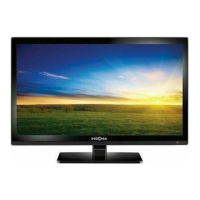
Insignia NS-28DD310NA15 - User Manual

Insignia NS-28DD310NA15
86 pages
Print Icon
To Next Page IconTo Next Page
Loading...
NS-28DD310NA15
User Guide
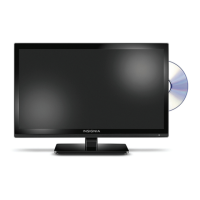
28" LED TV/DVD Combo
Before using your new product, please read these instructions to prevent any damage.

Table of Contents

Other manuals for Insignia NS-28DD310NA15

Questions and Answers

  • M
    Mrs. Linda TaylorAug 17, 2025
    What to do if the Insignia NS-28DD310NA15 remote control does not work?
    • C
      Craig FrenchAug 17, 2025
      If your Insignia TV DVD Combo remote control isn't working, try the following: * Ensure the power cord is properly connected to the power outlet. * Verify there are no obstacles blocking the path between the remote and the TV's remote control sensor (located on the front). * Point the remote directly at the remote control sensor on the TV. * Check that the batteries are correctly installed in the remote. * Replace the old batteries with new ones.
  • R
    Robert DeanAug 20, 2025
    Why does my Insignia TV DVD Combo have a good picture but no sound?
    • A
      april75Aug 20, 2025
      If you have a good picture but no sound on your Insignia TV DVD Combo, try the following: * Increase the volume and make sure the sound isn't muted. * Ensure headphones are not connected, as this disables the TV speakers. * Try a different audio mode. * If using a home theater system or sound bar, ensure it's on and not muted. * For systems connected with a digital optical cable, set the Digital Audio/SPDIF option to PCM in the AUDIO menu. * Check that audio cables and the antenna or cable TV are securely connected. * If using an antenna, check the digital channel signal strength. * The audio cables you are using may be bad, try a new set.
  • N
    Nancy GreenAug 22, 2025
    What to do if my Insignia TV DVD Combo has no picture and no sound?
    • M
      Michelle GrossAug 23, 2025
      If your Insignia TV DVD Combo has no picture and no sound, try these steps: * Press the power button on the TV or remote. * Ensure the Audio Only option is set to Off. * Check that video cables are securely connected. * Adjust the contrast and brightness. * Make sure the power cord is plugged in. * Select the correct video input source. * Try another channel to rule out station issues. * Confirm the incoming signal is compatible. * Verify the antenna or cable TV is properly connected. * Check closed caption settings, as some TEXT modes can block the screen.
  • C
    Carla ClarkAug 25, 2025
    Why is there no color on my Insignia TV DVD Combo?
    • B
      Brittney RamosAug 26, 2025
      If your Insignia TV DVD Combo has no color, a dark picture, or incorrect colors, try these solutions: * Try changing to another channel. * Adjust the color settings in the TV menu. * Ensure the video cables are correctly and securely connected to your TV. * Make sure the antenna or cable TV connection is secure. * If you're using an antenna, check the digital channel signal strength. If it is low, adjust the antenna or consider using a more powerful antenna with an amplifier.
  • B
    Brian KelleyAug 27, 2025
    Why is the picture dark on my Insignia TV DVD Combo but the sound is good?
    • M
      Miguel GarciaAug 27, 2025
      If you have dark, poor, or no picture (but the screen is lit) with good sound on your Insignia TV DVD Combo, try the following: * Try another channel to rule out station issues. * Make sure the antenna or cable TV is securely connected. * Adjust the brightness settings. * Try a different picture mode. * If using an antenna, check the digital channel signal strength and adjust the antenna or use an amplified antenna if needed. * Ensure video cables are securely connected and try a new set of cables.
  • C
    chad56Aug 29, 2025
    Why does my Insignia TV DVD Combo only show snow?
    • C
      Chad SullivanAug 30, 2025
      If your Insignia TV DVD Combo screen only shows snow (noise), try the following: * Try tuning to another channel, as the station might be experiencing issues. * Ensure the antenna or cable TV is correctly and securely connected. * If using an antenna, check the digital channel signal strength. If the signal is low, adjust the antenna or consider using a highly directional outdoor antenna or a set-top antenna with a built-in amplifier.
  • T
    tinathomasSep 1, 2025
    Why is picture quality good on some channels but poor on others on Insignia TV DVD Combo?
    • V
      vnguyenSep 1, 2025
      If the picture quality on your Insignia TV DVD Combo is good on some channels but poor on others while the sound remains good, the issue may stem from a weak signal. If you're connected to cable TV without a set-top box, consider installing one to improve signal reception and picture quality. Contact your cable TV provider for information on upgrading to a set-top box.
  • K
    kdixonSep 4, 2025
    Why are there dotted lines on my Insignia TV DVD Combo screen?
    • A
      anguyenSep 4, 2025
      If dotted lines or stripes appear on your Insignia TV DVD Combo screen, try the following: * Ensure the antenna or cable TV is connected correctly and securely. * If using an antenna, check the digital channel signal strength. If it is low, adjust the antenna or use a more powerful antenna. * Make sure the video cables are connected securely and try a new set of cables. * Other devices may be causing interference. Turn off devices one by one to see if the interference stops. If it does, move the interfering device further away from the TV.
  • M
    Mark SimmonsSep 6, 2025
    Why is my Insignia TV DVD Combo not displaying video from a CEC device?
    • A
      Allison HarveySep 6, 2025
      If your Insignia TV DVD Combo is not displaying video from a connected CEC device, verify the following: * The HDMI cable is securely connected to both the TV and the device. * The device is connected via an HDMI cable. * The connected device is a CEC-compatible device. * The correct video input source is selected on your TV. * The INlink feature is turned on in your TV settings. * Try adjusting the TV picture settings. * If the connected device is not an Insignia device, it might not be fully compatible with your TV.
  • T
    Thomas CordovaSep 9, 2025
    Why is my Insignia TV DVD Combo not playing audio from a CEC device?
    • N
      nealrichardSep 9, 2025
      If your Insignia TV DVD Combo isn't playing audio from a connected CEC device, check these items: * Ensure the HDMI cable is securely connected to both the TV and the device. * Confirm the device is connected to your TV with an HDMI cable. * Verify the device is CEC-compatible. * Make sure the TV volume is turned up and not muted. * Try adjusting the TV sound settings. * Ensure TV speakers are on and not muted. * Confirm that the INlink feature is enabled. * If using an HDMI CEC audio receiver, adjust the volume on the receiver. * If the device is not an Insignia device, it may not be compatible with your TV.

Summary

Safety First

Child Safety Guidelines

Safety advice for TV placement, use, and wall mounting.

Important Safety Instructions

Essential safety guidelines for operating the TV, including electrical and laser warnings.

Product Care and Environmental Notes

Information on replacement parts, power source, grounding, and environmental considerations.

Initial Setup and Installation

Unpacking and Stand Installation

Unpacking the TV and step-by-step instructions for attaching the TV stand.

Wall Mounting Instructions

Instructions for attaching a wall-mount bracket to the TV.

Connecting Your Devices

TV Ports and Components

Identifying TV parts, front controls, and connection ports on the side and back.

Connecting Video Sources

Connecting cable/satellite boxes, DVD/Blu-ray players, consoles, computers, and USB devices.

Audio Output and Home Theater Setup

Connecting headphones and home theater systems for audio output.

Connecting Computers and USB Devices

Connecting computers via HDMI/DVI/VGA and USB flash drives.

Basic TV Operations

Powering On and Initial Setup

Connecting power, turning TV on/off, and initial setup wizard.

Remote Control Usage

Guide to operating the remote control, including battery installation.

Navigating Menus and Settings

Overview and navigation of the TV's on-screen menus.

Picture and Sound Settings

Picture Settings and Enhancements

Fine-tuning TV picture quality, aspect ratio, and computer display settings.

Sound Settings and Audio Output

Adjusting TV sound settings and selecting audio output modes.

Channel Management and Parental Controls

Channel Tuning and Customization

Scanning, hiding, labeling channels, and creating favorite lists.

Parental Controls and Content Security

Configuring parental controls, passwords, and content restrictions.

Advanced Features and Media Playback

INlink (HDMI CEC) Functionality

Controlling CEC-compatible devices via HDMI, including power management.

USB Flash Drive Photo Viewer

Connecting USB drives for photo viewing and slideshows.

DVD Player Functionality

Playing, controlling, and adjusting DVD player settings.

Troubleshooting Common Issues

Remote Control and General TV Problems

Solutions for remote control, no power, no signal, and general TV issues.

Connection and Playback Troubleshooting

Solutions for video/audio issues, disc playback errors, and INlink device problems.

Specifications and Support

Product Specifications

Technical specifications of the Insignia TV.

Remote Control Codes and Warranty

Programming universal remotes and warranty details.

Legal Notices

FCC, IC, and Compliance Statements

FCC, IC, and other legal notices, including Energy Star and Dolby information.

Insignia NS-28DD310NA15 Specifications

General IconGeneral
Screen Size28 inches
Resolution1366 x 768
Display TechnologyLED
Refresh Rate60Hz
DVD PlayerYes
HDMI Ports2
USB Port1
Display TypeLED
Built-in TunerYes
VESA Mount CompatibleYes
Energy Star CertifiedYes

Related product manuals