EasyManua.ls Logo

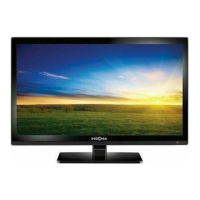
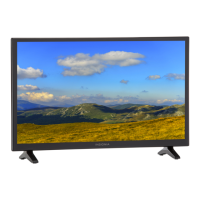
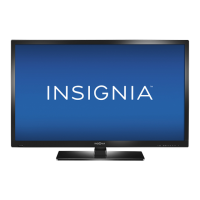
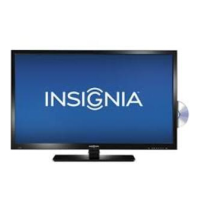
Insignia NS-20ED310NA15 - User Manual

Insignia NS-20ED310NA15
86 pages
Print Icon
To Next Page IconTo Next Page
Loading...
USER GUIDE
Before using your new product, please read these instructions to prevent any damage.
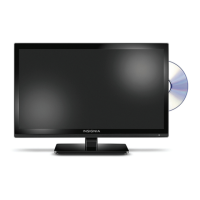
20" 720p 60Hz
LED DVD Combo TV
NS-20ED310NA15

Table of Contents

Other manuals for Insignia NS-20ED310NA15

Questions and Answers

  • B
    bridgesjimmySep 12, 2025
    Why are some settings grayed out on Insignia LED TV?
    • R
      Russell AguilarSep 12, 2025
      If some settings cannot be accessed on your Insignia LED TV: * If a setting is grayed out, it is not available in the current video input mode (for example TV mode). Change to a different video input source.
  • T
    Tiffany JonesAug 23, 2025
    How to fix no color or dark picture on Insignia LED TV?
    • P
      payneshawnAug 23, 2025
      If your Insignia LED TV has no color, a dark picture, or incorrect colors, try these solutions: * Try another channel to rule out broadcasting issues. * Adjust the color settings in the TV menu. * Ensure the video cables are correctly and securely connected. * Make sure the antenna or cable TV is connected correctly and securely. * If using an antenna, check the digital channel signal strength and adjust the antenna or use a stronger antenna with an amplifier if the signal is weak.
  • T
    Teresa WardAug 25, 2025
    Why is picture quality different on Insignia LED TV channels?
    • B
      branditateAug 26, 2025
      If picture quality is good on some channels and poor on others with good sound on your Insignia LED TV: * The problem may be due to a poor or weak signal from the broadcaster or cable TV provider. * If you're connected to cable without a set-top box, you may need to install one to improve signal reception and picture quality. Contact your cable TV provider about upgrading to a set-top box.
  • Z
    zleeAug 29, 2025
    What to do if my Insignia LED TV has no picture and no sound?
    • M
      Matthew GonzalezAug 29, 2025
      If your Insignia LED TV screen is not lit and there is no sound, try the following: * Press the power button on the TV or remote. * Ensure the Audio Only option is set to Off. * Check that the video cables are correctly and securely connected. * Adjust the contrast and brightness settings. * Verify the power adapter is plugged into a working outlet. * Press INPUT and select the correct video input source. * Try another channel to rule out station problems. * Ensure the incoming signal is compatible. * Confirm the antenna or cable TV is correctly and securely connected. * Check the closed caption settings to ensure TEXT modes aren't blocking the screen.
  • E
    Ellen EvansAug 30, 2025
    Why my Insignia LED TV has no power?
    • M
      Mr. Terry BrownAug 30, 2025
      If your Insignia LED TV has no power, verify the following: * Make sure the power adapter is plugged into a working outlet. * Unplug the power adapter, wait 60 seconds, and then plug it back in and turn on your TV. * Ensure that other devices (like surround sound receivers or fans) aren't interfering with your TV by turning them off one by one and moving them away from the TV if they are causing interference.
  • B
    bondbradyNov 26, 2025
    How to fix good picture but no sound on Insignia LED TV?
    • N
      Natalie BoydNov 26, 2025
      If you have a good picture but no sound on your Insignia LED TV, here are some things to check: * Increase the volume and make sure the sound isn't muted. * Ensure headphones are not connected, as this mutes the TV speakers. * Try a different audio mode by pressing the AUDIO button. * If using a home theater system, sound bar, or external speakers, ensure they are turned on, not muted, and the correct output mode is selected. * For digital cable connections to a home theater system, sound bar, or external speaker system, in the Audio menu, set the Audio Format option to PCM. * Check that all audio cables are correctly and securely connected to your TV. * Make sure that the antenna or cable TV is connected correctly and securely. * If you are using an antenna, the digital c...
  • R
    Rodney Davis MDSep 23, 2025
    What to do if Insignia LED TV won't play disc?
    • A
      Aaron WolfSep 23, 2025
      If playback does not start on your Insignia LED TV: * Make sure that a disc is inserted in the disc slot with the label facing the back of the TV. * The disc may be dirty. Clean the disc. * The disc format may not be supported. Blu-ray and 3D discs will not play.
  • B
    Brittany CarterNov 25, 2025
    How to fix dotted lines on Insignia LED TV screen?
    • M
      Micheal GrossNov 25, 2025
      If dotted lines or stripes appear on your Insignia LED TV screen, try the following: * Make sure that the antenna or cable TV is connected correctly and securely. * If you are using an antenna, the digital channel signal may be low. To check the digital channel signal strength. * If you are using an antenna and the signal strength is low, adjust the antenna or use a highly directional outdoor antenna or set-top antenna with a built-in amplifier. * Make sure that the video cables are connected correctly and securely to your TV. * The video cable(s) you are using may be bad. Try a new set. * Other devices (for example, a surround sound receiver, external speakers, fans, or hair dryers) may be interfering with your TV. Try turning off one device at a time to determine which devic...
  • K
    Kevin JimenezSep 12, 2025
    How to eliminate audio noise on Insignia LED TV?
    • J
      James PearsonSep 12, 2025
      If you are experiencing audio noise with your Insignia LED TV, other devices (for example, a surround sound receiver, external speakers, fans, or hair dryers) may be interfering with your TV. Try turning off one device at a time to determine which device is causing interference. After you have determined which device is causing interference, move it further from the TV to eliminate the interference.
  • J
    josephmitchellSep 8, 2025
    Why can't I select my device on Insignia LED TV input?
    • C
      Christina ReedSep 8, 2025
      If you cannot select your device when you press INPUT on your Insignia LED TV (it is grayed out): * Turn on the device. Your TV automatically detects and displays which video jacks have devices connected to them when the devices are turned on. * Turn off Auto Input Sensing.

Summary

Child Safety

Proper Television Placement Matters

Guidelines for safe television placement to prevent tip-overs and injuries.

Wall or Ceiling Mount Your Television

Instructions and precautions for mounting the TV on a wall or ceiling.

Important Safety Instructions

Caution: Electric Shock Hazard

Warning about internal voltage and not opening the TV.

Warning: Laser System Hazard

Warning about laser system hazards and avoiding exposure.

Electric Shock Hazard Warning

Warning about fire or electric shock risks and user-serviceable parts.

Handling the LCD Panel

LCD Panel Handling Precautions

Precautions for handling the glass screen and liquid inside the panel.

Damage Requiring Service

Conditions requiring unplugging the TV and referring to service personnel.

Introduction

Stand or Wall-Mount Bracket Installation

Directs users to install the stand or wall-mount bracket.

Installing the TV Stand

Step-by-step guide for attaching the TV stand.

Installing a Wall-Mount Bracket

Attach Wall-Mount Bracket

Step 3: Attaching the bracket using mounting holes and M4 screws.

Prepare TV for Mounting

Step 1: Placing the TV face-down.

Remove Stand Column

Step 2: Removing the stand column from the TV.

Programming Universal Remote Controls

Viewing Universal Remote Control Codes

Turning on your TV for the first time

Initial Setup Wizard Overview

Guides through initial setup: language, time, picture, source, channels.

Setting Date and Time

Sets the date and time for the TV.

Choosing Display Mode

Selects Home Use or Store Display mode.

Changing Input Labels

Creates custom labels for input sources.

Customizing TV Settings

Options to customize TV experience.

Connecting Devices for Viewing

Shows connection options for watching TV.

Setting Time Zone

Selects the TV's time zone.

Understanding the Basics

Selecting the Video Input Source

How to switch between connected devices.

Using the DVD Player

Playing a Disc

Instructions for inserting and playing a disc.

Controlling Disc Playback

Explains playback controls like play, pause, skip, reverse.

Adjusting DVD Player Settings

Steps to access and change DVD player settings.

Parental Control Settings

Parental Control Level Setting

Sets parental control levels to restrict content.

Password Settings

Changing the Parental Control Password

How to set or change the parental control password.

Using INlink

INlink Feature Overview

Controls HDMI CEC devices using TV remote.

Turning INlink On or Off

Steps to enable or disable INlink.

Turning Device Auto Power Off On or Off

Turning TV Auto Power On On or Off

Turning Audio Receiver On or Off

Displaying INlink-Compatible Devices

Selecting an INlink-Compatible Device

Opening an INlink-Compatible Devices Root Menu

Using a USB Flash Drive

Switching to USB Mode

How to switch the TV to USB input mode.

Browsing Photos on USB

How to view photos in a thumbnail index.

Viewing Favorite Photos

Switching to USB Mode for Favorites

Switch to USB mode to view favorites.

Browsing Favorite Photos

How to browse photos added to the favorite list.

Viewing Photos in a Slideshow

Switching to USB Mode for Slideshow

Switch to USB mode to view slideshow.

Selecting a Folder for Slideshow

How to select a folder for the slideshow.

Controlling Slideshow Playback

How to control slideshow playback.

Adjusting the Picture

Adjusting TV Picture Settings

How to adjust picture settings like mode, brightness, contrast.

Picture Mode Options Explained

Explains Vivid, Standard, Energy Savings, Movie, Custom modes.

Aspect Ratio Settings

Setting the Power On Picture Mode

Adjusting the Computer Image

Computer Image Settings Adjustment

Adjusts image settings for computer input.

Adjusting the Sound

Adjusting Sound Settings

How to adjust sound settings and reset them.

Audio Mode Options Explained

Explains Standard, Theater, Music, News, Custom modes.

TV Speakers Output Selection

Selects audio output source (Auto, On, Off).

Digital Audio Format;Delay

Adjusts digital audio sent to external systems.

Selecting the Audio Out Mode

Audio Output Options (Variable;Fixed)

How to select Variable or Fixed audio out.

Playing TV Audio Only

Audio Only Mode Operation

Turns off the picture to listen to audio only.

Changing Channel Settings

Automatically Scanning for Channels

Searches for channels and stores them.

Hiding Channels in List

Hides channels from the channel list.

Hiding Channels

Manually Adding;Skipping Channels

Steps to manually add and skip channels.

Setting Up a Favorite Channel List

Creating a Favorites List

How to add channels to a favorites list.

Setting TV Parental Controls

Setting or Changing the Password

How to set or change the parental control password.

Blocking Unrated TV

Setting Parental Control Levels

U.S. Rating Levels Explained

Explains U.S. TV and movie rating systems.

Canadian Rating Levels Explained

Explains Canadian rating systems.

Downloading Rating Information

Locking Control Buttons

Using Closed Captioning

Turning Closed Captioning On or Off

How to turn closed captioning on or off.

Selecting Analog Closed Captioning Mode

How to select analog captioning modes.

Selecting Digital Closed Captioning Mode

How to select digital captioning modes.

Selecting the Digital Closed Captioning Mode

Adjusting Time Settings

Setting the Sleep Timer

Troubleshooting

Troubleshooting Topics Overview

Lists common troubleshooting areas.

Updating the TV Firmware

Firmware Update Cautions

Warnings before upgrading firmware.

Customizing TV Settings

Restoring Settings to the Defaults

Video and Audio Troubleshooting

No Picture or Sound Troubleshooting

Troubleshooting steps for no picture or sound.

Picture Quality Issues

Remote Control Troubleshooting

Remote Control Not Working

Troubleshooting steps for non-functional remote control.

Troubleshooting Common Problems

General Troubleshooting

No Power Issues

Troubleshooting steps for power issues.

No Signal Error Message

Troubleshooting steps for no signal message.

Disc Playback Troubleshooting

INlink (CEC-compatible) Device Troubleshooting

No Video from Connected CEC Device

Troubleshooting steps for no video from CEC device.

INlink Device Audio Issues

No Audio from Connected CEC Device

Troubleshooting steps for no audio from CEC device.

INlink Device Control Issues

Remote Control Not Operating Device

Troubleshooting steps for remote control not operating device.

INlink Device List Issues

INlink Device Power Management Issues

INlink Audio Receiver Settings Issues

Insignia NS-20ED310NA15 Specifications

General IconGeneral
BrandInsignia
ModelNS-20ED310NA15
CategoryTV DVD Combo
LanguageEnglish

Related product manuals