EasyManua.ls Logo

Insignia NS-32L550A11 - User Manual

Insignia NS-32L550A11
68 pages
Print Icon
To Next Page IconTo Next Page
Loading...
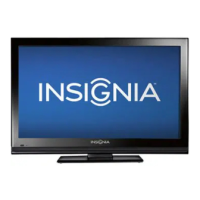
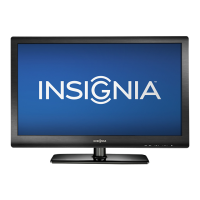
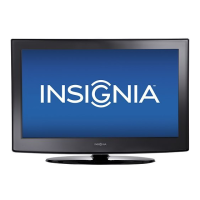
32"/37"/42" LCD, 120 Hz 1080p
NS-32L550A11/NS-37L550A11/NS-42L550A11
User Guide
NS-32L_37L_42L550A11_09-1120_MAN_V2_English.book Page 0 Thursday, January 21, 2010 10:20 AM

Table of Contents

Other manuals for Insignia NS-32L550A11

Questions and Answers

  • C
    cynthia36Aug 12, 2025
    What to do if my Insignia TV has good picture but no sound?
    • T
      trevinomargaretAug 13, 2025
      If your Insignia TV has a good picture but no sound, first, try increasing the volume. Also, check to ensure that the sound is not muted. Finally, verify that the correct audio mode is selected.
  • K
    knightleslieAug 16, 2025
    Why is there no output from one of the speakers on my Insignia TV?
    • S
      Sharon ChavezAug 16, 2025
      If there is no output from one of the speakers on your Insignia TV, adjust the balance in the Audio menu.
  • B
    brownsandraAug 20, 2025
    What to do if channels do not change correctly on Insignia TV?
    • J
      Jeffrey TaylorAug 20, 2025
      If channels are not changing correctly when directly entering numbers on your Insignia TV, and if your original remote required you to press ENTER to change channels, press OK/ENTER on your TV remote control.
  • A
    Amy BondAug 25, 2025
    What to do if my Insignia TV remote does not control devices correctly?
    • J
      Joshua PhillipsAug 25, 2025
      If, when programming the remote control, the remote does not control devices or commands are not working correctly, try all listed codes for the device. Also, make sure the device operates with an infrared remote control.
  • D
    drosalesAug 27, 2025
    Why do buttons on the front of my Insignia TV not work?
    • C
      Colin RyanAug 27, 2025
      If the buttons on the front of your Insignia TV are not working, check if the Button Lock option is set to Off. If it is not, set it to Off. If that doesn't work, try unplugging the TV's power cord, wait a few seconds, then plug it back in and turn your TV on.
  • J
    jessica06Aug 31, 2025
    What to do if INlink does not work on Insignia TV?
    • K
      Kenneth HallAug 31, 2025
      If INlink is not working on your Insignia TV, make sure that the device you want to control is HDMI CEC-compatible. Also, ensure that the HDMI device’s power cord is connected correctly. Check that the INlink Control option is set to On in the INlink menu. Connect an INlink device using an HDMI 1.3 cable. If the HDMI cable is disconnected then reconnected or if the power is turned off scan for INlink devices again.
  • J
    Jessica WalkerSep 4, 2025
    What to do if the LED does not blink when I press a button on my Insignia TV remote?
    • K
      kimberly35Sep 4, 2025
      If the LED on your Insignia TV remote does not blink when you press a button, try pressing different buttons. If that doesn't work, the batteries may be drained, so replace them. Also, make sure the remote is aimed at your device and is not more than 40 feet (12.2 m) away.
  • C
    Cynthia LunaSep 8, 2025
    What to do if I get an entry error on my Insignia TV remote?
    • R
      Rebecca GreenSep 8, 2025
      If the LED blinks one long blink, indicating an entry error has occurred (for example, while in SET mode wrong button was pressed), try entering the sequence again.

Summary

User Guide

Child Safety

Tune Into Safety Tips

Safety advice for using the TV and furniture.

Wall Mounting Safety

Guidelines and precautions for mounting the TV on a wall.

Important Safety Instructions

General Safety Precautions and Warnings

Detailed instructions and warnings for safe operation and maintenance.

Power Source and Grounding Procedures

Environmental and Operational Precautions

Introduction to Insignia TV Features

Installing the Stand or Wall-Mount Bracket

Installing the TV Stand

Step-by-step instructions for attaching the TV stand.

Installing a Wall-Mount Bracket

Guidance on attaching a UL-listed wall mount bracket to the TV.

TV Components Overview

Accessories List

Inventory of items provided with the TV package.

Remote Control Overview

Remote Control Usage Guide

Installing Remote Control Batteries

Instructions for inserting batteries into the remote control.

Remote Control Aiming and Holder Usage

Universal Remote Control Programming

Programming Your Insignia Remote Control

Steps to program the remote to control other devices.

Searching for Remote Control Codes

Learning and Programming Remote Functions

Managing Remote Control Functions

Programming Macros and Other Remotes

Making Connections to the TV

Connecting Power, Antenna, and Cable TV

Instructions for connecting power, antenna, or cable without a box.

Connecting Cable or Satellite Box

Guidance on connecting external boxes via various cable types.

Connecting HDMI and Component Video Devices

Connecting S-Video, Camcorders, and Game Consoles

Connecting VCRs and Computers

Connecting Headphones and Audio Systems

Initial TV Setup Wizard

Understanding Basic TV Operations

Turning TV On;Off and Input Selection

Basic functions like powering on/off and selecting video sources.

Adjusting Sound Settings

Sound Configuration and Audio-Only Mode

Adjusting audio parameters and listening to audio only.

Changing Channel Settings

Automatic Channel Scanning Procedure

How to scan for and store available channels.

Managing Channel Lists (Hiding and Favorites)

Channel Labels and Signal Strength Check

Setting Parental Controls

Password Setup and Management

Creating and managing the parental control password.

Locking TV Buttons and Blocking Unrated Content

Setting Parental Control Levels

Downloading Rating Information

Using Closed Captioning

Captioning On;Off and Mode Selection

Enabling/disabling closed captions and selecting analog/digital modes.

Customizing Digital Closed Captioning Appearance

Adjusting Time Settings

Setting the Time and Date

Configuring the TV's clock and date settings.

Sleep Timer and Menu Settings Configuration

Menu Language and Transparency Adjustment

Auto Input Sensing Feature Operation

Labeling Input Sources

Using INlink for HDMI CEC Control

Restoring TV Settings to Defaults

Using the USB Port

USB Mode Switching and Photo Browsing

Accessing USB devices and browsing photo files.

Favorite Photos List Management

Viewing Photos and Slideshows

Customizing Slideshow Settings

Maintaining and Troubleshooting

Cleaning Procedures and Error Resolution

Guidelines for cleaning the TV and common troubleshooting steps.

Product Specifications

Manufacturers Remote Control Codes

Two-Year Limited Warranty Information

US and Canada Warranty Details

Warranty coverage, terms, and service procedures for US/Canada.

Mexico Warranty Details

Warranty coverage, terms, and service procedures for Mexico.

Insignia NS-32L550A11 Specifications

General IconGeneral
BrandInsignia
ModelNS-32L550A11
CategoryLCD TV
LanguageEnglish

Related product manuals