EasyManua.ls Logo

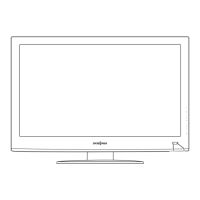
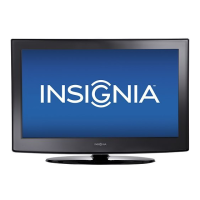
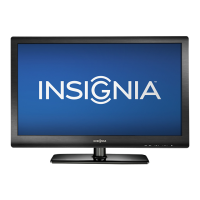
Insignia NS-32E740A12 - User Manual

Insignia NS-32E740A12
56 pages
Print Icon
To Next Page IconTo Next Page
Loading...
32" LCD, 60Hz 720p
NS-32E740A12
User Guide

Table of Contents

Other manuals for Insignia NS-32E740A12

Questions and Answers

  • M
    Michelle GouldSep 23, 2025
    Insignia NS-32E740A12 LCD TV won't turn on - what to do?
    • J
      jerry58Sep 23, 2025
      If your Insignia LCD TV has no power, ensure that the power cord is correctly connected to your TV and a power outlet. Unplug the power cord, wait 60 seconds, then plug the cord back in and turn on your TV. Other devices may be interfering with your TV. Try turning off one device at a time to determine which device is causing interference and move it further from the TV.
  • S
    Sandra TownsendAug 23, 2025
    Why does my Insignia LCD TV have no picture and sound?
    • M
      Miguel GibbsAug 25, 2025
      If your Insignia LCD TV has no picture and no sound, try the following: - Press on the TV or the remote control. - Ensure the power cord is plugged in. - Verify video cables are securely connected to your TV. - Select the correct video input source. - Try another channel to rule out station issues. - Ensure the incoming signal is compatible. - Check that your antenna or cable TV is correctly and securely connected. - Adjust the contrast and brightness. - Ensure the Audio Only option is set to Off. - Check the closed caption settings, as some TEXT modes can block the screen.
  • M
    Marcia AndersonAug 25, 2025
    Why is my Insignia LCD TV remote not working?
    • S
      Susan SnyderAug 26, 2025
      If your Insignia LCD TV remote control isn't working, ensure the power cord is correctly connected to the TV and a power outlet. Also, make sure there are no obstructions between the remote and the sensor on the front of the TV, and point the remote directly at the sensor. Check that the batteries are installed correctly (after removing any plastic wrapping) and replace them if necessary.
  • J
    Jean CollinsAug 27, 2025
    How to fix sound on Insignia NS-32E740A12 LCD TV?
    • L
      Larry HollowayAug 27, 2025
      If your Insignia LCD TV has good picture but no sound, first, increase the volume and make sure that the sound is not muted. Disconnect any headphones that may be plugged in. Ensure the correct audio mode is selected and that the audio cables are connected correctly and securely. Check that the antenna or cable TV is connected correctly and securely and that the digital channel signal is not low (if using an antenna). Finally, the audio cables you are using may be faulty, so try a new set.
  • M
    Maria StoneAug 27, 2025
    Why is the picture dark on my Insignia NS-32E740A12 LCD TV but the sound is fine?
    • J
      Johnny BonillaAug 27, 2025
      If your Insignia LCD TV has a dark, poor, or no picture (but the screen is lit) while the sound is good, try switching to another channel to rule out station-specific problems. Ensure that the antenna or cable TV is connected correctly and securely. Adjust the brightness and make sure that the correct picture mode is selected. If you are using an antenna, the digital channel signal may be low, so consider adjusting the antenna or using a highly directional outdoor antenna or set-top antenna with a built-in amplifier. Also, ensure that the video cables are connected securely and try a new set of video cables, as the ones you are using may be bad.
  • J
    James NolanSep 15, 2025
    Why can't I access some settings on my Insignia NS-32E740A12?
    • P
      paulstevensSep 15, 2025
      If some settings cannot be accessed on your Insignia LCD TV, it means that the setting is not available in the current video input mode.
  • V
    Victoria DeanSep 12, 2025
    Why are some channels not showing up on my Insignia LCD TV?
    • J
      Jonathan LawrenceSep 13, 2025
      If one or more channels do not display on your Insignia LCD TV, ensure that the channels are not blocked or hidden. If using a cable or satellite box, use the remote that came with that box to change channels and make sure you have the correct input selected to view channels from the cable or satellite box. If you are using an antenna, the digital channel signal may be low.
  • M
    Michael DeanSep 14, 2025
    How to reset parental control password on Insignia LCD TV?
    • D
      Dale MurphySep 14, 2025
      To access parental controls on your Insignia LCD TV if you've lost the password, enter 9999, then set a new password.
  • F
    fdrakeSep 5, 2025
    How to eliminate audio noise from Insignia LCD TV?
    • J
      jeffreybrooksSep 5, 2025
      If you are experiencing audio noise with your Insignia LCD TV, other devices may be interfering with your TV. Try turning off one device at a time to determine which device is causing interference and move it further from the TV.
  • M
    Mike MooreSep 2, 2025
    How to improve poor picture quality on Insignia NS-32E740A12 LCD TV?
    • D
      dana51Sep 2, 2025
      If your Insignia LCD TV has a poor picture, ensure that the room is not too bright, as light reflecting off the screen can make the picture difficult to see. If an S-VHS camera or camcorder is connected while another device is turned on, the picture may be poor, so try turning off one or more devices.

Summary

Safety First

General Safety Tips

Basic advice for safe TV operation and placement.

Wall Mounting Safety

Guidelines for securely installing the TV on a wall.

Important Safety Instructions

Warnings and Precautions

Critical safety advice, including electric shock and handling the LCD panel.

Introduction to Your TV

Product Features Overview

Welcome, SRS TruSurround HD, and INlink features.

Installation Guide

Stand and Wall Mount Installation

Step-by-step guide for physical setup.

TV Components

Package Contents and Front View

Listing included items and identifying front controls.

TV Connections

Rear and Side Panel Ports

Description of all available input/output jacks.

Remote Control Guide

Remote Control Functions

Detailed explanation of each button's purpose.

Making Connections

Choosing the Right Connection

Guidance on selecting the best video/audio connection type.

Connecting Devices

Connecting Power

Basic power connection steps.

Connecting Cable;Satellite Box

Methods for connecting to TV sources.

Connecting Sources

Connecting Antenna;Cable TV

How to connect broadcast signals without a box.

Connecting DVD;Blu-ray Player

Instructions for connecting media players.

Connecting Media Devices

Connecting Camcorder;Game Console

How to hook up entertainment devices.

Connecting a Computer

Steps for PC connectivity via VGA or HDMI.

Audio and Headphone Connections

Connecting Headphones

How to use the headphone jack.

Connecting Home Theater Systems

Instructions for analog and digital audio outputs.

Initial Setup

First-Time TV Setup Wizard

Guided process for initial configuration.

Understanding Your TV

Basic Operations

Turning on/off and selecting video sources.

TV Features and Settings

Navigating Menus

How to interact with the on-screen display.

Channel Selection and Volume

Procedures for changing channels and adjusting audio levels.

Picture and System Settings

Adjusting Picture Quality

Customizing visual settings for optimal display.

Viewing Channel Information

How to display current program details.

Sound Settings

Adjusting Audio Settings

Customizing sound profiles and features.

Channel Management

Playing TV Audio Only

How to listen to audio without the picture.

Scanning for Channels

Automatic search for available TV channels.

Parental Controls

Setting Passwords and Locking Buttons

Securing TV access and device controls.

Parental Control Features

Blocking Unrated TV

Restricting programs without ratings.

Parental Control Levels

Setting US and Canadian Ratings

Configuring content restrictions by region.

Closed Captioning

Turning Closed Captioning On;Off

Enabling and disabling subtitle features.

Analog Caption Modes

Selecting display styles for analog captions.

Closed Captioning Styles

Customizing Digital Caption Styles

Personalizing digital subtitle appearance.

Time and Sleep Settings

Setting the Clock

Configuring the TV's internal clock.

Setting the Sleep Timer

Scheduling automatic TV turn-off.

Menu and Input Settings

Adjusting Menu Language

Changing the on-screen display language.

Labeling Input Sources

Customizing names for connected devices.

Menu and Input Settings

Input Sensor and Default Settings

Managing automatic input detection and resetting preferences.

INlink Connectivity

Managing INlink Features

Controlling HDMI CEC devices and power settings.

INlink Features

Auto Power On;Off and Audio Receiver Control

Automating device power and controlling receiver volume.

USB Flash Drive Usage

Displaying INlink-compatible Devices

Viewing connected HDMI CEC devices.

Switching to USB Mode

Accessing files from a USB drive.

USB Flash Drive Content

Browsing Photos from USB

Navigating and viewing image files.

USB Flash Drive Slideshows

Viewing Photos in Slideshow

Displaying images automatically.

Customizing Slideshow Settings

Adjusting playback options for slideshows.

Maintenance and Troubleshooting

Cleaning the TV

Instructions for cleaning the cabinet and screen.

Troubleshooting Common Issues

Solutions for video, audio, and remote problems.

Specifications

Technical Specifications

Detailed hardware and performance data.

Universal Remote Control Setup

Programming Universal Remotes

Instructions and codes for using third-party remotes.

Legal and Compliance Information

Regulatory Notices

FCC, cable, and trademark compliance statements.

Warranty Information

Two-Year Limited Warranty Details

Coverage, claims, and exclusions.

Insignia NS-32E740A12 Specifications

General IconGeneral
Response time9 ms
Display diagonal31 \
Display brightness350 cd/m²
Display resolution1366 x 768 pixels
Native aspect ratio16:9
Supported video modes1080p
Contrast ratio (dynamic)5000:1
Contrast ratio (typical)1200:1
Supported graphics resolutions1366 x 768
3DNo
Backlight-
HDMI ports quantity3
DVI-D ports quantity1
DVI-I ports quantity2
USB 2.0 ports quantityUSB 2.0 ports have a data transmission speed of 480 Mbps, and are backwards compatible with USB 1.1 ports. You can connect all kinds of peripheral devices to them.
S-Video inputs quantity0
Product colorBlack
Panel mounting interface200 x 100 mm
RMS rated power- W
Power consumption (standby)1 W
Power consumption (typical)64 W
Remote control typeStandard
Weight and Dimensions IconWeight and Dimensions
Height (with stand)533.4000 mm
Weight (with stand)9888.3137 g
Depth (without stand)203.2000 mm
Width (without stand)736.6000 mm
Height (without stand)457.2000 mm
Weight (without stand)8164.6627 g

Related product manuals