EasyManua.ls Logo

Insignia NS-40D420NA16 - User Manual

Insignia NS-40D420NA16
81 pages
Print Icon
To Next Page IconTo Next Page
Loading...
USER GUIDE
Before using your new product, please read these instructions to prevent any damage.
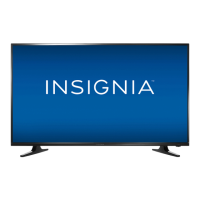
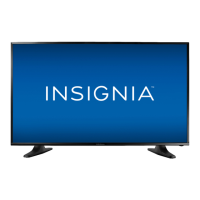
40" 1080p 60Hz LED TV
NS-40D420NA16/NS-40D420MX16

Table of Contents

Other manuals for Insignia NS-40D420NA16

Questions and Answers

  • M
    murphydavidSep 16, 2025
    Why does my Insignia NS-40D420NA16 LED TV not turn on when I turn on my device?
    • Q
      qcalderonSep 17, 2025
      Make sure that the INlink feature is turned on. Make sure that TV Auto Power On is set to On on the INlink menu. The device may not support this feature.
  • R
    robertthompsonAug 25, 2025
    Why is picture quality good on some channels and poor on others on Insignia LED TV?
    • J
      Jacob MccormickAug 25, 2025
      If your Insignia LED TV picture quality is good on some channels but poor on others and the sound is good, the problem may be a weak signal from the broadcaster or cable TV provider. If you connect to cable without a set-top box, you may need to install a set-top box to improve the signal reception and picture quality. Contact your cable TV provider about upgrading to a set-top box.
  • L
    Leonard McknightAug 25, 2025
    How do I remove the retail banner from my Insignia NS-40D420NA16 LED TV?
    • J
      Jason HayesAug 26, 2025
      If your Insignia LED TV displays a retail banner, you selected Store Display Mode when you ran the Easy Setup wizard. Run the Easy Setup wizard again and select Home User Mode on the Viewing Environment screen.
  • Z
    zriveraAug 26, 2025
    How to fix black bars on Insignia NS-40D420NA16 LED TV?
    • M
      Matthew JohnsonAug 27, 2025
      If the picture on your Insignia LED TV does not fill the screen and there are black bars around it, press ASPECT to change the aspect ratio.
  • M
    Mary BarnettSep 18, 2025
    Why does the Audio Receiver setting on the INlink menu of my Insignia NS-40D420NA16 keep turning back on after it is turned off?
    • F
      fowlertonyaSep 18, 2025
      When Audio Receiver is set to Off and INlink Control is set to On and you make an adjustment to the audio receiver, Audio Receiver is automatically set to On. To prevent this from happening, turn off the INlink feature.
  • L
    Lauren LopezSep 23, 2025
    Why does my device not turn off when I turn off my Insignia NS-40D420NA16 LED TV?
    • T
      Tracey HansenSep 23, 2025
      Make sure that the INlink feature is turned on. Make sure that Device Auto Power Off is set to On on the INlink menu. The device may not support this feature.
  • V
    vickie27Sep 8, 2025
    Why is there no picture and no sound on my Insignia LED TV?
    • S
      samuelnealSep 8, 2025
      If your Insignia LED TV has no picture (screen is not lit) and no sound, press the power button on the TV or remote control. Ensure the Audio Only option is set to Off. Verify that the video cables are correctly and securely connected. Adjust the contrast and brightness. Make sure the power cord is plugged into a working outlet. Press INPUT and select the correct video input source. Try another channel, as the station may be experiencing problems. Ensure the incoming signal is compatible. Check that the antenna or cable TV is correctly and securely connected. Check the closed caption settings, as some TEXT modes can block the screen.
  • R
    Ronald JordanSep 9, 2025
    Why does my Insignia NS-40D420NA16 have no power?
    • M
      Michael PowellSep 9, 2025
      If your Insignia LED TV has no power, make sure that the power cord is plugged into a working outlet. Unplug the power cord, wait 60 seconds, then plug it back in and turn on your TV. Other devices may be interfering with your TV. Try turning off one device at a time to determine which device is causing interference, then move it further from the TV.
  • G
    Gregg HuertaSep 2, 2025
    Why does my Insignia NS-40D420NA16 have a few bright or dark spots?
    • N
      nancy68Sep 2, 2025
      A few bright or dark spots on an Insignia LED TV LCD screen is normal and does not affect the operation of your TV.
  • A
    Andrew McdonaldAug 31, 2025
    How to prevent after images on Insignia NS-40D420NA16?
    • W
      Walter McintoshAug 31, 2025
      To prevent after images from appearing on your Insignia LED TV, do not display a still image, such as a logo, game, or computer image, for an extended period of time.

Summary

CHILD SAFETY

Important Safety Instructions

Handling the LCD Panel

Precautions for safely handling the TV's glass screen and internal liquid.

Installing the Stand or Wall-Mount Bracket

Installing a Wall-Mount Bracket

What Connection Should I Use?

Remote Control

Connecting Devices

Connecting a Cable or Satellite Box

Instructions for connecting cable or satellite TV boxes.

Connecting a USB Flash Drive

Guide for connecting and using USB flash drives.

Connecting Power

Turning on Your TV for the First Time

Adjusting the Picture

Adjusting the TV Picture

Guide to adjusting various picture settings for optimal quality.

Adjusting the Sound

Adjusting Sound Settings

Instructions for customizing sound modes and levels.

Changing Channel Settings

Setting Parental Controls

Troubleshooting

Updating the TV Firmware

Restoring Settings to the Defaults

Insignia NS-40D420NA16 Specifications

General IconGeneral
BrandInsignia
ModelNS-40D420NA16
CategoryLED TV
LanguageEnglish

Related product manuals