EasyManua.ls Logo

Insignia NS-46E340A13 - User Manual

Insignia NS-46E340A13
63 pages
Print Icon
To Next Page IconTo Next Page
Loading...
NS-46E340A13
User Guide
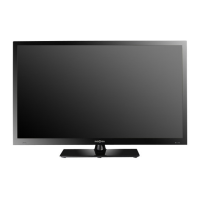
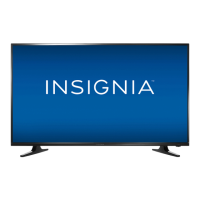
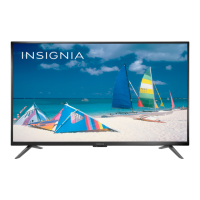
46" LED TV

Table of Contents

Other manuals for Insignia NS-46E340A13

Questions and Answers

  • M
    Mary RileyAug 21, 2025
    Why is my Insignia LED TV remote not working?
    • M
      Megan DuncanAug 21, 2025
      If your Insignia LED TV remote control isn't working, ensure the power cord is properly connected to the TV and outlet. Remove any obstructions between the remote and the sensor on the TV's front. Point the remote directly at the sensor. Verify that you've removed all plastic wrapping from the batteries and that the batteries are correctly installed. If problems persist, replace the batteries.
  • J
    Jeffrey MooreSep 2, 2025
    What is the default password for Insignia NS-46E340A13?
    • Y
      Yvonne RobertsonSep 3, 2025
      If you've lost the password for your Insignia LED TV, enter 9999 to access parental controls, then set a new password.
  • Z
    Zachary CampbellSep 1, 2025
    How to fix sound on Insignia NS-46E340A13 LED TV?
    • J
      Jason ClarkSep 1, 2025
      If your Insignia LED TV has good picture but no sound, first, increase the volume and make sure that the sound is not muted. Ensure that headphones are not connected, as this will prevent sound from coming from the TV speakers. Check that the correct audio mode is selected and that the audio cables are correctly and securely connected to your TV. Also, make sure that the antenna or cable TV is connected correctly and securely. If using an antenna, the digital channel signal may be low. Finally, the audio cables you are using may be faulty, so try a new set.
  • G
    Gregory ChambersAug 30, 2025
    Why does my Insignia NS-46E340A13 have no power?
    • R
      Ricardo MartinezAug 30, 2025
      If your Insignia LED TV has no power, ensure the power cord is correctly connected to both the TV and the power outlet. If it's connected, unplug the cord, wait 60 seconds, then plug it back in and turn on the TV. Also, check for interference from other devices like surround sound receivers or fans. Try turning them off one by one to identify any source of interference and move it away from the TV.
  • A
    Annette WhiteheadAug 29, 2025
    Why does my Insignia LED TV only show snow?
    • M
      Mr. Corey ChapmanAug 29, 2025
      If your Insignia LED TV displays only snow (noise), try changing to another channel as the station might be experiencing issues. Also, ensure that the antenna or cable TV is securely connected. If you're using an antenna, the digital channel signal might be weak. If so, consider adjusting the antenna or using a more directional antenna with a built-in amplifier.
  • A
    Amanda CardenasAug 27, 2025
    What to do if my Insignia NS-46E340A13 says 'No signal'?
    • H
      Heather OrtegaAug 27, 2025
      If your Insignia LED TV displays a “No signal” error, first, press the INPUT button to select the correct input for your device. If you are using a cable or satellite box, use the remote that came with the box to change channels and make sure that you have the correct input selected.
  • B
    Barbara ColemanAug 27, 2025
    Why is picture quality bad on some Insignia NS-46E340A13 channels?
    • J
      jamie58Aug 27, 2025
      If the picture quality is good on some channels and poor on others on your Insignia LED TV, the problem may stem from a weak signal from your broadcaster or cable TV provider. If you're connected to cable or satellite TV without a set-top box, you might need to install one to improve signal reception and picture quality. Contact your provider to inquire about upgrading to a set-top box.
  • S
    Seth StevensonAug 25, 2025
    Why is the color wrong on my Insignia LED TV?
    • J
      james78Aug 25, 2025
      If your Insignia LED TV has no color, a dark picture, or incorrect colors, try switching to another channel as the station may be experiencing problems. Adjust the color settings of your TV. Ensure that the video cables are correctly and securely connected to your TV, as well as the antenna or cable TV connection. If you're using an antenna, the digital channel signal may be low, so consider adjusting the antenna or using a more directional outdoor antenna or set-top antenna with a built-in amplifier.
  • L
    Leah QuinnAug 23, 2025
    How do I program my universal remote to my Insignia LED TV?
    • J
      James MillerAug 23, 2025
      If you're experiencing trouble programming your universal remote with your Insignia LED TV, consult the instructions and the table of common codes. Codes are subject to change, so for the most up-to-date codes, visit www.insigniaproducts.com/remotecodes. Also, ensure that you replace dead batteries with new ones. If problems persist, refer to the user guide that came with your universal remote and contact the manufacturer.

Summary

Child Safety

Important Safety Instructions

Key safety guidelines and warnings for product use.

Warnings and Cautions

Specific warnings and cautions to prevent hazards.

Remote Control Overview

Making Connections

Connecting Power

Steps to connect the TV's power cord to an outlet.

Connecting a Cable or Satellite Box

Guides for connecting cable/satellite boxes via HDMI.

Connecting an Antenna or Cable TV (No Box)

Instructions for connecting an antenna or coaxial cable directly.

Connecting a DVD or Blu-ray Player

How to connect DVD/Blu-ray players via various inputs like HDMI, DVI, Component.

Connecting a VCR

Steps for connecting a VCR using composite video and audio cables.

Connecting a Camcorder or Game Console

How to connect camcorders and game consoles using AV cables.

Connecting a Computer

Guides for connecting a computer via VGA or HDMI.

Connecting a Basic Home Theater System

How to connect audio systems using digital or analog audio.

Using the Remote Control

Turning On Your TV for the First Time

Understanding the Basics

Selecting the Video Input Source

Guide to choosing the correct input for connected devices.

Navigating the Menus

Selecting a Channel

Adjusting the TV Picture

Picture Adjustments

Adjusting the Computer Image

Adjusting the Sound

Changing Channel Settings

Setting Up a Favorite Channel List

Checking the Digital Signal Strength

Setting Parental Controls

Setting or Changing the Password

Steps to set or change the parental control password for restricted content.

Blocking Unrated TV

Setting Parental Control Levels

Using Closed Captioning

Selecting Analog Closed Captioning Mode

Customizing Digital Closed Captioning Styles

Adjusting Time Settings

Adjusting Menu Settings

Restoring Settings to the Defaults

Using INlink

Turning INlink On or Off

Turning Device Auto Power Off On or Off

Turning TV Auto Power On On or Off

Displaying a List of INlink-Compatible (HDMI CEC) Devices

Waking INlink-Compatible (HDMI CEC) Devices

Using a USB Flash Drive

Troubleshooting

Video and Audio Problems

Solutions for common picture and sound issues.

Remote Control Troubleshooting

General Troubleshooting

Specifications

Programming Universal Remote Controls

One-Year Limited Warranty - Insignia Televisions

Insignia NS-46E340A13 Specifications

General IconGeneral
Screen Size46 inches
Display TypeLED
Resolution1920 x 1080
Refresh Rate60 Hz
HDMI Ports3
USB Ports1
Smart TVNo
Display TechnologyLED
InputsHDMI, USB, Composite, Component
Weight33.1 lbs

Related product manuals