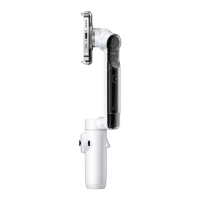
Flow 2 Pro User Manual
Activation
You will need to activate Flow 2 Pro in the Insta360 app before using it for the first time.
Steps:
1. Download the Insta360 app. Alternatively, search "Insta360" in any major app store or scan the
QR code on the box.
2. Enable Wi-Fi and Bluetooth on your phone.
3. Open the Insta360 app. The pop-up window should automatically display "Discover New
Devices". Select your device (the name is "Flow 2 Pro ******" by default, where ****** is the last six
digits of the serial number, which can be found on the product box or the app), and then follow the
on-screen instructions to connect and activate your gimbal.
4. The app will prompt you to update the firmware if a new version is available. Please follow the
on-screen prompts to update Flow 2 Pro's firmware. Do not power off Flow 2 Pro or exit the
Insta360 app during the update.
5. After successful activation, you'll be able to shoot both in the Insta360 app (a pop-up will
appear automatically to prompt you to do this) or in your phone's native camera or third-party apps
depending on compatibilty.



 To Next Page