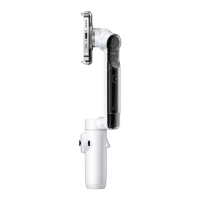
Flow 2 Pro User Manual
One-Tap Pairing Via NFC and Tracking (Android)
One-Tap Pairing Via NFC:
Flow 2 Pro supports NFC pairing with NFC-enabled phones to quickly connect the gimbal. It also
automatically launches the Insta360 app for faster shooting.
Notes:
1. Ensure that the Insta360 app is downloaded on your phone.
2. After the initial pairing, there's no need to re-align the phone with the NFC area. Simply power on
the gimbal and your phone's Bluetooth, mount the phone on the gimbal, and it will automatically
reconnect and launch the Insta360 app.
Steps:
1. NFC pairing can be done with the gimbal either folded or unfolded.
2. Turn on NFC, Wi-Fi and Bluetooth, and keep your phone idling on its home screen.
3. Place your phone's NFC area close to the gimbal's pairing area. A pop-up will appear on the
phone. Tap it, and the Insta360 app will automatically open.
a. Note: The pop-up interface may vary across different phone models. For some models, the
app will open automatically without needing to click the pop-up. Please follow the actual
display.
4. Once the app is opened, attach your phone to the gimbal. After the gimbal is unfolded, the app
will automatically open the shooting page, where you can use the tracking functionality within
the app.
5. After connecting, you can control the native camera for shooting or use the Insta360 app for
shooting and tracking. Android phones support the following two tracking modes:
a. Deep Track 4.0: Allows tracking of one or more persons within the Insta360 app.
b. Live Mode: Tracking in third-party apps such as live streaming apps and video calling apps
through Live Mode.
Notes:
1. Some button functions are unavailable when controlling or tracking with the phone's native
camera or third-party apps. For full details, please refer to the phone compatibility list on the
official Insta360 website.
2. Native camera control cannot be achieved through NFC pairing, it requires system Bluetooth to
connect the device.



 To Next Page