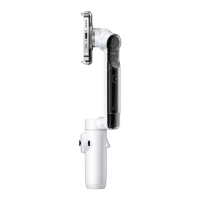
Flow 2 Pro User Manual
Apple Watch Control
Both the Insta360 app and iOS native camera support real-time preview, remote control of the
gimbal, and composition adjustment with Apple Watch.
Notes:
1. Currently only Apple Watches are supported.
2. iOS phones need to be paired with the gimbal via NFC before using this function.
3. If you use your watch to remotely control the native camera, your Apple Watch must be
updated to watchOS 11 or later. If you use your watch to remotely control the Insta360 app, your
Apple Watch must be updated to watchOS 8 or later.
4. During remote control, avoid exiting the app and ensure both devices are within Bluetooth
range.
5. Interface features may vary depending on the shooting mode. Please refer to the actual display
for accuracy.
Native Camera Remote Control
Steps:
1. Install the Insta360 app on your Apple Watch.
2. Enable Bluetooth on both the watch and phone, and ensure they are paired.
3. Mount your phone to Flow 2 Pro, ensuring the gimbal is awake.
4. Open the native camera app on both the phone and watch. You can then remotely preview or
control the gimbal and camera functions from the watch. Key features include:
○ Real-Time Preview: View the camera feed remotely via the watch.
○ Gimbal/Camera Control: Control shooting, gimbal centering, switch between front and
rear cameras, enable flash, and trigger live photos (in photo mode).
Note: Mode switching must
be done on the phone. In photo mode, you can enable/disable a 3-second countdown.
○ Adjust Shooting Angle: After pressing the Trigger Button and the Tracking Ring Light is
on, you can use the arrows in the preview to adjust the gimbal angle remotely. Activate "Quick
Rotation" by double-tapping the left or right arrow to rotate the gimbal 180°.



 To Next Page