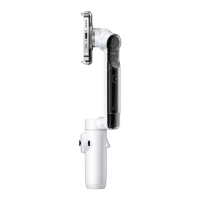
Flow 2 Pro User Manual
Shooting Interface
1. Home: Return to the home page.
2. Shot Lab: Provides AI shooting tutorials and ideas tailored to the environment. There are two
ways to access templates:
○ Scene Recognition: Enable or disable in General Settings. AI will analyze the current scene
in Video Mode and match it to a shooting scenario.
○ Voice Control: Enabled by default. Tap the icon and it will provide shooting suggestions
based on the keywords you provide. Enable or disable in General Settings.
3. Flash: Adjust the flash.
4. Filter: Select a photo or video filter.
5. Face Filter: Turn the Face Filter function on or off.
6. Gesture Control: Display Gesture Control settings and select from Capture, Single-Person
Tracking, Multi-Person Tracking. When Gesture Control is enabled, face the camera with your full
face visible and use gestures to interact:
activates multi-person tracking. To stop recording, repeat the gesture.
Note: Gesture Control works up to 13.1ft (4m) away from Flow 2 Pro. This feature consumes more
power and may cause the gimbal to heat up.
7. Teleprompter: Before recording, you can pre-enter text that will automatically scroll during the
recording. Use the gimbal's SmartWheel to adjust the scroll direction up or down.



 To Next Page