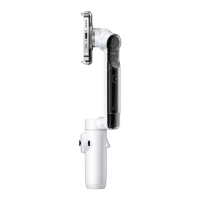
Flow 2 Pro User Manual
If you cannot connect via NFC, please check the following:
1. Ensure the NFC area on your phone is close to the NFC mark on Flow 2 Pro. If there is no
response, move the phone a few millimeters away, wait for around 10 seconds, then try again.
2. Ensure your phone has NFC enabled.
3. Remove any metal objects in close proximity to Flow 2 Pro's NFC area.
4. Ensure only one phone is in contact with Flow 2 Pro at a time.
5. Close any other NFC-enabled applications running on your phone.
Native Camera and Third- Party App Tracking
Once connected, you can control the phone's native camera or use it with a number of third-party
apps, or connect to the Insta360 app for enhanced functionality.
1. Apple DockKit Native Tracking (iPhone's native camera & third-party apps)
• To use Apple DockKit native camera tracking, open the iPhone's Camera app, position your
subject in frame, press the Trigger Button, and tracking will turn begin automatically. Note, this does
not work in Pano and Time-lapse Modes.
• When Flow 2 Pro is tracking, the Tracking Ring Light will be lit green and flash slowly. To stop
tracking, press the Trigger Button again. The Tracking Ring Light will then turn off.
• Third-party apps like TikTok and FaceTime are supported, allowing for easier content creation
and video calls.
• You can switch tracking between Apple devices as well, so you can use your iPhone as your
webcam for your Macbook or Apple TV and track people during video calls or online meetings.
2. Insta360 App Tracking (Deep Track 4.0 & Live Mode)
After connecting to the Insta360 app, you can use Deep Track 4.0 for tracking in third-party apps
such as live streaming apps and video calling apps through the Live Mode in the Insta360 app. Head
to the shooting page once Flow 2 Pro connects to the Insta360 app.
Notes:
1. To use DockKit tracking, you will need an Apple device compatible with DockKit, specifically an
iPhone 12 or later model, running iOS 17 or higher (we recommend iOS 18 or higher for



 To Next Page