Affinity
2.0
Additional Information Page 254
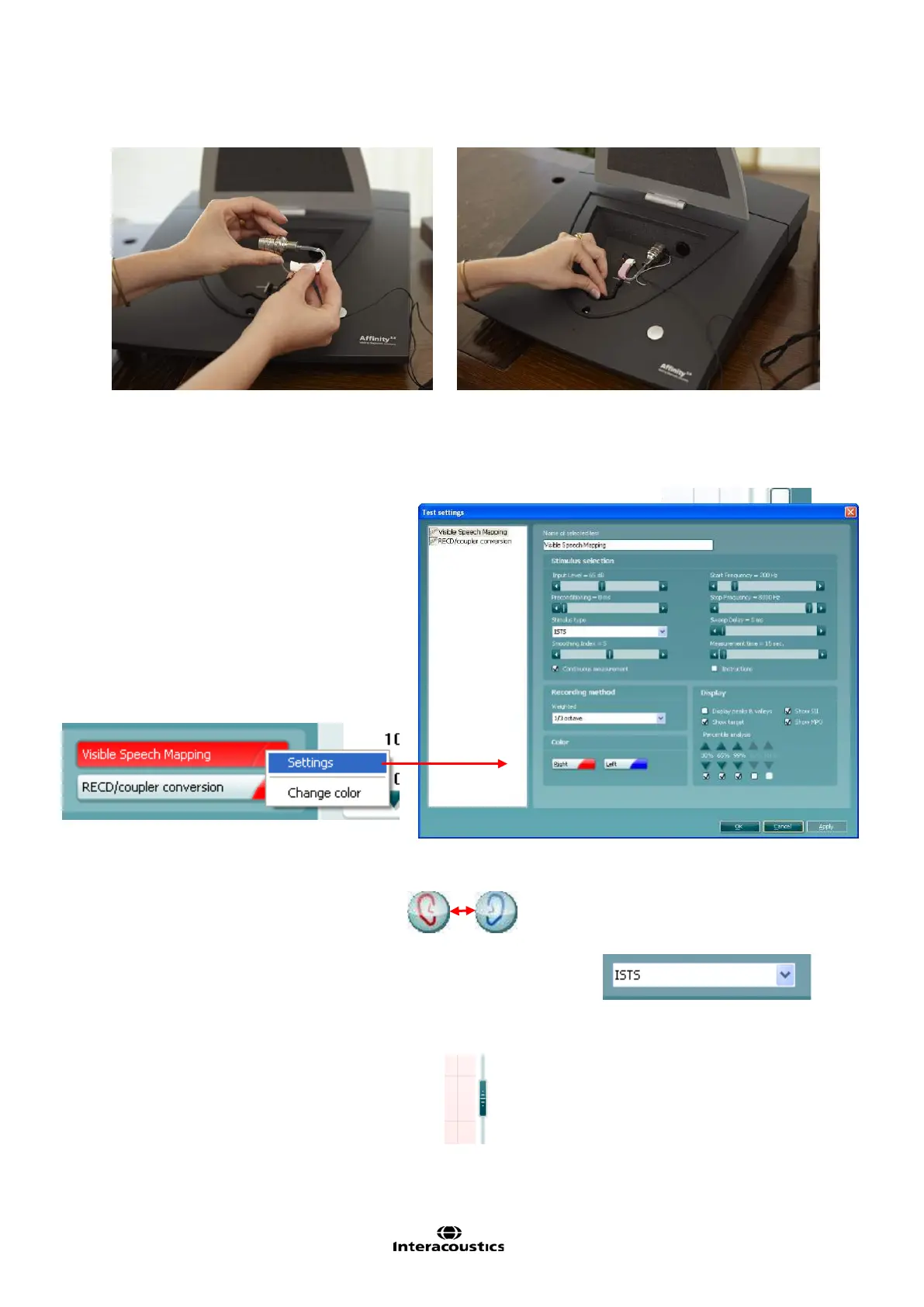
7) Click on the Visible Speech Mapping button if it is not already marked automatically.
Note: A right click on Visible Speech Mapping button allows you to enter the Settings menu or
Change colour of the curve.
8) Check that the information about client, fitting prescription and hearing aid to the right are correct by
pressing Show fitting prescription and test information.
9) Ensure that the correct Ear is selected .
Note that Both ears is not an option for coupler mode
10) Choose the preferred Stimulus in the corresponding dropdown list
.
Male Speech, Female, Speech, and ISTS are recommended.
Note the option to use Live Voice. In this case the test box lid should be left open.
11) Select input level using the Input level slider



 To Next Page