Affinity
2.0
Additional Information Page 337
4 Printing and making Reports
4.1 The Print Wizard
In the Print Wizard you have the option to create customized print templates which can be linked to individual
protocols for quick printing. The Print Wizard can be accessed in two ways.
a. If you want to make a template for general use, or select an existing one for printing: Go to Menu/
File/Print Layout… in any of the Affinity
2
Suite tabs (AUD, REM or HIT)
b. If you want to make a template or select an existing one to link to a specific protocol: Go to Module
tab (AUD, REM, or HIT) relating to the specific protocol and select Menu/Setup/AC440 setup,
Menu/Setup/REM440 setup, or Menu/Setup HIT440 setup. Select the specific protocol from the
drop down menu and select Print Wizard at the bottom of the window.
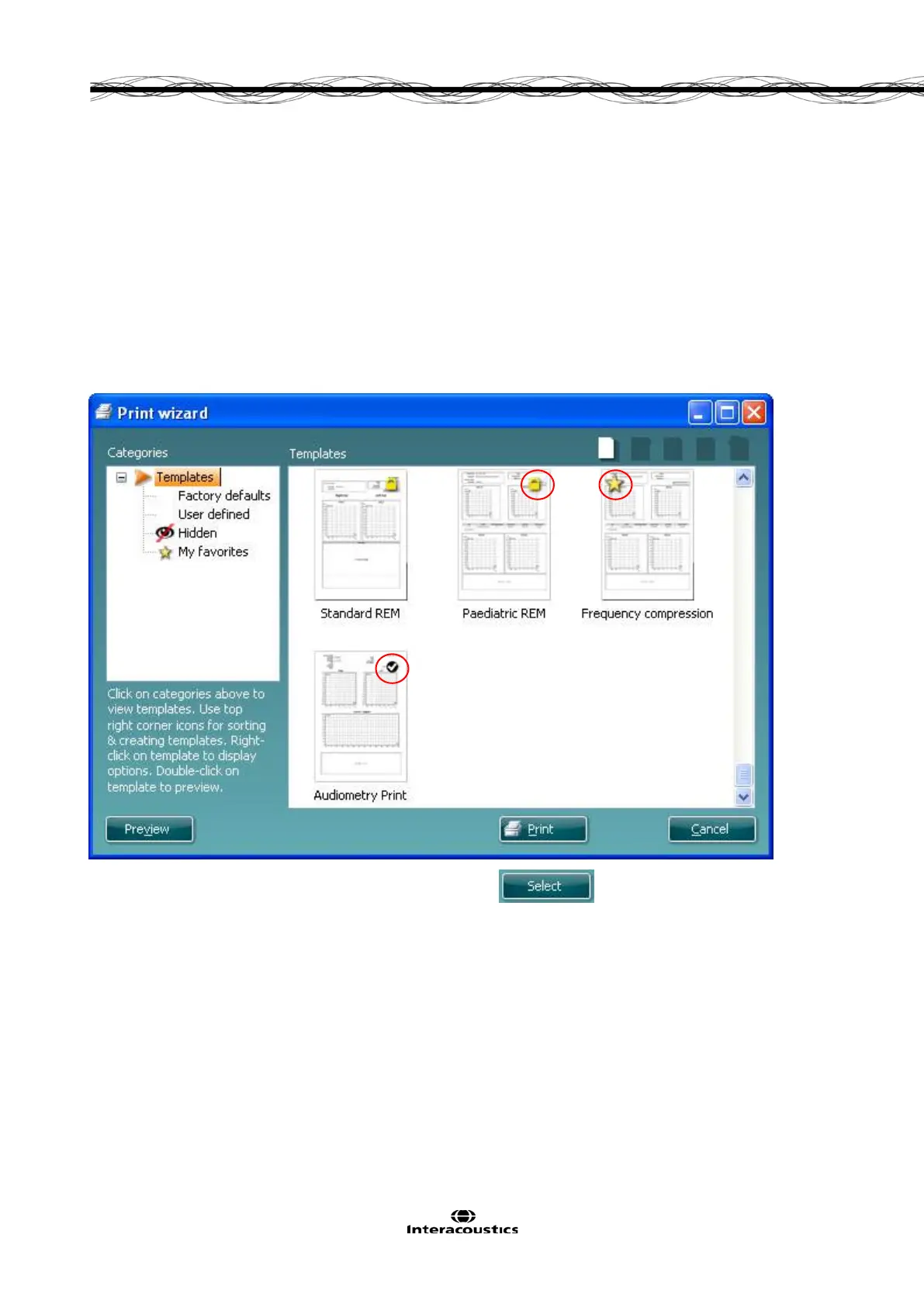
Now the Print Wizard window opens and shows the following information and functionalities:
1. Underneath Categories you can select
• Templates to show all available templates
• Factory defaults to show only standard templates
• User defined to show only custom templates
• Hidden to show hidden templates
• My favorites to show only templates marked as a favorite
2. Available templates from the selected category are shown in the Templates viewing area.



 To Next Page