D-0128588-D – 2022/02
VRA Screen - Instructions for Use - EN Page 11
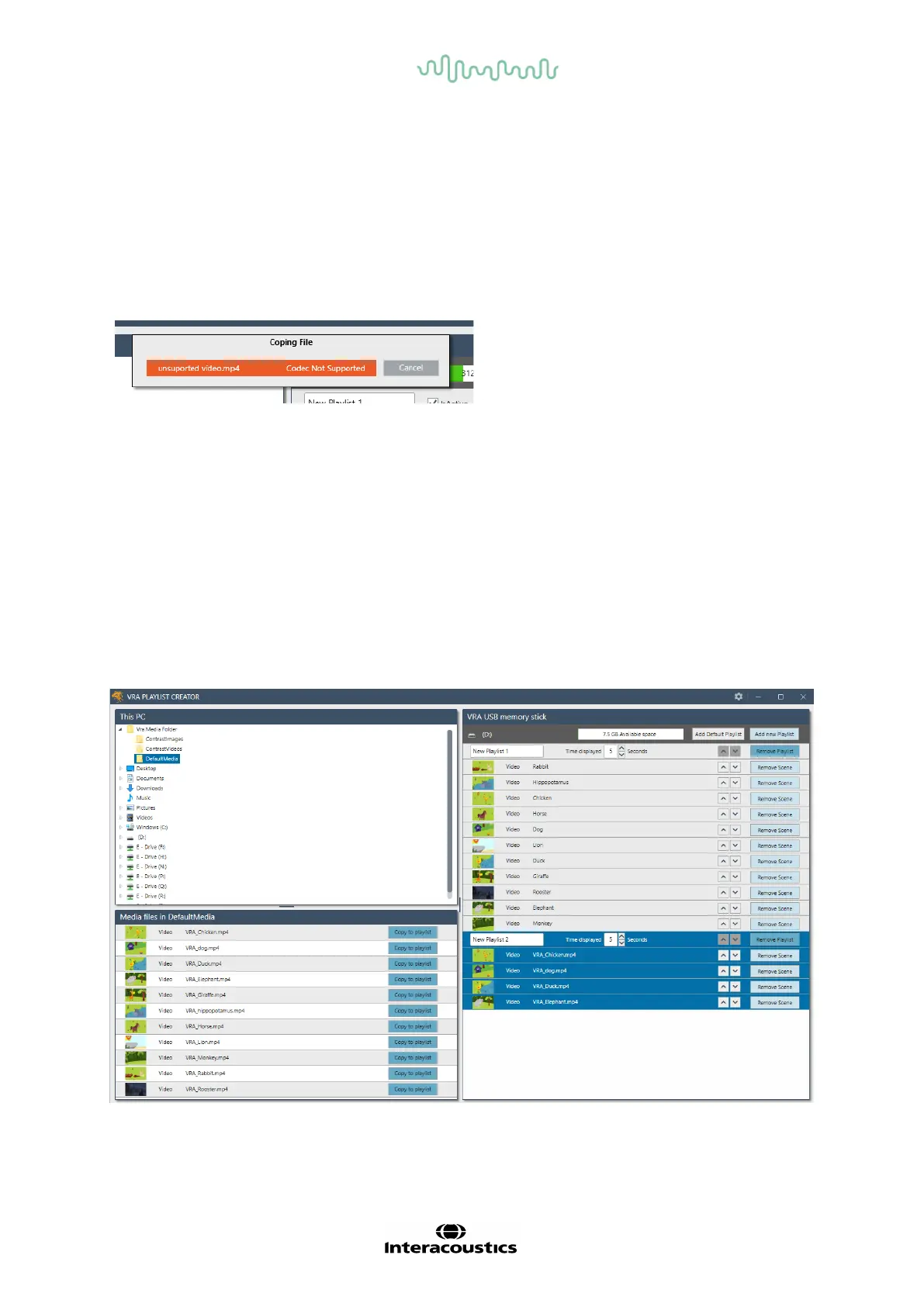
Press Copy to playlist or drag the image or video to playlist.
When multiple playlists are created, remember to choose the right one bef ore adding images or video
to the playlist. This is done by clicking in the line with playlist name and time displayed.
The selected playlist will appear dark blue.
When dragging the content from the media f iles list, the playlist where the image or video will be
added will appear light blue.
During transfer of the image or video, a box will appear to indicate the status of transf er.
If the status bar turns orange during transf er, this means that the image or video is not supported by
the system.
When a playlist is created there are multiple options to customize the content. For example, the time
shown on screen, which image should appear on what playlist, should a single video or image be
shown multiple times in a row etc.
4.3 Drag and drop
It is possible to create as many playlists as needed. When having more playlist, the user can drag im-
ages and videos between the dif ferent playlists by holding down on the item and dragging it to the de-
sired place on the playlist or to another playlist. The list the image or video are being dragged to, will
be marked by a bold line.
To copy an image or video f rom one playlist to another, hold down CTRL when dragging the item. This
can also be used f or copying an image or video to the same playlist.
When the desired playlists are added and customized, the USB can be removed from the main PC
and put in the VRA PC.
It is recommended by doing this as a saf ely removal of the USB in Windows.













 To Next Page