5
2.3 Battery charging
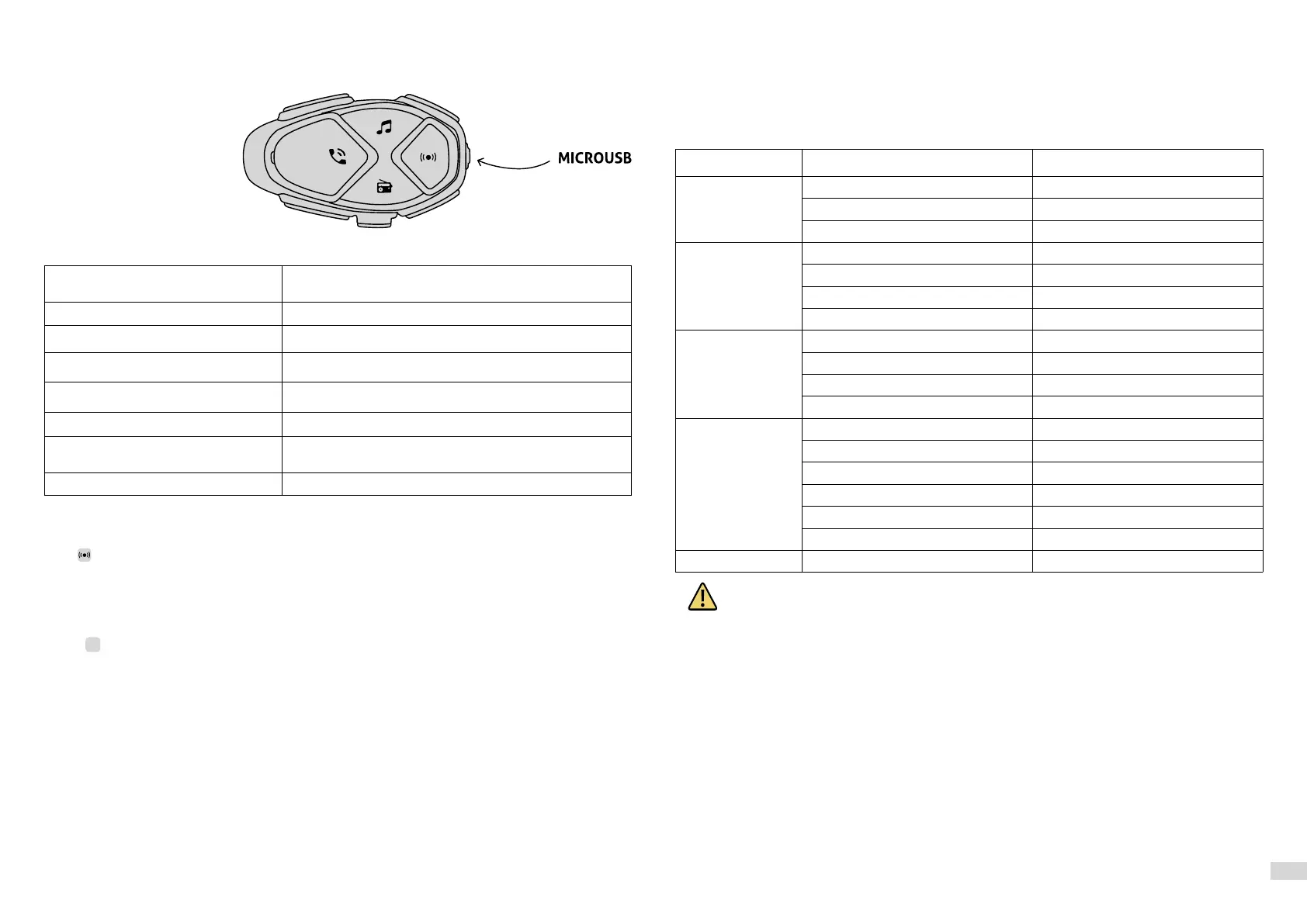
Insert the micro USB charging cable into the relevant intercom connector, as shown in the figure. Con-
nect the cable to a standard USB charger.
LED indications:
- red LED: charging.
- green LED: fully charged.
2.4 LED indication
Standby
Il led emette un doppio lampeggio BLU ogni 2 secondi
circa.
Intercom active
The LED turns BLUE with button intensity.
Device in phone/GPS pairing mode
The LED flashes RED/BLUE alternately.
Device in Intercom pairing mode
The LED flashes RED/GREEN alternately.
Searching for another Bluetooth headset
The LED flashes RED/GREEN rapidly and alternately.
Settings mode active
The LED lights up PURPLE.
Charging
The LED comes on RED during charging. The LED comes on
GREEN when charging is complete.
Low battery
The LED lights up RED.
2.5 First starting
Press to power the unit on. The device will go into Standby mode. If you bought a twin pack the two
units are already paired by factory.
2.6 Voice guide language setting
• With the device turned on, press and hold the UP button (<) till you hear “SETTINGS”. The LED will be
purple.
• Press
+
to select the desired language.
• Keep pressing the UP button (<) until the third beep to save the selection. The LED will flash blue.
2.7 Audio Source Management
AVANT Interphone can handle multiple audio sources at the same time. Below the possible combina-
tions allowed.
2.7.1 Audio sources - Two-way conference mode (Rider and passenger or two riders).
During the two-way conversation, you can listen to the GPS navigator’s instraction, music from smar-
tphone or the FM radio in the background, without interrupting the conversation. If the “SHARING CALL”
setting is active, the indications of the GPS navigator will be shared with the second rider ( or passenger).
The intercom conversation will be interrupted only in case of incoming call.
2.7.2 Audio sources - Multi-user conference mode (max 8 riders)
During multi-user conversation, you can listen to music from your smartphone or FM radio in the back-
ground, without interrupting the conversation. It is not possible to listen to the GPS navigation infor-
mation in the background or even to share the GPS navigator information. In the case of an incoming
call, the device will be isolated from the rest of the group, the other participants will however continue
to converse in a conference.
2.8 Voice Commands
AVANT Interphone can be controlled through a set of voice commands. To use this function, say a com-
mand from the following table.
Mode Action Voice Command
All Raise volume Ehi Interphone volume up
Lower volume Ehi Interphone volume down
Check the battery status Hey Interphone, Check Battery
Music Turn on music Ehi Interphone music on
Turn off music Ehi Interphone music off
Play the next track Ehi Interphone next track
Play the previous track Ehi Interphone previous track
FM Radio Turn on the radio Ehi Interphone radio on
Turn off the radio Ehi Interphone radio off
Skip to the next radio station Ehi Interphone next station
Skip to the previous radio station Ehi Interphone previous station
Phone Call a favorite number Hey Interphone, speed dial
Redial the last number Ehi Interphone redial number
Answer an incoming call Answer
Ignore an incoming call Ignore
Activate Siri Ehi Siri
Activate Google assistant Ok Google
Intercom Activate intercom communication Ehi Interphone intercom on
Voice Commands are not available during Intercom conversation.
2.9 Software
2.9.1 Interphone updater
The INTERPHONE UPDATER software allows you to update the device’s firmware and to set an extra lan-
guage directly from your PC or MAC. To download INTERPHONE UPDATER, visit www.interphone.com.
2.9.2 Interphone menu
The INTERPHONE MENU software is a control panel, to be used to check the firmware version installed
on the device, assign the phone number for speed dialing, for FM radio memories and much more. To
download Interphone menu, visit www.interphone.com.
2.9.3 APP Interphone for smartphone
The Smartphone Interphone App allows you to use the main functions and configure the device settin-
gs. You can download the Interphone App for Android Smartphone or iPhone from www.interphone.
com.


 To Next Page
 Loading...