EasyManua.ls Logo

ION PICS 2 PC - User Manual

ION PICS 2 PC
40 pages
Print Icon
To Next Page IconTo Next Page
Loading...
PICS 2 PC
USER GUIDE
ENGLISH ( 1 – 6 )
GUÍA DEL USUARIO
ESPAÑOL ( 7 – 12 )
GUIDE D’UTILISATION
FRANÇAIS ( 13 – 18 )
GUIDA UTENTE
ITALIANO ( 19 – 24 )
BEDIENUNGSANLEITUNG
DEUTSCH ( 25 – 30 )
GEBRUIKERSHANDLEIDING
NEDERLANDS ( 31 – 36 )

Other manuals for ION PICS 2 PC

Questions and Answers

  • M
    Michelle WilsonJul 31, 2025
    How to solve ION PICS 2 PC software loading issues?
    • J
      Jennifer SnyderJul 31, 2025
      If you are having trouble loading the ION Scanner software and/or driver, it could be due to an incompatible operating system. Ensure that you are running Windows XP or Vista.
  • G
    Gina Jackson MDAug 5, 2025
    How to fix ION Scanner PICS 2 PC 'device not recognized' error?
    • J
      jason23Aug 5, 2025
      If your computer doesn't recognize the ION Scanner PICS 2 PC and shows a 'device not recognized' message, it might be because the PICS 2 PC is not plugged into a high-speed USB port. Your computer must have USB 2.0 to communicate with your PICS 2 PC. Check to see if USB 2.0 is installed on your computer. If not, you can upgrade your USB ports; this hardware is available at most electronic stores.
  • C
    Crystal WatsonAug 12, 2025
    What to do if my ION Scanner PICS 2 PC is not recognized even with USB 2.0?
    • C
      Connor CortezAug 12, 2025
      Even if you have USB 2.0 installed, all of your USB ports may not be high speed. Check all your USB ports to find the 2.0 compatible ports.
  • B
    Barbara LeeAug 17, 2025
    Why are my ION PICS 2 PC slides overexposed?
    • T
      Tamara DuncanAug 17, 2025
      If your ION Scanner PICS 2 PC is working but some slides, negatives, or photos look overexposed, it may be due to the time for auto exposure varying according to your computer configuration. The image copier self adjusts to your slide, negative or photo exposure. Wait for the live view window to stop adjusting for exposure and then click “Capture” or press Scan button on top of image copier. Also, check your slides, negatives, or photos to see if they may have been overexposed when originally developed. Several photo adjusting software applications are available to “clean-up” your newly digitized picture.
  • J
    Jason LewisAug 25, 2025
    What to do if ION Scanner shows Windows warning about Microsoft logo testing?
    • A
      Amy HarperAug 25, 2025
      If you receive a warning from Windows that the ION Scanner device “has not passed Microsoft logo testing”, choose “Continue anyway”. The image copier will not harm your computer. (Windows certification is in process for this software)

Summary

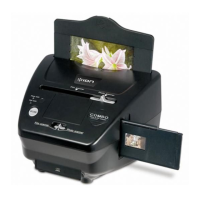
Welcome to PICS 2 PC

Safety Precautions

Essential safety warnings and guidelines to follow before operating the PICS 2 PC scanner.

FCC Compliance Notice

Information regarding FCC rules for digital devices and potential radio frequency interference.

Box Contents and Features

Product Overview

Identification and description of the PICS 2 PC scanner's physical components and included accessories.

Driver and Software Installation

Using Scanner Holders

Instructions for loading slides, negatives, and photos into the appropriate holders for scanning.

Scanning Operation Guide

Scanning Workflow

Step-by-step instructions for scanning images using the PICS 2 PC and its software.

Technical Specifications

Troubleshooting and Resolutions

Solutions for common issues encountered with the PICS 2 PC scanner and its operation.

ION PICS 2 PC Specifications

General IconGeneral
Megapixel5 MP
Sensor typeCMOS
Daily duty cycle (max)- pages
Compatible operating systemsWindows XP, Vista, Windows 7
Scanner type-
Product colorBlack
Color scanningYes
Input color depth- bit
Maximum scan size- mm
Optical scanning resolution- DPI
Power supply typeUSB
USB version2.0
Standard interfacesUSB 2.0

Related product manuals