Need help?
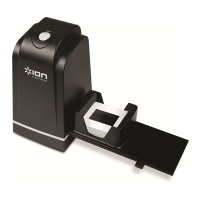
Do you have a question about the ION Slides Forever and is the answer not in the manual?
Brief welcome and product philosophy.
Lists all items included in the product package.
Provides website links for product information and assistance.
Outlines critical safety guidelines for operating the device.
Instructions for installing the necessary scanning software.
Steps to connect the device to a computer via USB.
Guide to launching and setting up the scanning application.
Instructions on how to load slides or negatives into the device.
Steps for scanning, previewing, and saving digitized images.
Describes the port for connecting the device to a computer.
Location for inserting the loaded feeder or holder.
Indicates the device's power status when connected.
Button function to initiate the scanning process.
Detailed steps for loading different types of film media.
Instructions for using the specific slide feeding mechanism.
Instructions for using the negative film feeding mechanism.
Instructions for using the slide holder accessory.
Connect device, insert media, and launch software.
Set save location, film type, and scan quality.
Initiate scan, preview image, and prepare for editing or saving.
Features for flipping, rotating, and adjusting brightness/color.
Process for scanning subsequent slides or negatives.
How to save scanned images, change save location, or delete files.
Instructions on how to exit the scanning application.
Solutions for when the computer cannot detect the Slides Forever.
Troubleshooting steps for CD drive or software warnings.
Addresses overexposed images and black borders.
Lists detailed technical data for the device.
Information on product and software trademarks and licensing.

 To Next Page
 General