C
HAPTER
4
| Basic Management Tasks
Managing System Files
– 105 –
WEB INTERFACE
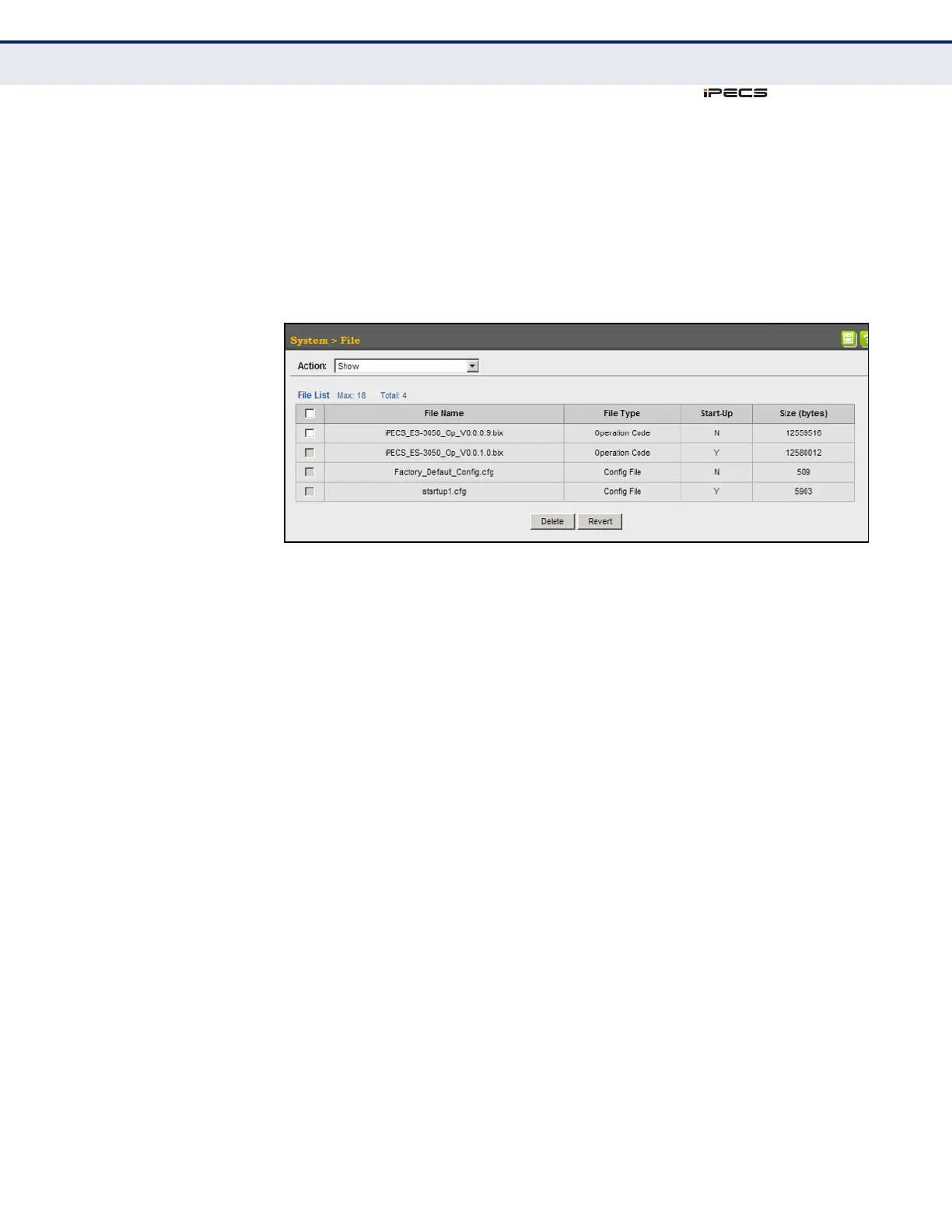
To show the system files:
1. Click System, then File.
2. Select Show from the Action list.
3. To delete a file, mark it in the File List and click Delete.
Figure 11: Displaying System Files
AUTOMATIC
OPERATION CODE
UPGRADE
Use the System > File (Automatic Operation Code Upgrade) page to
automatically download an operation code file when a file newer than the
currently installed one is discovered on the file server. After the file is
transferred from the server and successfully written to the file system, it is
automatically set as the startup file, and the switch is rebooted.
CLI REFERENCES
◆ "upgrade opcode auto" on page 553
◆ "upgrade opcode path" on page 554
USAGE GUIDELINES
◆ If this feature is enabled, the switch searches the defined URL once
during the bootup sequence.
◆ FTP (port 21) and TFTP (port 69) are both supported. Note that the
TCP/UDP port bindings cannot be modified to support servers listening
on non-standard ports.
◆ The host portion of the upgrade file location URL must be a valid IPv4
IP address. DNS host names are not recognized. Valid IP addresses
consist of four numbers, 0 to 255, separated by periods.
◆ The path to the directory must also be defined. If the file is stored in
the root directory for the FTP/TFTP service, then use the “/” to indicate
this (e.g., ftp://192.168.0.1/).
◆ The file name must not be included in the upgrade file location URL.
The file name of the code stored on the remote server must be
iPECS_ES-3050_Op.bix (using upper case and lower case letters



 To Next Page