10
Connecting to Your HDMI Displays
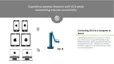
Please follow the steps below to connect your VZ-X directly to a TV, projector or monitor via HDMI:
1
Connect an HDMI cable (not included) to the HDMI port of VZ-X. Then, connect the other end of the cable to the HDMI port of a TV,
projector or monitor.
2
Connect the included Micro-USB cable to the Micro-USB port of VZ-X. Then, connect the other end of the cable to the USB port of your
TV, projector or computer to provide power for VZ-X. Or, you can also power VZ-X on by connecting the cable to a 5V/2A USB power
adapter (not included) and then to an outlet.
Note: If VZ-X is on a full charge or there’s sufficient battery power for your session, you do not need to connect VZ-X to any USB port or outlet for powering it on.
3
Check the Mode Switch of VZ-X. Make sure you’ve switched it to USB/HDMI mode.
4
Turn VZ-X on using the Power Switch. A live image from VZ-X should appear on your HDMI display. VZ-X is now ready for use.


 To Next Page