Accessing VZ-X’s Advanced Settings
You can access VZ-X’s advanced settings to manage its Wi-Fi network settings, setup password protection, update
firmware, and do a quick functionality test. To do so, please ensure VZ-X is connected to your device wirelessly and that no
other software is accessing it. Then, follow the steps below:
1
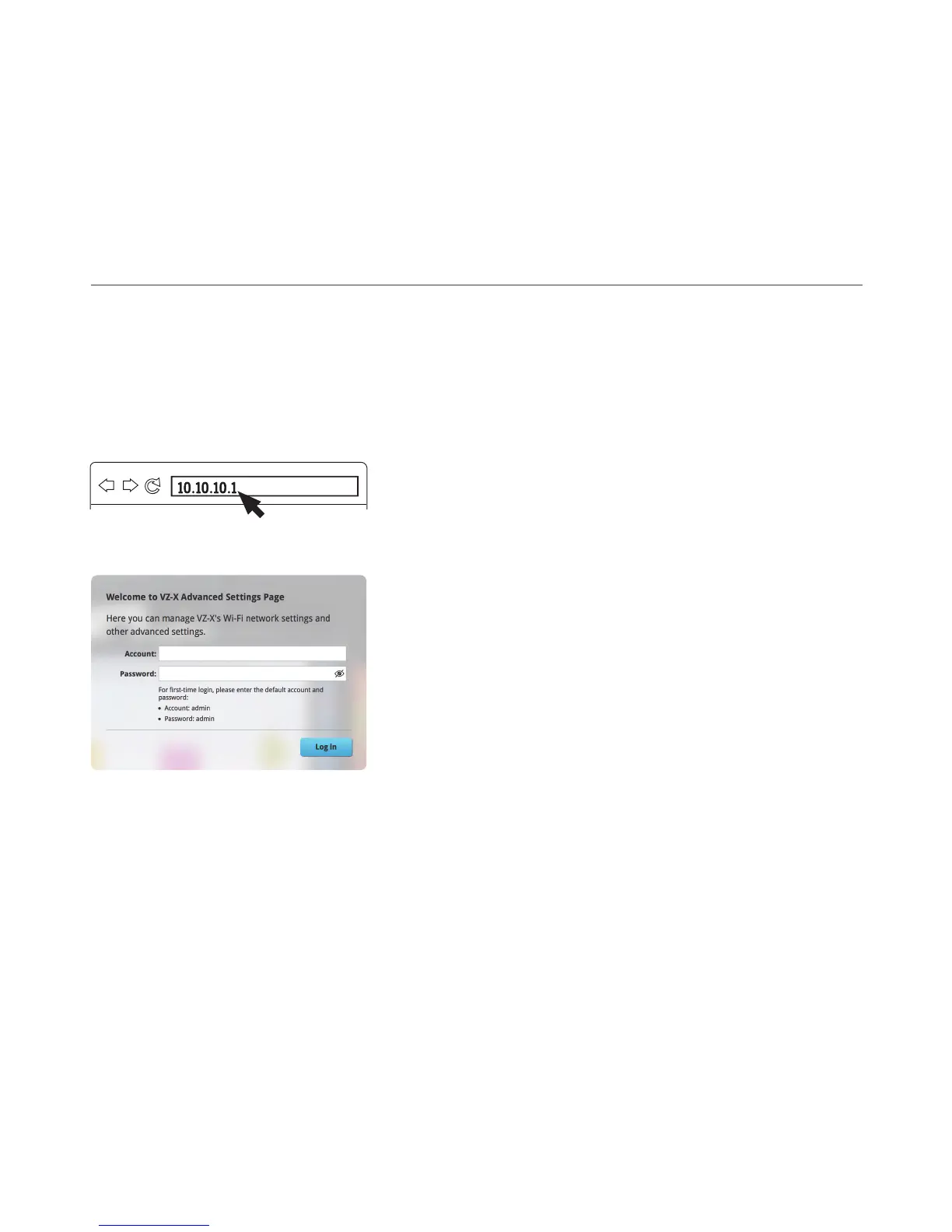
Launch your browser and type 10.10.10.1 into the address bar.
2
Enter your login account and password. For first-time login, the default
account and password is admin.
12
In the Advanced Settings Page, you may:
(i) Rename VZ-X’s SSID, change it into a hidden SSID, add a password to it, or, change VZ-X’s wireless security protocol under Settings”.
(ii) Change and set VZ-X’s IP address, DHCP IP addresses and subnet mask under “System”.
(iii) Change the login account and password under “Account”.
(iv) Update VZ-X’s firmware under “Firmware Update”.
(v) Do a quick functionality test under “Quick Test”.


 To Next Page