20 Chapter 2 Music Features
Downloading Music and Podcasts From Your Computer to
iPod nano
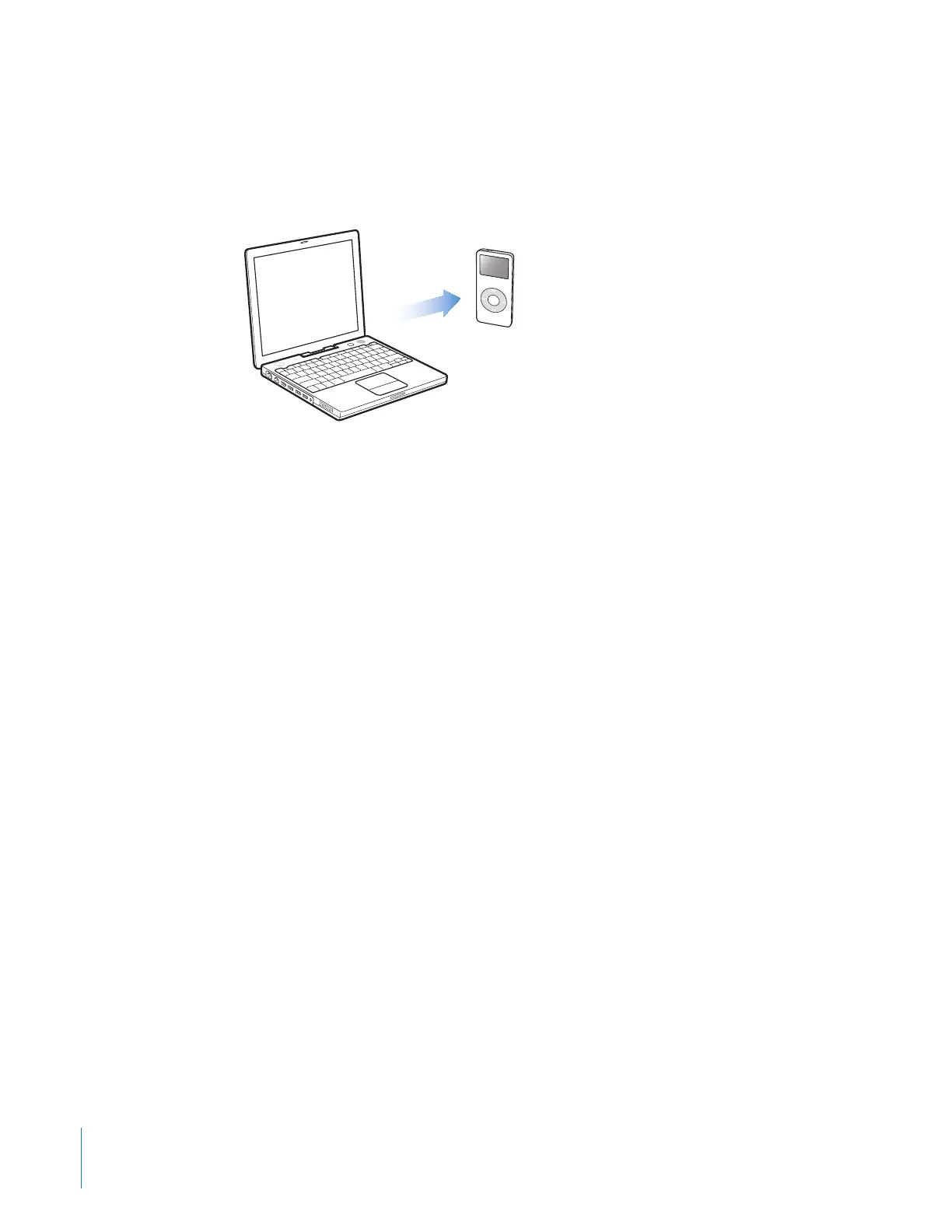
After your music is imported and organized in iTunes, you can easily download it to
iPod nano.
To set how music is downloaded from your computer to your iPod nano, you connect
iPod nano to your computer, and then use the controls in iTunes to change iPod nano
settings.
You can set iTunes to download music to your iPod nano in three ways:
 Automatically update all songs and playlists: When you connect iPod nano, it is
automatically updated to match the songs in the iTunes library. Any other songs on
iPod nano are deleted.
 Automatically update selected playlists: When you connect iPod nano, it is
automatically updated to match the songs in playlists you select in iTunes. Any other
songs on iPod nano are deleted.
 Manually update iPod nano: When you connect iPod nano, you can drag songs and
playlists individually to iPod nano, and delete songs and playlists individually from
iPod nano. When you manage songs yourself, you must manually eject iPod nano
from iTunes before you can disconnect it.
Updating iPod nano Automatically
By default, iPod nano is set to update automatically with all songs and playlists when
you connect it to your computer. This is the simplest way to download music to your
iPod nano. You just connect iPod nano to your computer, let it add songs automatically,
and then disconnect it and go. If you added any songs to iTunes since the last time you
connected iPod nano, they are downloaded to iPod nano. If you deleted songs from
iTunes, they are deleted from iPod nano.



 To Next Page