English | 04
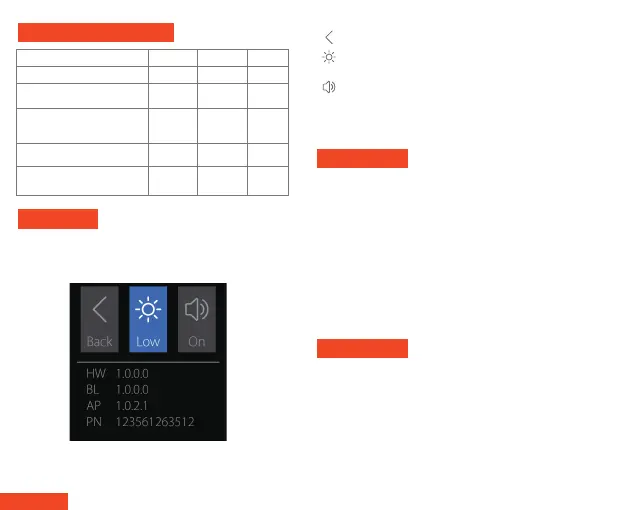
System Setting
When the charger does not have a battery inserted, long press
the two channel selection buttons to enter the system setting
interface.
In the system setting interface, press the first channel button to
switch the selected option, and press the second channel button
to set the selected option parameters.
Return to the previous
Display brightness Settings, there are
three options: low, medium, high
NP2 Battery Charger Charging
ISDT continually strive in the pursuit of perfection on all
products. Our R&D engineers concentrate their effort over days
and months on the enhancement of the functions and
algorithms, as well as the visual optimization. Continuous
improvement of the performance is shaped up in the firmware
upgrade program. Latest upgrade firmware can be downloaded
from the ISDT official website:
The upgrade steps of NP2 smart charger are as follows:
1. Connect PC and NP2 with USB type-C data cable;
2. Start the firmware update program and update the firmware
to NP2 according to the software guidelines;
Firmware Update
All pictures, statements and text information of this product are
for reference only. Please refer to the actual information on the
official website www.isdt.co. ISDT reserves the right for final
explanation and modification of the specification.
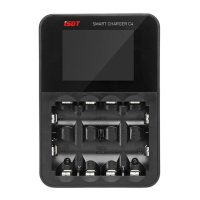
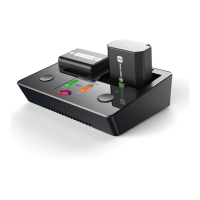
1. NP2 smart charger
2. USB type-C cable
Packaged Items
Beeper volume setting with both on and off options
Hardware version
Boot version
App version
PN code
HW BL
AP
PN
Cbuufsz!Uzqf
Gvmm!dibshf!wpmubhf 9/51W 9/51W 5/31W
2111nB 611nB 711nB
3/6i 3/6i 3/6i
2/6i 2/6i 2/6i
2611nB 911nB 2111nB
Hfofsbm!npef!nbyjnvn!
dibshf!dvssfou
Opsnbm!npef!nbyjnvn!dibshf!
dvssfou!opsnbm!npef
)bqqspyjnbuf!gvmm!dibshf!ujnf*
Nbyjnvn!!dibshjoh!dvssfou!
jo!gbtu!npef
B!gvmm!dibshf!jo!gbtu!npef
)bqqspyjnbuf!gvmm!dibshf!ujnf*
OQ.G[211 OQ.GX61 OQ.CY2


 To Next Page