
 Need help?
Do you have a question about the Jabra Pro 9460 Mono and is the answer not in the manual?
Details the physical cable connections between the Jabra headset, EHS adapter, and Avaya phone, including specific cable types.
Guide to selecting 'Desk phone', 'Connect to a desk phone?', and 'Manual' in the SmartSetup Wizard for phone connection.
Instructions for selecting the 'DHSG' adapter type and setting the phone set-up switch to position 'A'.
Recommendation for setting the microphone volume to 7 out of 13 for optimal performance.
Guidance on configuring the audio path via the Jabra Setup server or contacting support if unavailable.
The Jabra Pro 9460 Mono is a professional wireless headset system designed for seamless integration with a wide range of Avaya desk phones, including models from the 14xx, 16xx, 94xx, 95xx, and 96xx series. This system, when paired with the Jabra Link 14201-20 EHS adapter, enables users to manage calls directly from their headset, offering enhanced mobility and productivity in office environments.
The core function of the Jabra Pro 9460 Mono is to provide a high-quality, hands-free communication solution for desk phone users. It allows for remote call control, meaning users can answer, end, and mute calls directly from their headset, even when away from their desk. This capability is facilitated by the Electronic Hook Switch (EHS) adapter, which electronically connects the headset base to the desk phone, mimicking the actions of lifting and replacing the phone's handset. The mono design ensures that one ear remains open to the surrounding environment, which can be beneficial for office workers who need to stay aware of their surroundings or interact with colleagues.
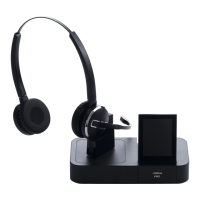
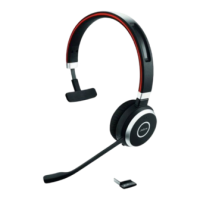
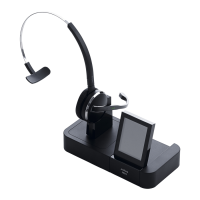
The system comprises a wireless headset and a base unit. The base unit serves as the charging station for the headset and the central hub for connectivity. It features a touchscreen display that guides users through the setup process and provides access to various settings. The headset itself is designed for comfort during extended wear, featuring a lightweight construction and an adjustable headband. It incorporates noise-canceling microphone technology to reduce background noise for the caller, ensuring clear communication.
Setting up the Jabra Pro 9460 Mono with an Avaya phone involves a series of straightforward steps, primarily focused on connecting the base unit to the EHS adapter and then to the desk phone. The process begins by connecting the supplied phone cable from the "phone" socket on the Jabra Pro 94x0 base to the "phone" symbol socket on the EHS adapter. Following this, a red cable connects the "AUX" socket on the EHS adapter to the "AUX" socket on the Jabra Pro 94x0 base. A white cable, marked "C," then connects the "Headset/handset" socket on the EHS adapter to the "headset" socket on the Avaya phone. For specific Avaya phone models like the 1408/1416 or 9404/9408, an alternative white cable marked "A" is used instead of "C." Finally, a signal sensor is connected to the EHS adapter and positioned in the middle of the phone's loudspeaker to detect incoming call rings. It's crucial to ensure all cables are connected according to their colored markings for the device to be fully functional.
Once the physical connections are established, the system guides the user through a SmartSetup Wizard on the Jabra Pro 94x0 base's touchscreen. This wizard simplifies the configuration process. Users navigate to "SETTINGS," then "PHONE SETTINGS," and select "Desk phone." When prompted "Connect to a desk phone?", they choose "Manual." The wizard then asks to "SELECT ADAPTER," where "DHSG" should be chosen, indicating the type of EHS protocol used with Avaya phones.
Further configuration involves setting the clear dial-tone switch on the base unit. The manual recommends setting this switch to position "A" for optimal performance with the specified Avaya phones. The microphone level also needs to be adjusted to ensure clear outgoing audio. The recommended setting for microphone volume is 7 out of 13, providing a good balance between sensitivity and preventing distortion.
The system also offers a "Guided setup" option, which allows users to dial into a local Jabra Setup server. This server can automatically configure the audio path, simplifying the setup process further. If the setup server is unavailable, users are advised to contact their local Jabra Support team for assistance.
The remote call control functionality is a key usage feature. When an incoming call is detected, the headset will ring, and the user can answer by simply pressing a button on the headset. Similarly, calls can be ended or muted from the headset, providing freedom of movement within the office. This hands-free operation is particularly beneficial for individuals who frequently multitask or need to move around while on calls.
While the manual primarily focuses on initial setup and usage, the Jabra Pro 9460 Mono is designed for ease of maintenance. The base unit serves as a charging dock, ensuring the headset is always ready for use. Keeping the headset docked when not in use helps maintain battery life and ensures it's fully charged for the next call.
The robust construction of both the headset and the base unit suggests a design intended for durability in a typical office environment. Regular cleaning of the headset and base, particularly the charging contacts, can help maintain optimal performance and extend the lifespan of the device. Using a soft, dry cloth for cleaning is generally recommended to avoid damaging electronic components.
Firmware updates, though not explicitly detailed in this excerpt, are a common maintenance aspect for modern communication devices. Jabra typically provides firmware updates to improve performance, add new features, or address compatibility issues. Users would usually be able to perform these updates through a connected computer, ensuring their device remains up-to-date.
The modular design, with separate cables for different connections, also aids in maintenance and troubleshooting. If a specific cable becomes faulty, it can often be replaced without needing to replace the entire system. The clear labeling of ports and cables further simplifies any necessary re-connections or troubleshooting steps.
In summary, the Jabra Pro 9460 Mono offers a comprehensive wireless communication solution for Avaya desk phone users, emphasizing ease of setup, intuitive operation, and robust remote call control features, all designed to enhance productivity and user experience in a professional setting.
 General
| Headset type | Monaural |
|---|---|
| Product type | Headset |
| Product color | Black |
| Wearing style | Ear-hook, Head-band |
| DECT connectable | Yes |
| Recommended usage | Office/Call center |
| Type | DECT telephone handset |
| Compatibility | Telephone |
| Wireless range | 150 m |
| Connectivity technology | Wireless |
| Microphone type | Boom |
| Battery recharge time | 2 h |
| Cables included | Phone, USB |
| Ear pad material | Leatherette |
 Weight and Dimensions
| Weight | 31 g |
|---|






 To Next Page


