PhaseStation 53100A User’s Manual V1.04 25-Apr-2022 71
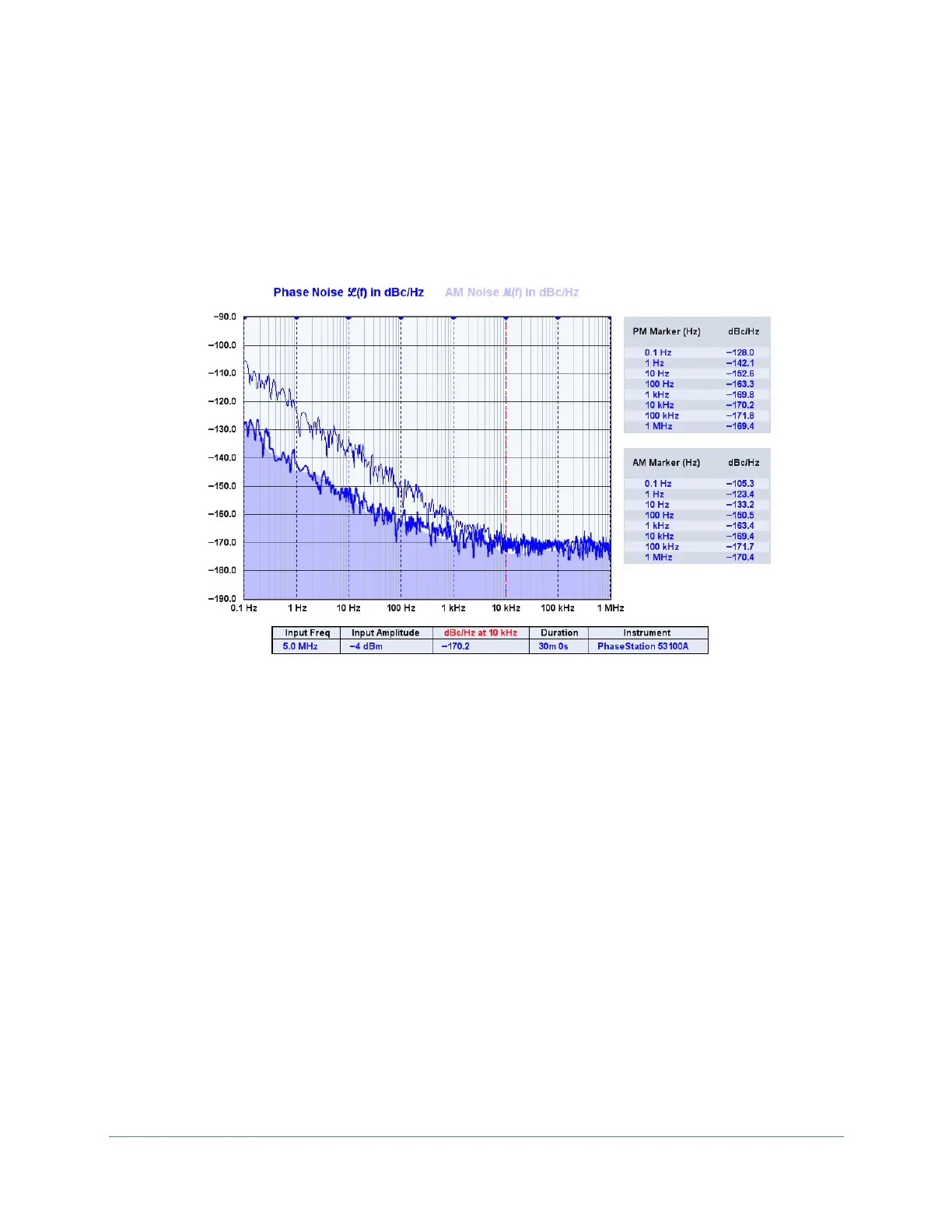
Using noise markers
To add up to 10 noise markers at specified offset frequencies, hold down the Shift key
and left-click on the graticule area of the noise plot near the desired column. A marker
will appear at the top of the graticule area. If the selected plot includes valid trace data
at the specified offset frequency, a corresponding entry will appear in the noise marker
table at right, displaying the offset frequency and noise power at that point in the trace.
To remove an existing noise marker, simply shift-left click near the marker’s column on
the screen. All of the currently-defined markers may be cleared with Display→Clear
noise markers (Ctrl-F4).
The visibility of the noise marker table can be toggled with Display→Show numeric
tables (Ctrl-n). If the noise marker table is not visible despite being enabled, ensure that
at least one marker is placed at an offset that lies within the limits of the selected trace.
Markers located at offsets where no trace data exists will be shown on the graticule, but
will not appear in the table. When no noise markers are eligible for display, the table
itself will not be rendered.



 To Next Page